Create your RUIT account
The RUIT sign-up in five steps: two questions, the three-field form and the screen that builds your dashboard. With Google or with your own email.
In this tutorial you create your RUIT account and land on your Home dashboard. It takes one minute, and there is no email to confirm and no card to hand over. The 14-day trial does not start here: you activate it right afterwards, when you finish the welcome.
You need a permanent email address (temporary ones are rejected) or a Google account. On iOS you can use your Apple account as well.
1. Say what you are here for
Go to app.ruit.es and pick one of the three cards: To buy, To sell or Both. There is no continue button: choosing one takes you to the next screen. This tutorial follows the To sell route.
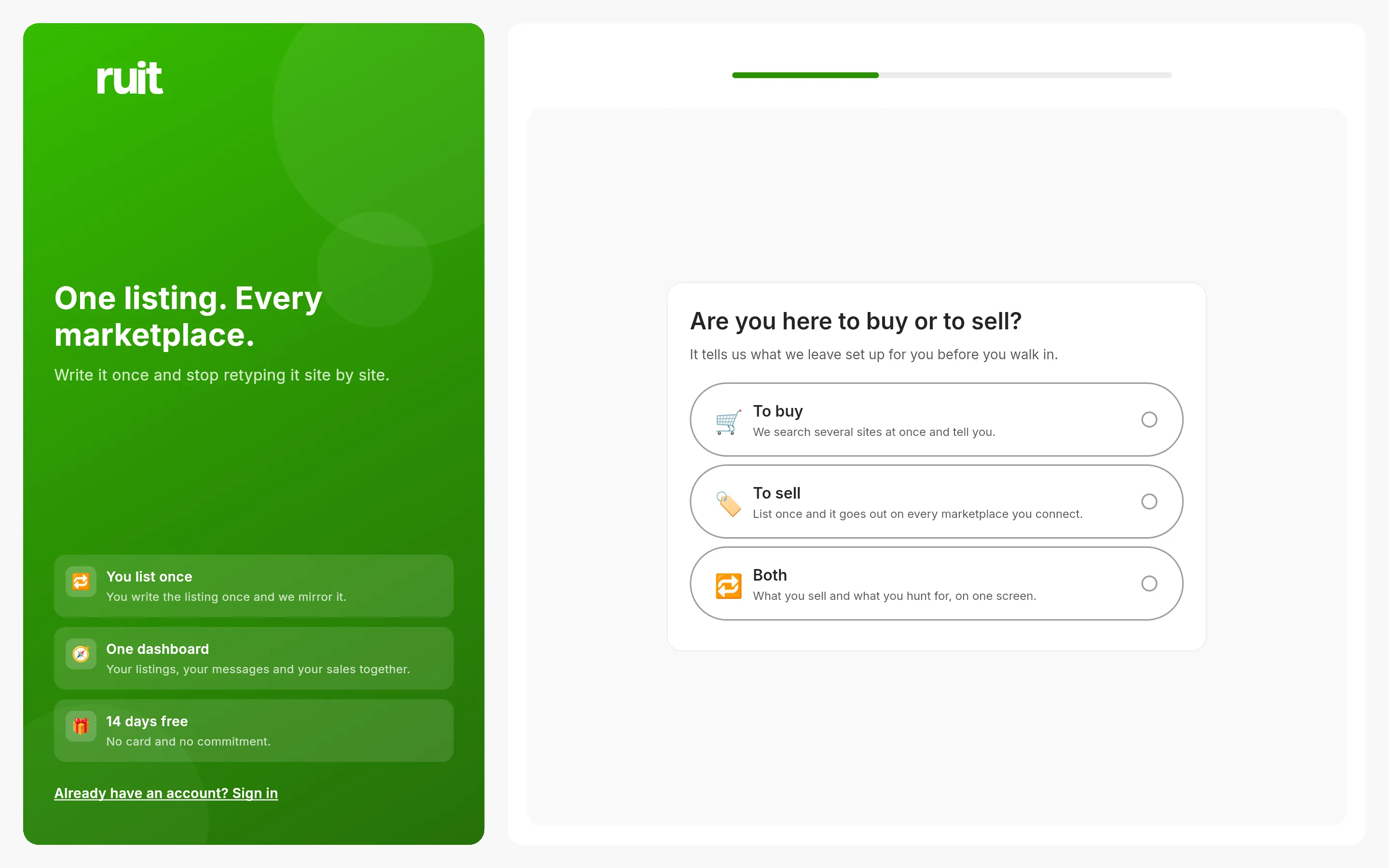
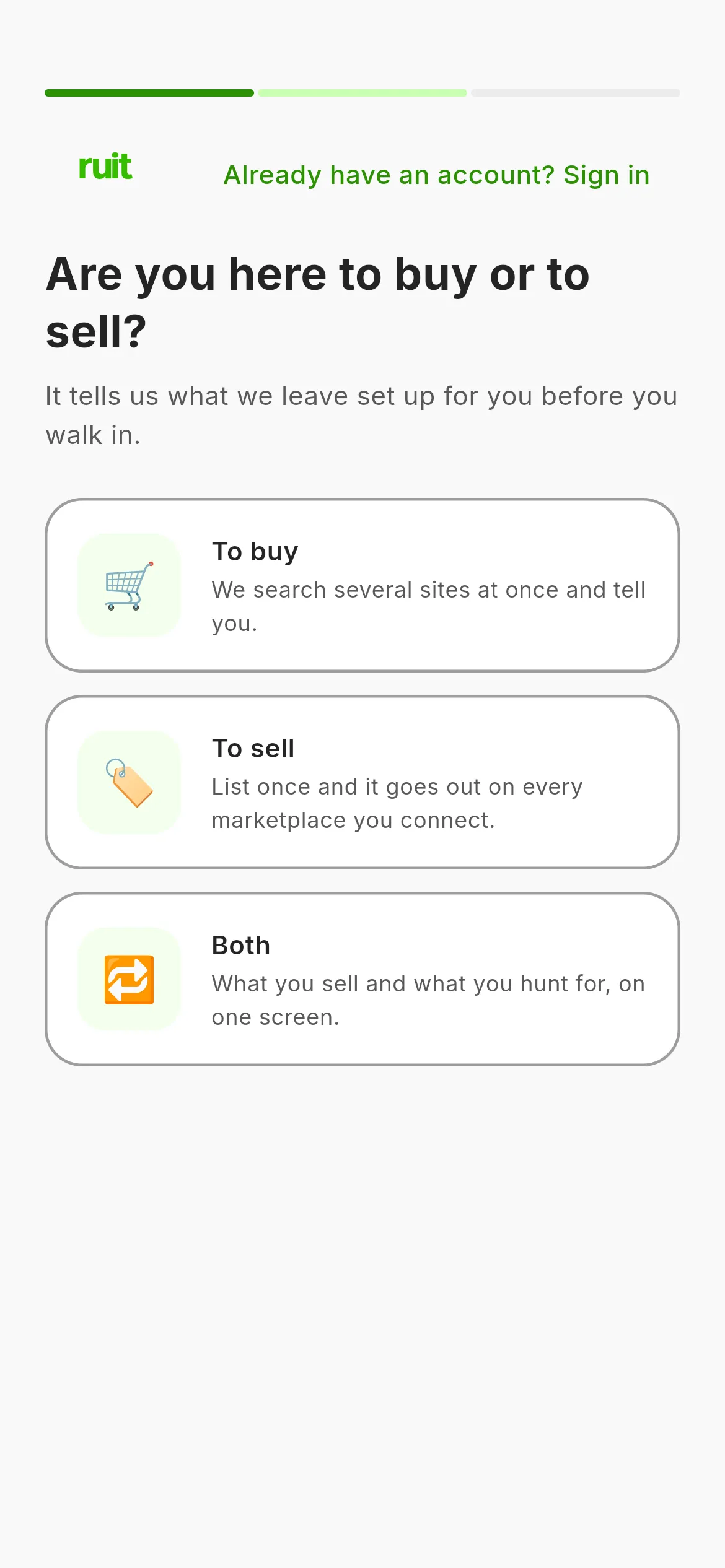
The first screen. Pick a card and the app moves on by itself. On a computer you see a green panel on the left with what RUIT does for you; on a phone, just the question.
2. Say how many items you list a month
Pick the band that looks most like you: 1 to 10, 11 to 50, 51 to 200 or more than 200. It is not a commitment: it decides where we start with you and which plan fits. At the top you see the progress bar reading Step 2 of 3, and the arrow back to the previous question.
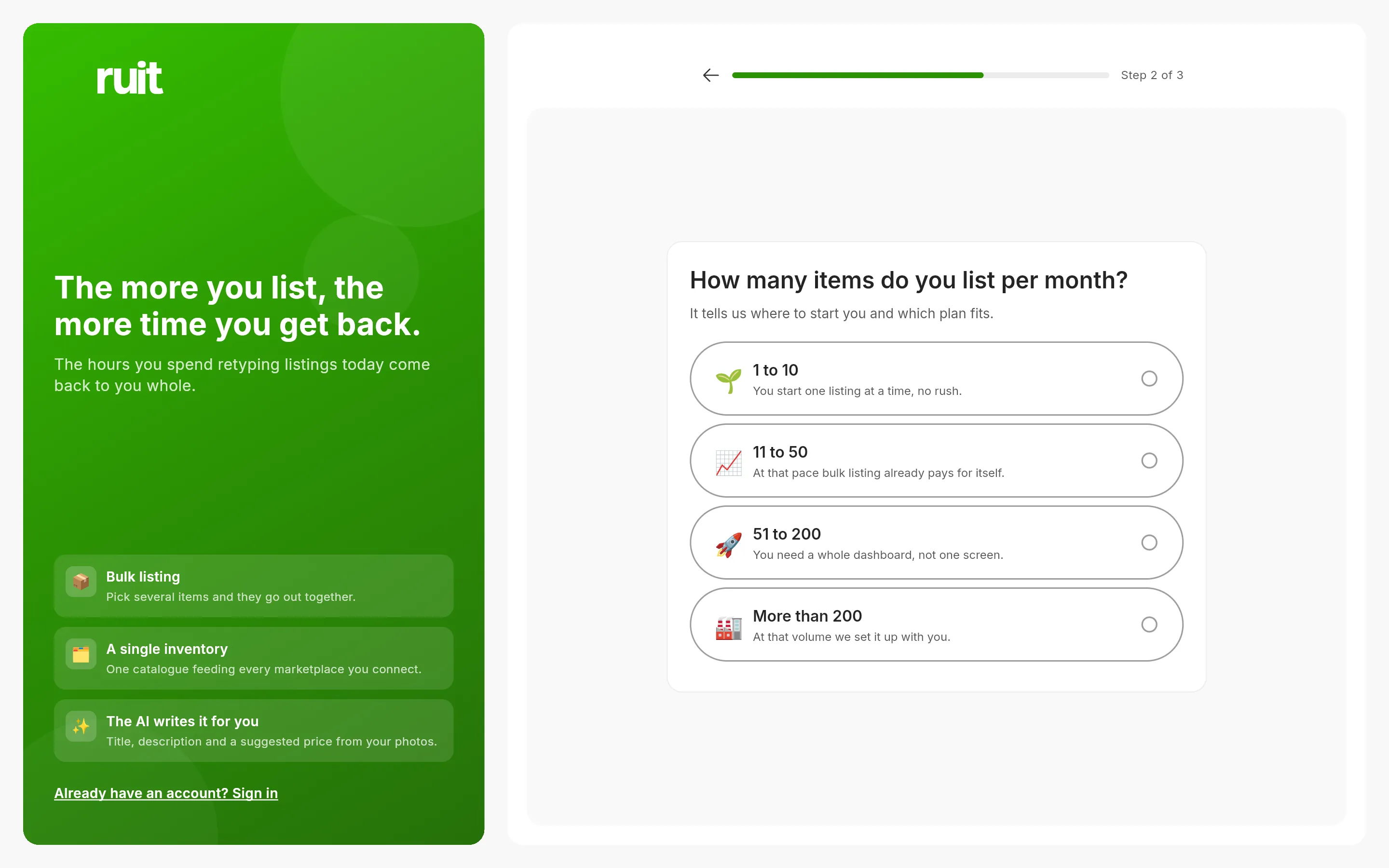
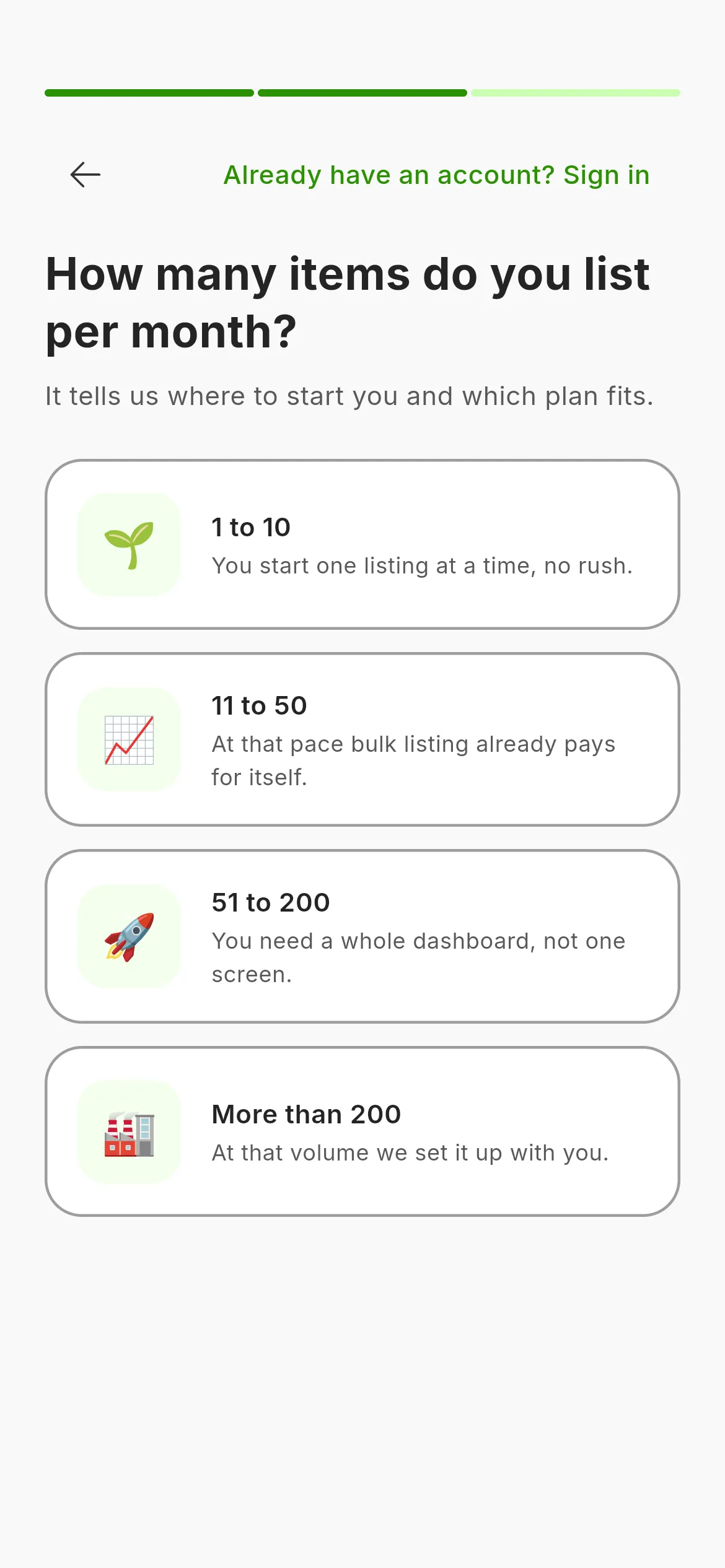
The second screen. Picking a band takes you to the sign-up.
3. Choose how to sign up
The third screen offers two routes: Sign up with Google or Continue with email. Below them there is an optional checkbox for tips and news by email, and the note that by continuing you accept the terms of use and the privacy policy. There is no box to tick to accept them.
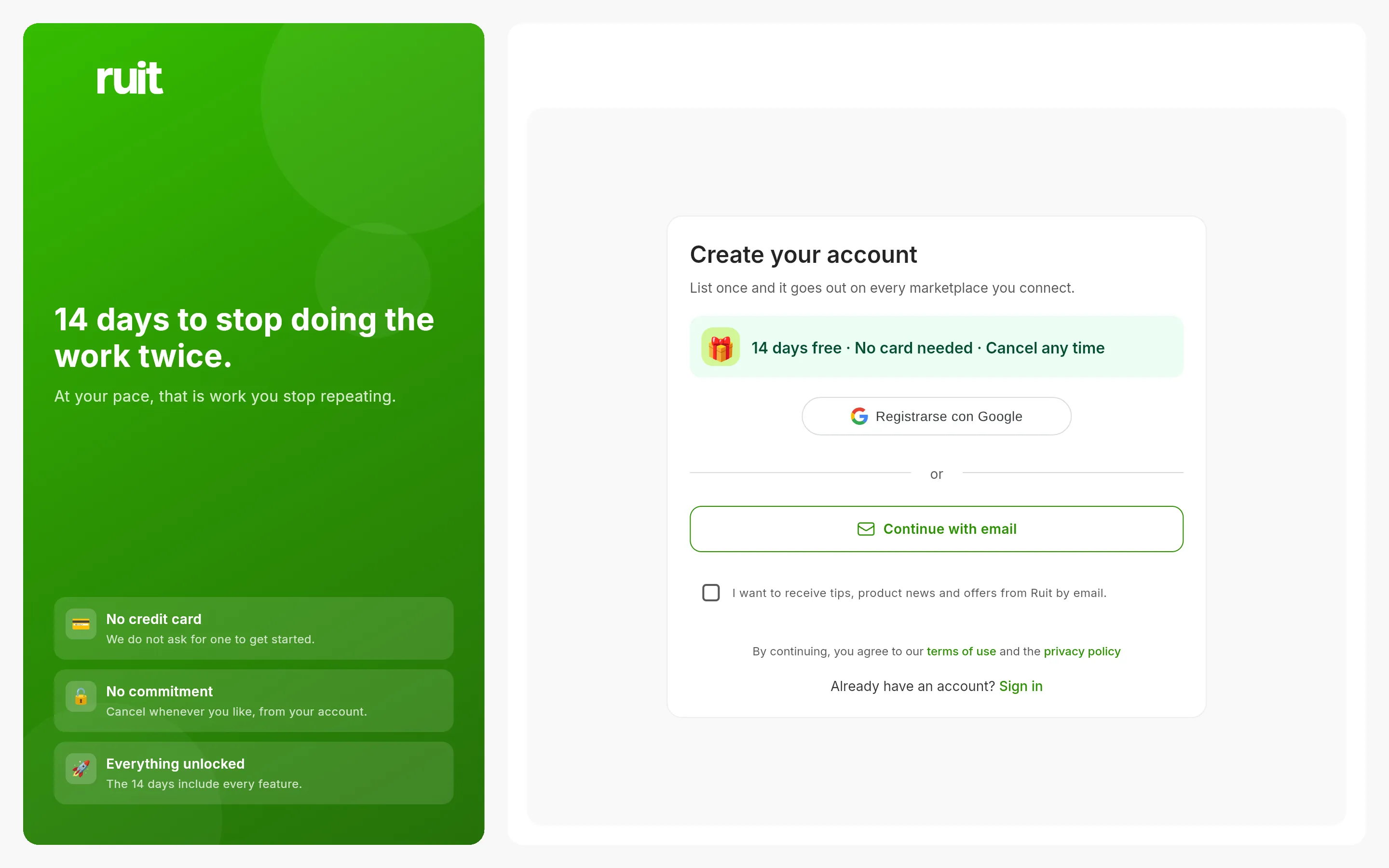
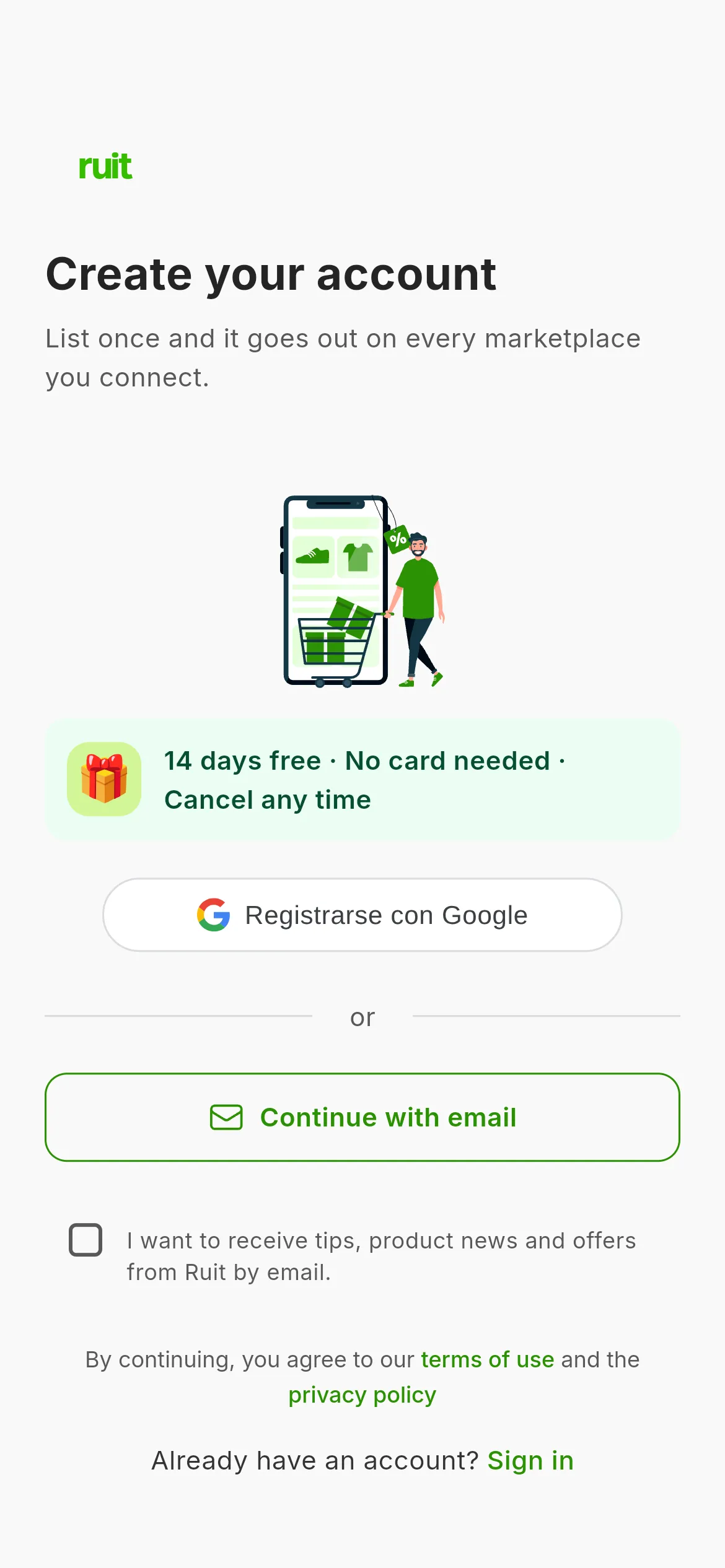
The sign-up screen. The notice about 14 days free refers to the trial you will activate in the welcome. With Google you finish here; with email you carry on to step 4.
If you pick Google, you authorize the access in Google’s window and jump straight to step 5. If that address already had a RUIT account, you go into the one that exists instead of creating another, even if the capitals in the address do not match.
4. Fill in the form
-
Press Continue with email.
-
Type your email. As soon as the address has a valid shape, the name and password fields appear, without pressing anything.
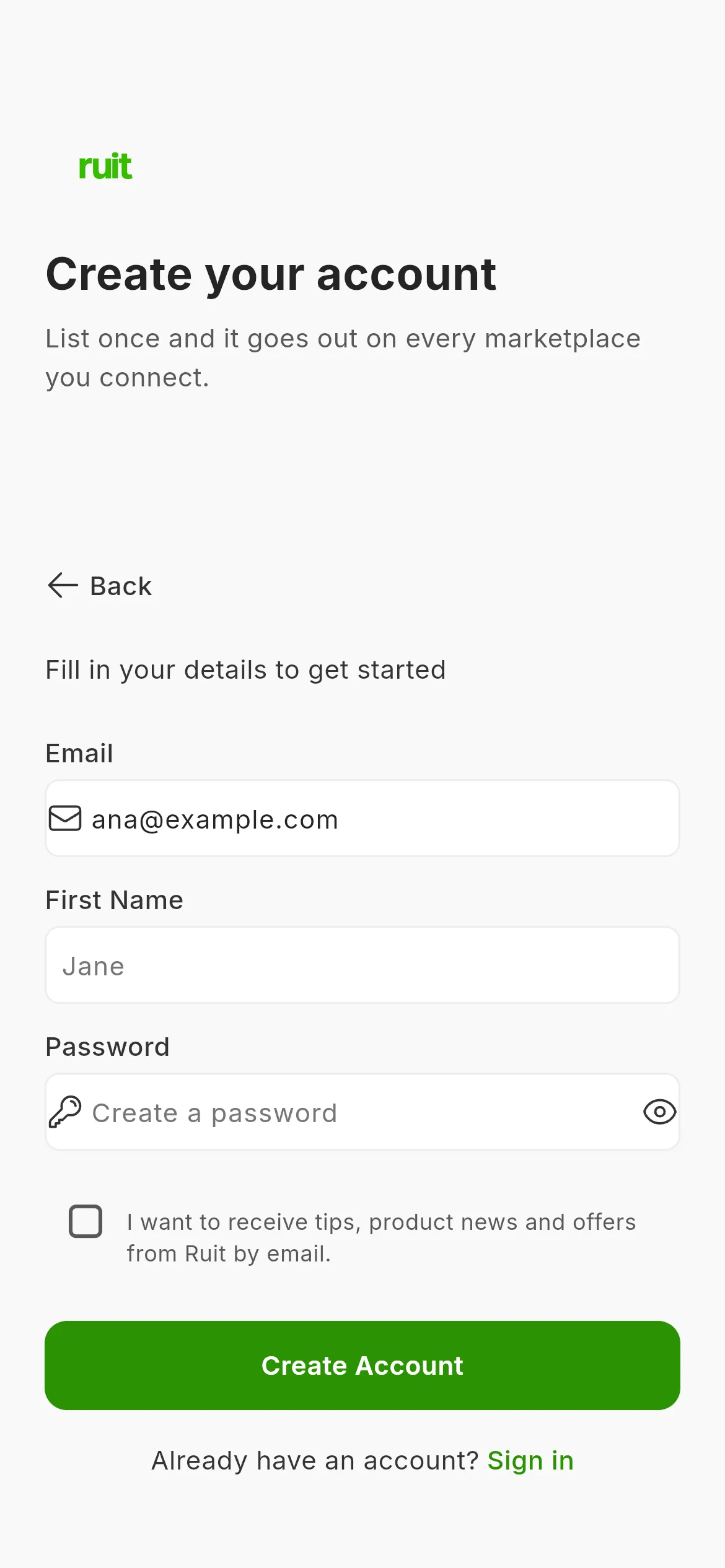
The complete form. All three fields are required; there is no surname and no repeat-password field.
-
Type your name and a password of 8 characters or more. Capitals, numbers and symbols are not required, but RUIT turns down very common passwords, ones made only of digits, and ones too close to your email or your name. The eye in the field shows it in the clear so you can check it.
-
Press Create Account.
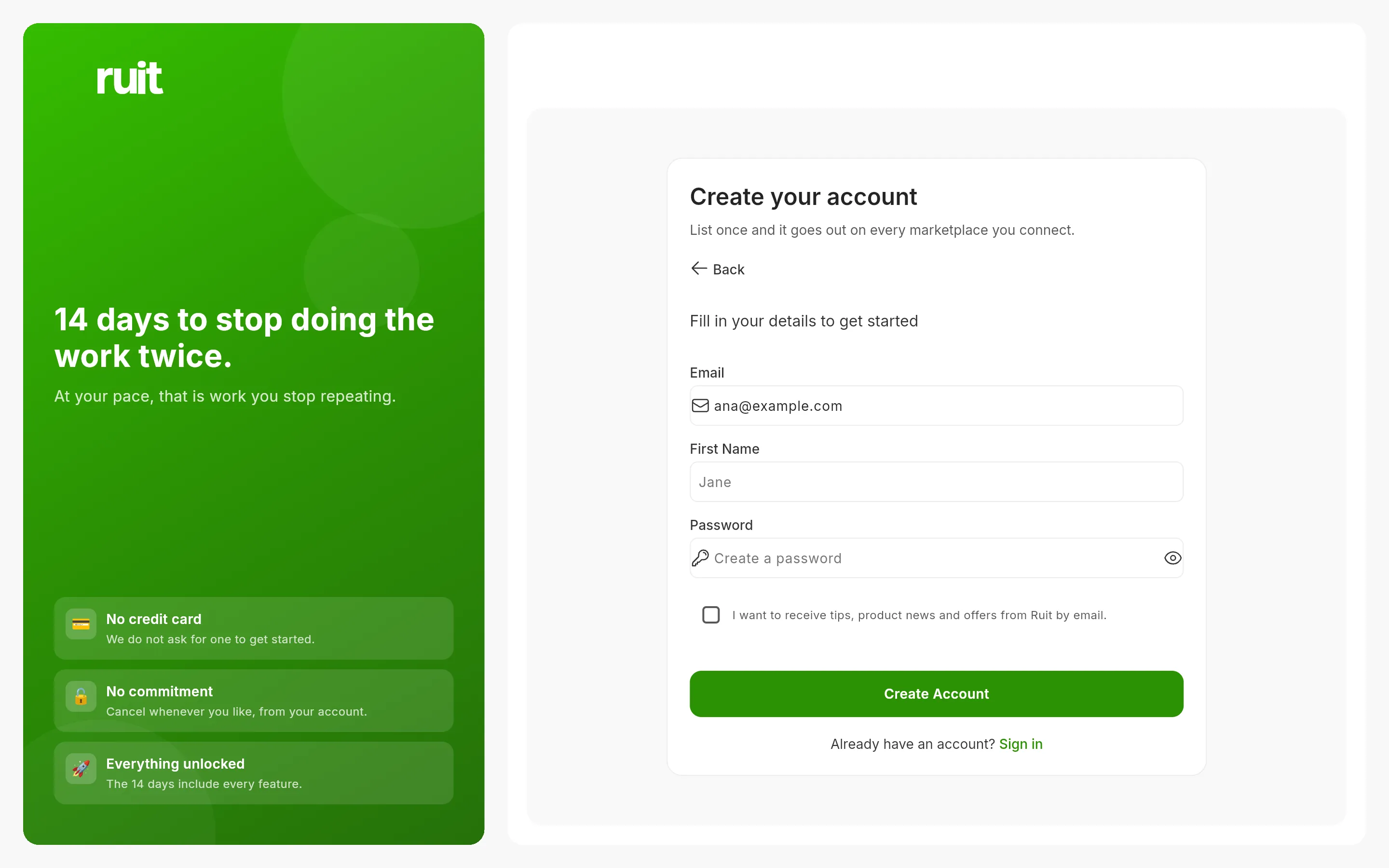
Video not recorded yet: Creating the account with email and password
5. Wait while your dashboard is built
For about ten seconds you see the Getting your dashboard ready screen, which ticks off four steps: creating the account, saving what you told us, building your space and putting the dashboard together. Then Your account is ready appears with your name and a three-second countdown. If you would rather not wait for it, press Go in now.
What you have achieved
You have a RUIT account with an organization of your own and a store called Default, which is
where your products are going to live, and with five things already switched on: search, the
product page, saved searches, marketplace accounts and the inventory. You are on Home, with
the welcome card in front of you: six questions and the button that starts your 14-day trial.
Below it, the Create your account task already shows as done and the next one is installing
the extension.
Next step: your first steps in RUIT, which walks through Home, the six-question welcome and the task list.
Signing in with an account you already have
Press Already have an account? Sign in, which sits on the first two screens of the sign-up (in the green panel on a computer, top right on a phone) and below the form on the third. The sign-in screen has the same shape as the sign-up: Google or Continue with email, and then the address and the password.
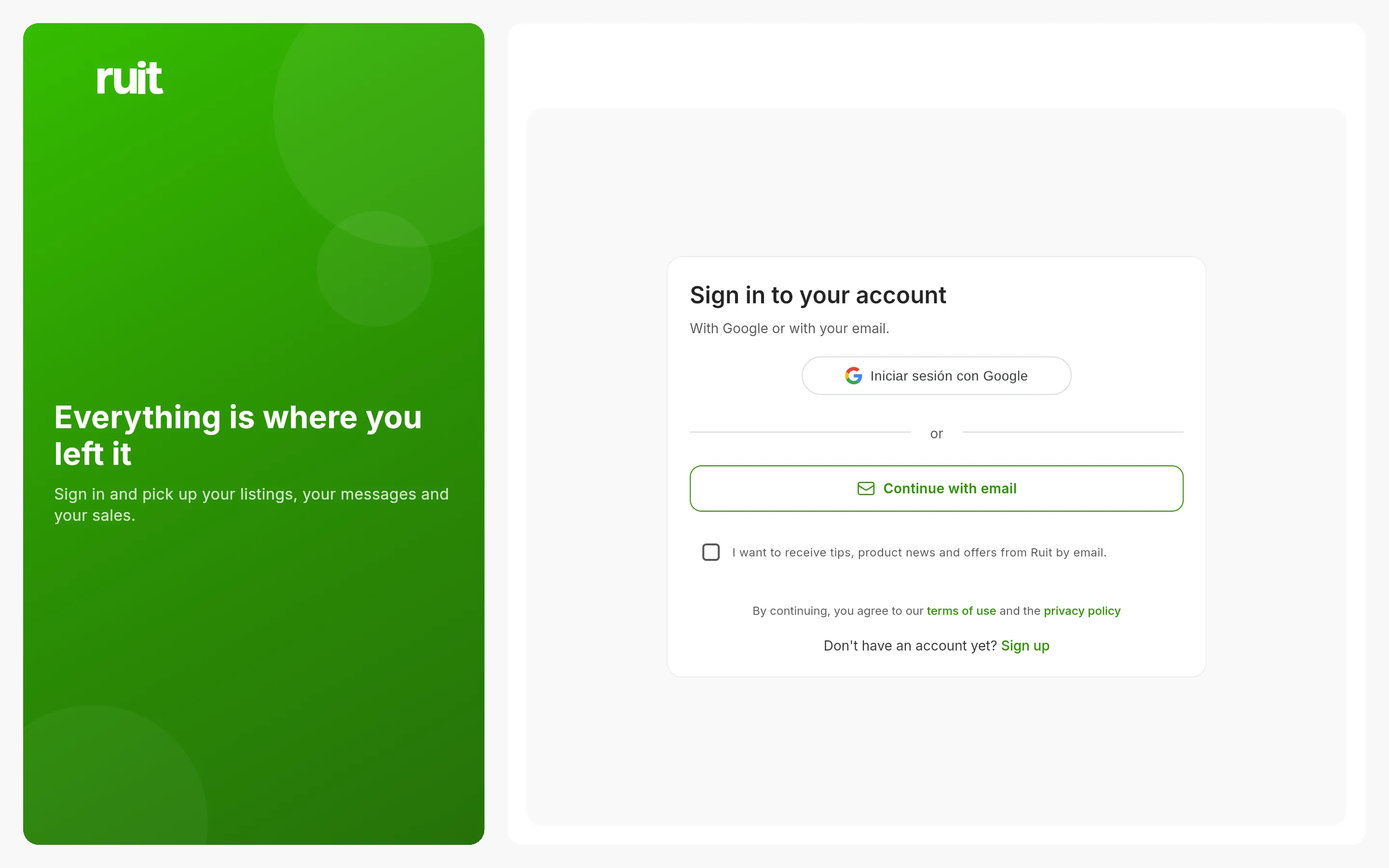
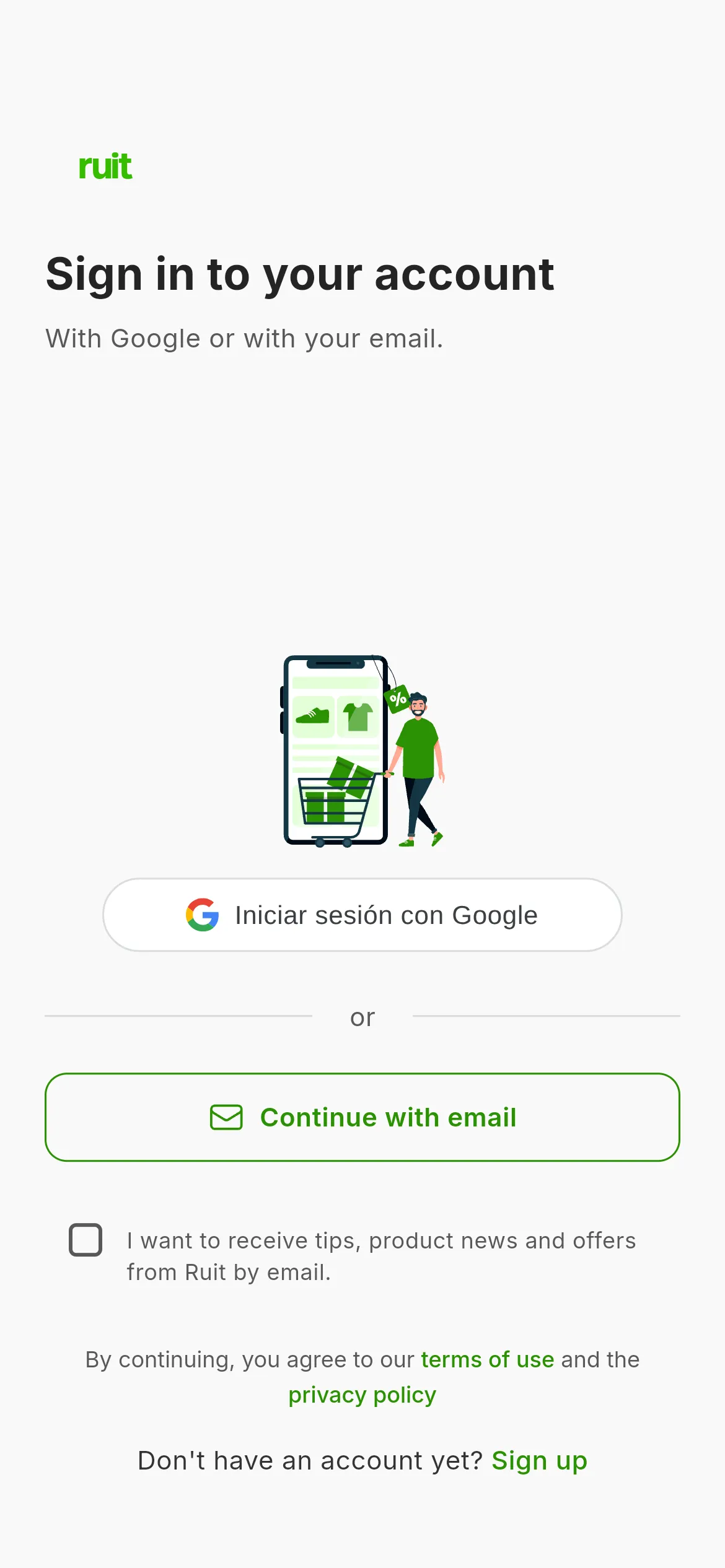
The sign-in screen for anyone who already has an account.
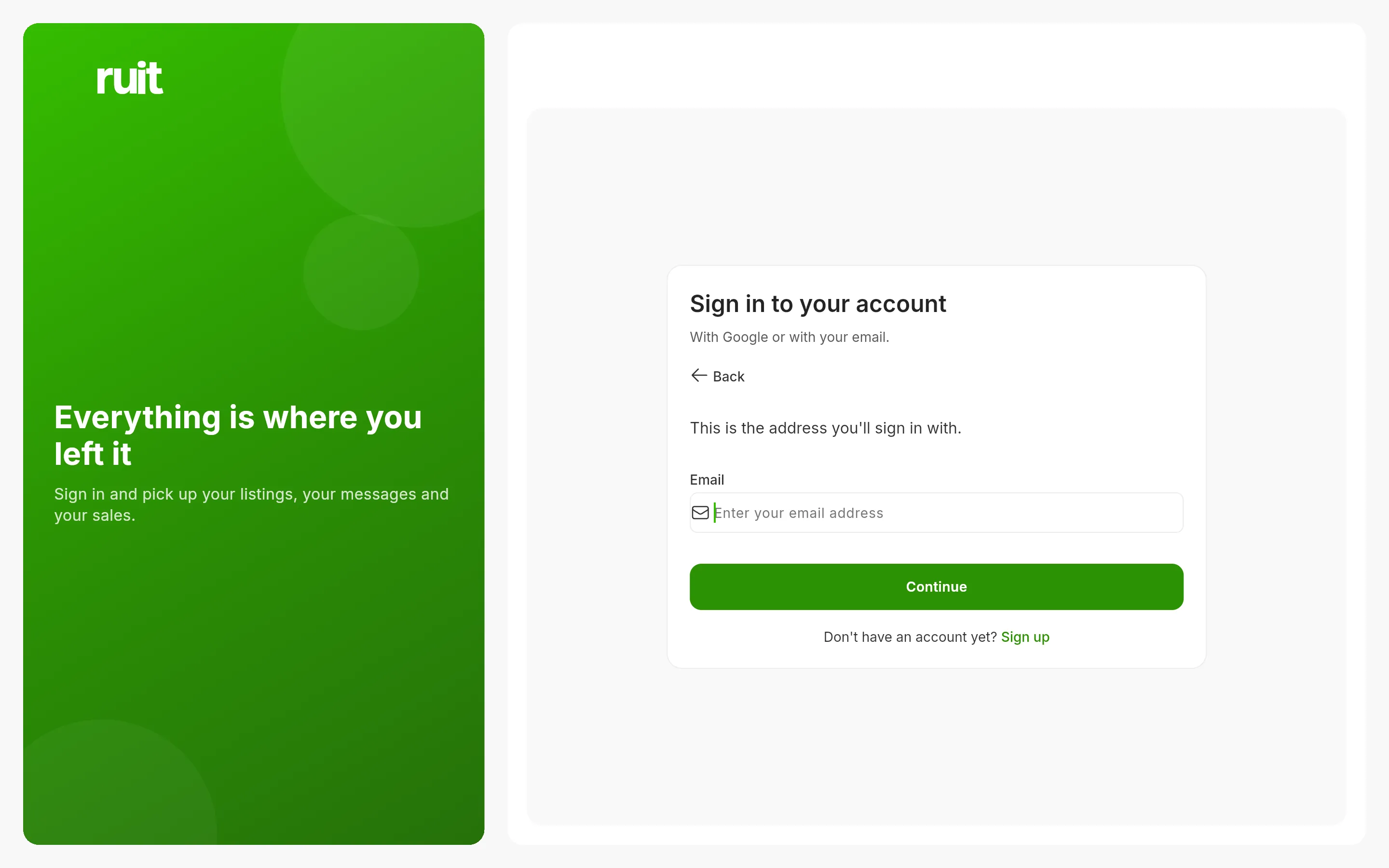
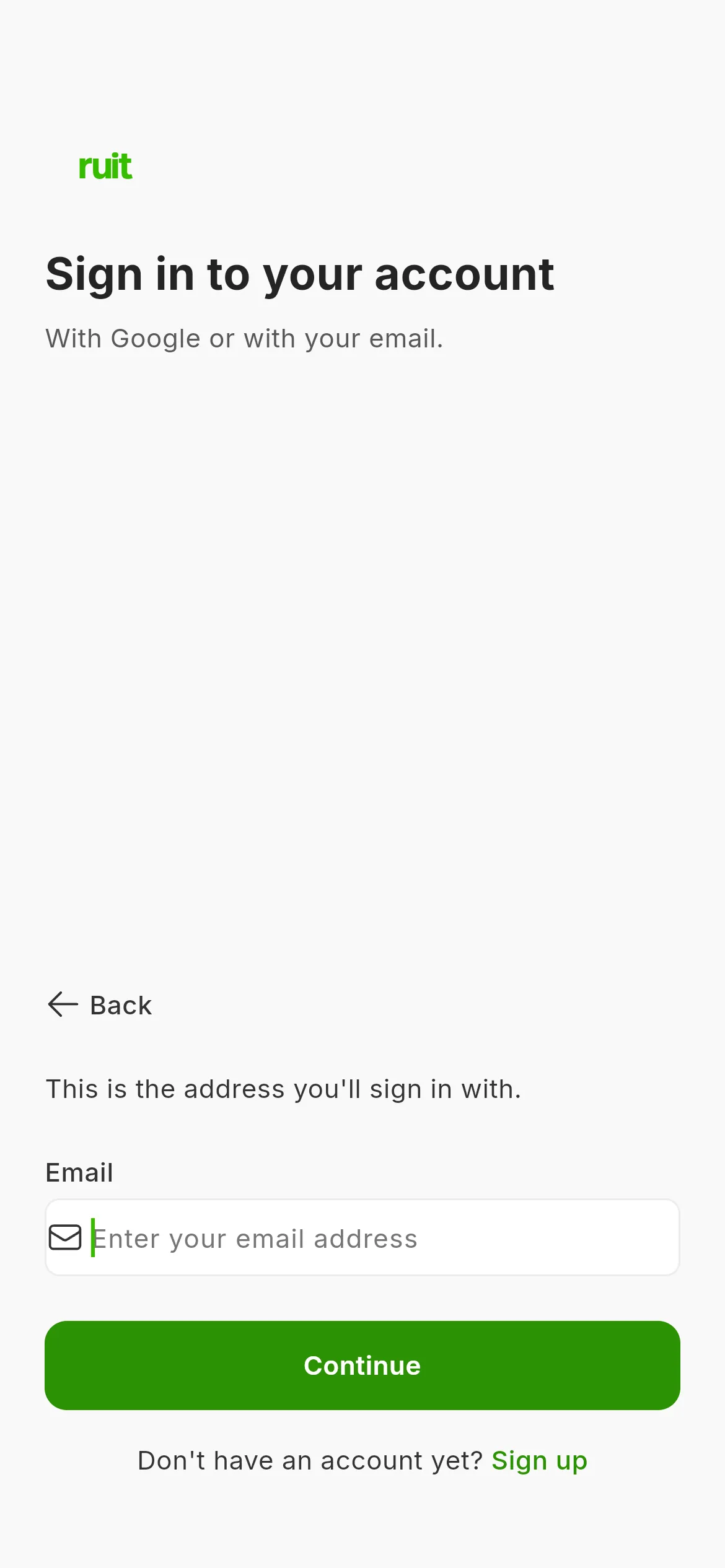
The email step. The password field appears right here as soon as the address has a valid shape.
If something is off
- The address is not accepted. RUIT turns down temporary or disposable addresses: it needs a permanent one. There is no email confirmation, so do not go looking for a link in your spam folder.
- The password will not do. The form does not check it as you type: it tells you when you press Create Account. Try a longer one, or one less like your name and your email.
- You want to sign in with Apple. For now it is only in the iOS app; in the browser and on Android you have Google and email.
- You got a question wrong. The back arrow returns you to the previous one without losing anything.
Did this article help?
Thanks for telling us.