Connect Wallapop to RUIT
Connect Wallapop to RUIT: sign in to Wallapop in the extension's browser and let RUIT detect the session. No passwords, in two minutes.
In this tutorial you connect your Wallapop account to RUIT. Wallapop does not offer an API to tools like RUIT, so the connection goes through the extension: RUIT uses the Wallapop session you already have open in your browser and never asks you for your password. It takes two minutes and you only do it once per account.
You need the RUIT extension installed in Chrome or Edge on a computer and connected to your RUIT account, and a verified phone, because without it the connection wizard does not open.
1. Sign in to Wallapop in the extension’s browser
Open Wallapop in the same browser where you have the RUIT extension and sign in with the account you want to connect. There is no need to leave the tab open: the extension opens one of its own, pinned and in the background, when it needs it. What does matter is which account is signed in: RUIT connects the session it finds in that browser, and it cannot choose another.
2. Open the connection wizard in RUIT
Go to Settings → Accounts, press Connect Account and pick Wallapop.
3. Let RUIT detect your session
RUIT reminds you that you need to be signed in to Wallapop in the extension’s browser. Press Detect my Wallapop session.
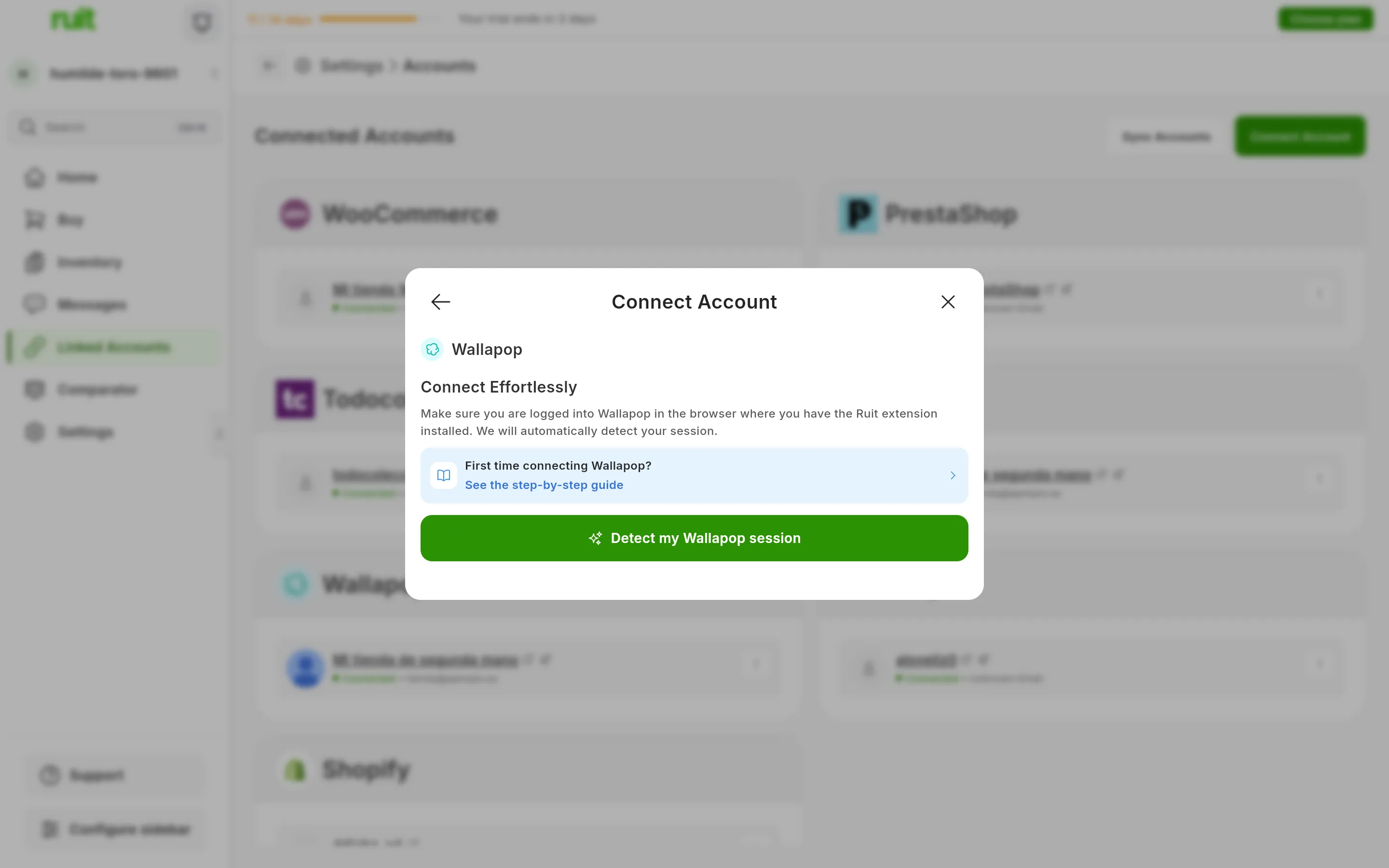
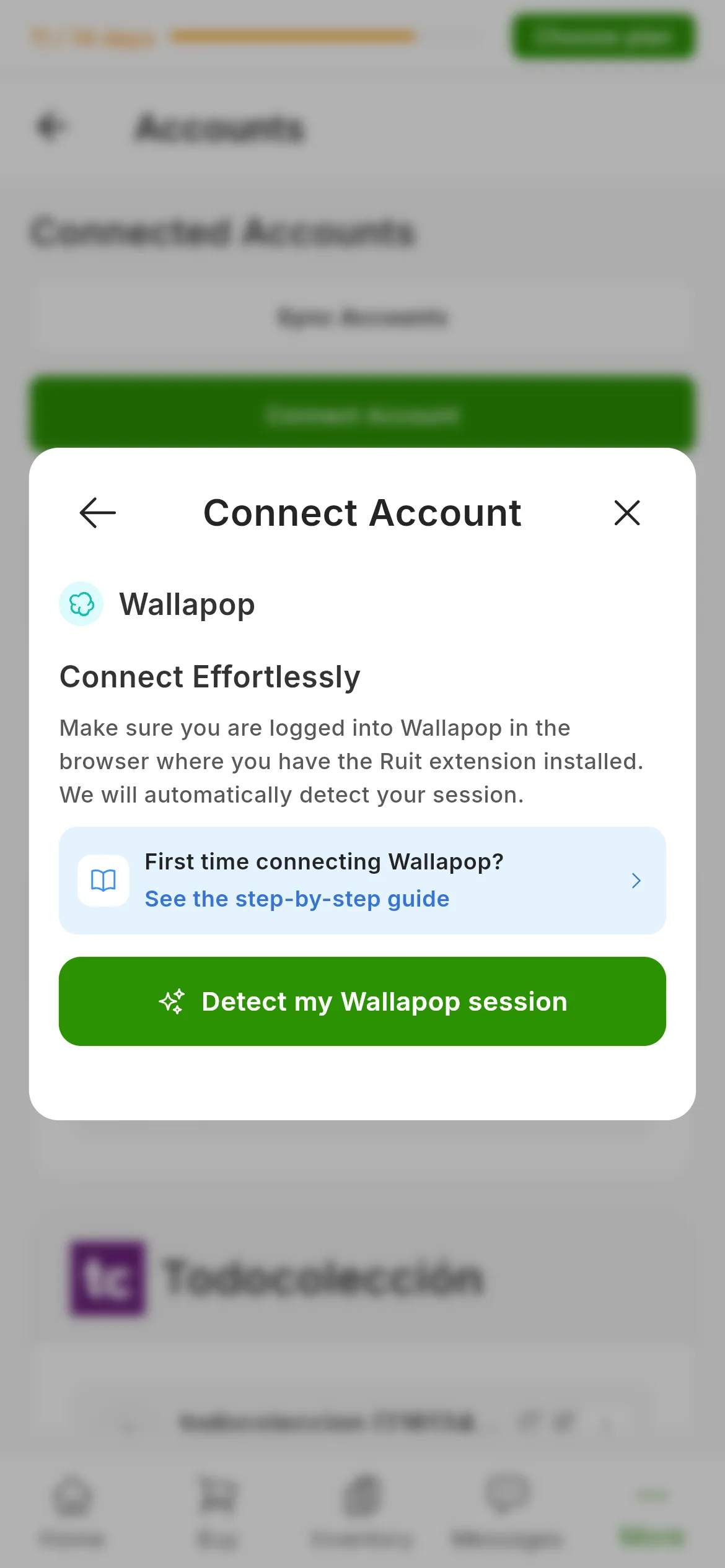
The Wallapop dialog. The number marks Detect my Wallapop session; there are no fields to fill in.
The extension reads your Wallapop session, asks Wallapop for your profile to check that it is the same account, and hands it over to RUIT. It takes a few seconds. When it finishes, RUIT confirms that the account is linked and takes you back to the list of accounts.
What you have achieved
Your Wallapop account appears under Connected Accounts with your Wallapop profile name and the green connected dot. From now on RUIT talks to Wallapop through the extension in that browser, so keep it open whenever you want RUIT to work: publishing, importing, answering messages or keeping an eye on your sales.
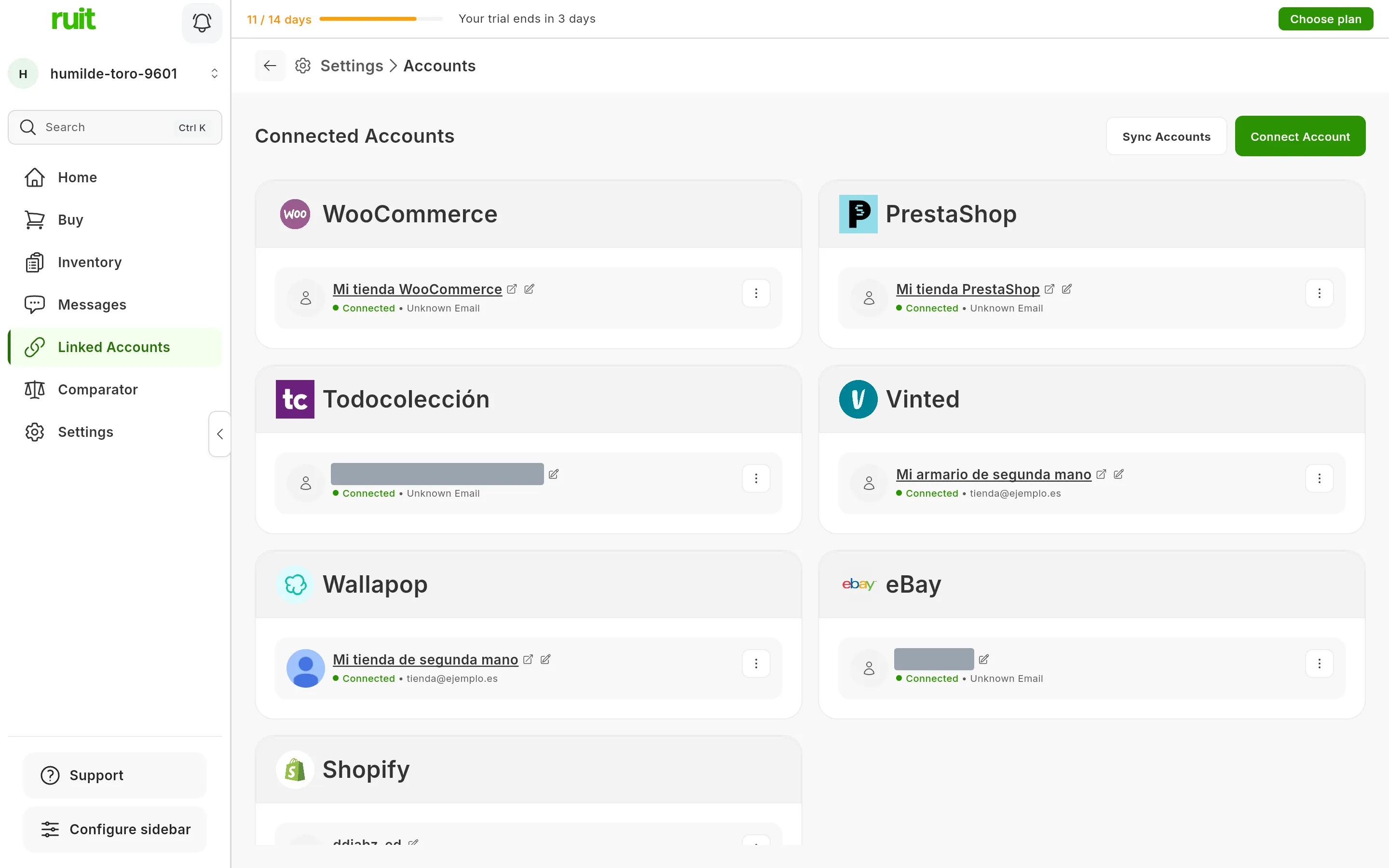
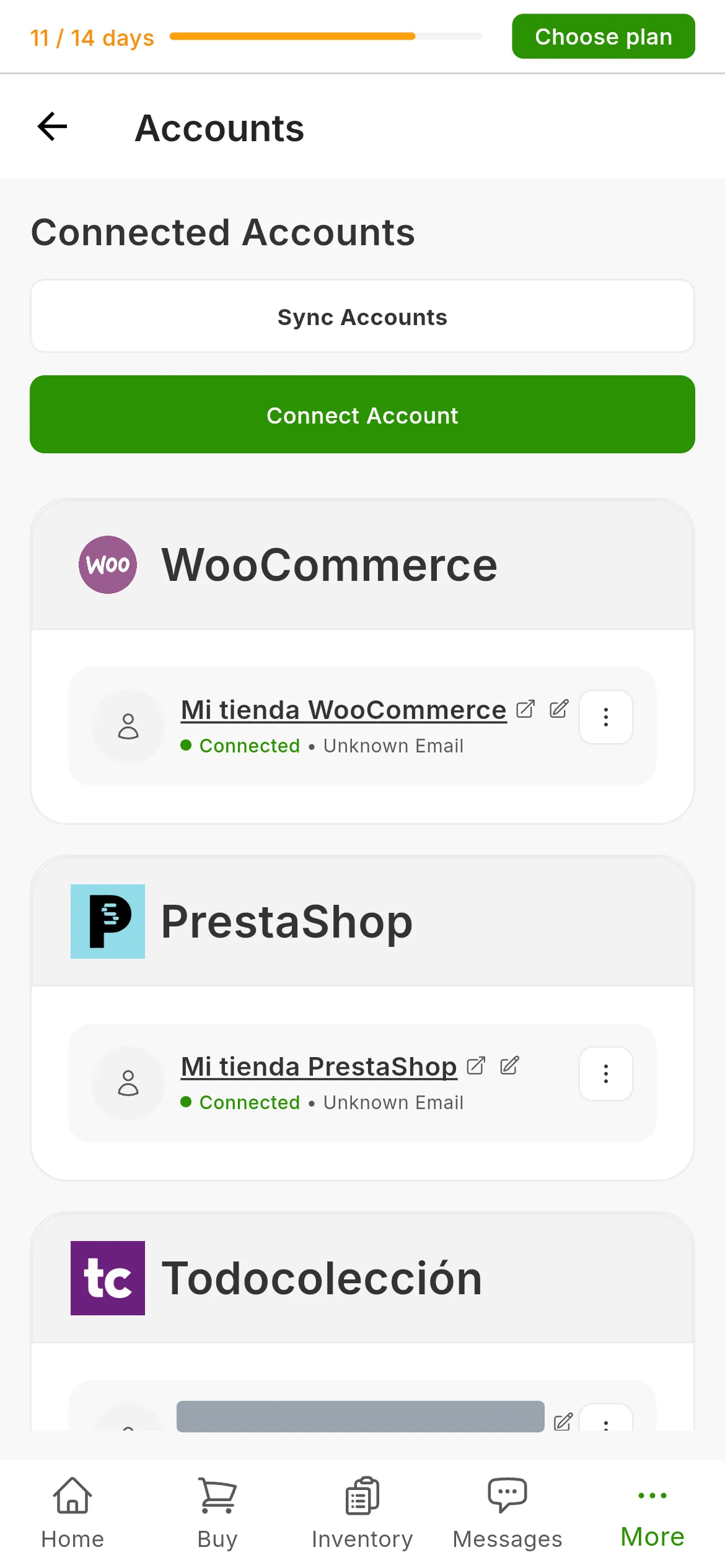
The Wallapop account, connected. If the browser session expires, the card switches to a Reconnect button, which repeats step 3.
Next step: importing from a marketplace to bring in the listings you already have on Wallapop, or publishing your first listing.
If something is off
- Instead of the detect button, RUIT offers to install the extension. RUIT cannot see any extension of yours connected. Install it, or open RUIT in that browser’s window if you already have it, and open the wizard again: checking the extension connection.
- “We could not find a Wallapop session in the browser where the Ruit extension is installed.” There is no Wallapop session in that browser. Sign in to Wallapop there, not in another browser or on your phone, and press Retry.
- “Invalid or missing credentials for Wallapop.” Retry once. If it happens again, sign out of Wallapop in that browser, sign back in and repeat step 3.
- “The Wallapop session in your browser doesn’t match the detected credentials.” The browser is holding traces of two accounts. Sign out of Wallapop, sign back in with the right account and try again.
- “This Wallapop account is already linked in your organization.” Someone else in your organization connected it first, and only they can renew it from their browser. If it needs to become yours, they have to unlink it first.
- “Connection timed out.” The extension did not answer within half a minute. Check that the extension’s browser is open and that its icon shows it as connected, and try again.
- You sell with several Wallapop accounts. Each one is connected separately: sign out of one, sign in with the other and repeat from step 1. If both have to work at the same time, each one needs its own browser with the extension: using several extensions at once.
Video
Video not recorded yet: Connecting a Wallapop account
Did this article help?
Thanks for telling us.