Import products from CSV or Excel
Upload your products from a spreadsheet: prepare the file, upload it, match the columns, check the validation and import.
In this tutorial you upload your products to RUIT from a spreadsheet, a CSV or an Excel file with one row per product. The first time it takes about ten minutes, nearly all of it spent preparing the file; after that, with the column matching saved, quite a bit less.
You need the file, with at least the title and the price of each product, and a computer: on a phone, or in a narrow window, this wizard never gets as far as importing anything.
1. Prepare the file
RUIT only requires two columns, the title and the price. All the others are optional. If your columns have different names, that is fine: you match them in step 3. These are the ones used most often, with the name they have in RUIT:
| Column | What it holds | If you leave it empty |
|---|---|---|
title | The title. Required | The row is not imported |
price | The price: 12,50, 12.50 or 1.234,56 all work. Required | The row is not imported |
description | The description | It stays empty |
sku | Your code for the product. With it, RUIT recognizes the product next time and updates it instead of duplicating it | RUIT generates one |
stock_quantity | The units | 1 |
condition | new, used, nuevo, usado… or a number from 1 to 5 | Used |
images | Web addresses of the photos, starting with http, separated by |; up to 20 | No photos |
sale_price | Sale price; if it is lower than price, it creates a discount | No discount |
tags | Tags | No tags |
attr_<key> | An attribute, like attr_brand for the brand or attr_ean for the EAN | Without that attribute |
The file can be .csv, .tsv, .tab, .txt, .xlsx, .xls, or a .zip with one of them
inside, up to 15 MB and with as many rows as you like. From an Excel file, RUIT reads only
the first sheet, with the header in the first row.
2. Upload the file
In Inventory, press Add products, then Import Listings and, in the grid, the last card: CSV/Excel. Drag the file into the window or press Select file. When it has finished uploading, press Continue.
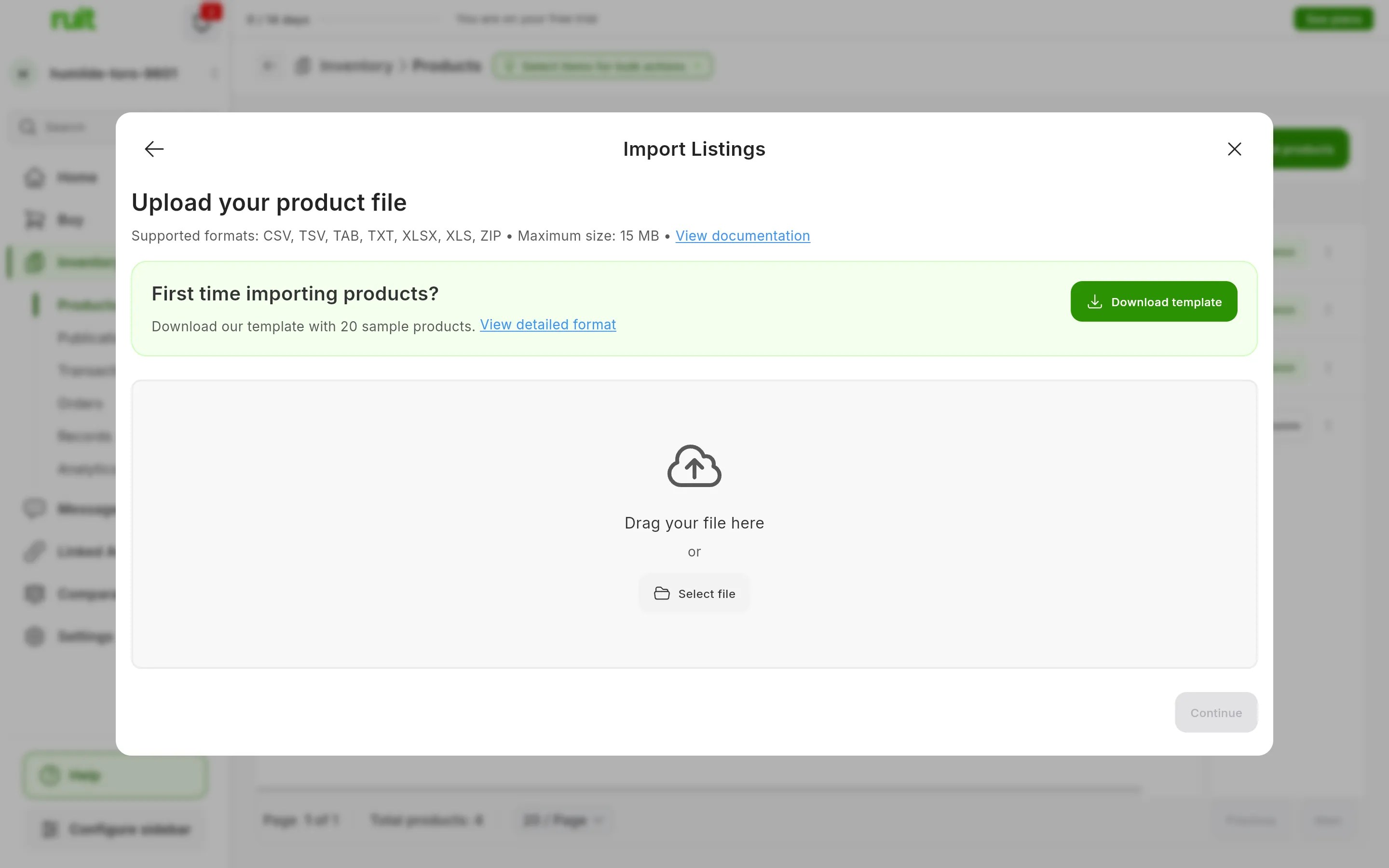
The upload step. If it is your first time, Download template gives you a CSV with every column and some sample rows.
3. Match the columns
In Map your columns, each RUIT field has next to it the column from your file that goes into it. RUIT arrives with a proposal: it matches the columns named like its own straight away and, for the rest, an AI proposes the closest one, even if your headers are not in English. The ones shown with a percentage are the ones RUIT is least sure about: check them.
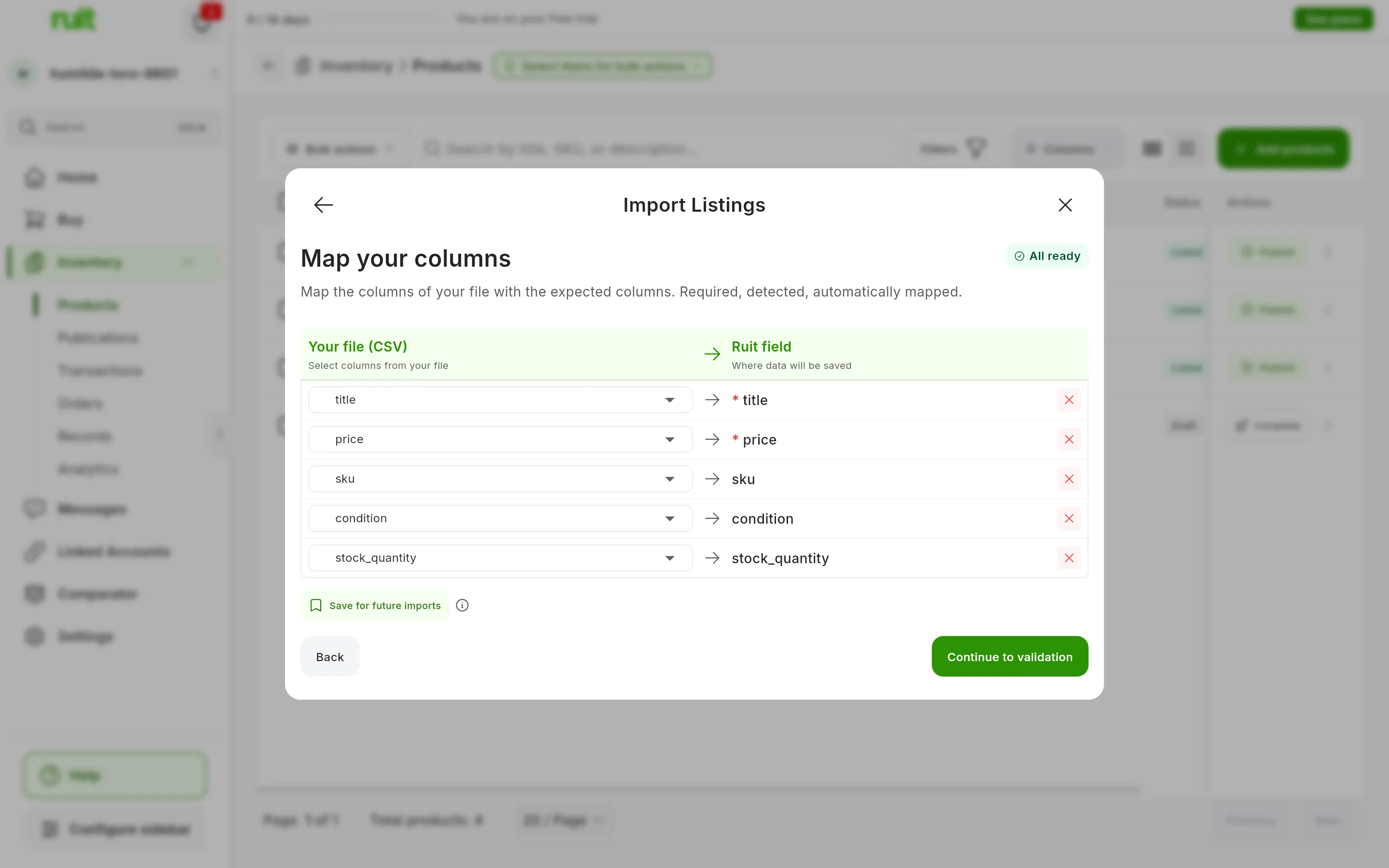
A file whose columns are named like RUIT’s: everything matched and All ready.
If a column in your file does not go anywhere, it appears below, under Unmapped columns: press it to assign it. If you are going to upload the same format again, press Save for future imports and give it a name. When at least the title and the price are matched, press Continue to validation.
4. Check the validation
RUIT reads the file with your matching and shows you how many products it has identified, how many are new and how many will update one you already have, because its SKU matches. Below are the warnings and the errors, the first five of each, and a preview of the first rows. If the warnings and the errors add up to more than 50, Download full report (CSV) gives you the whole list.
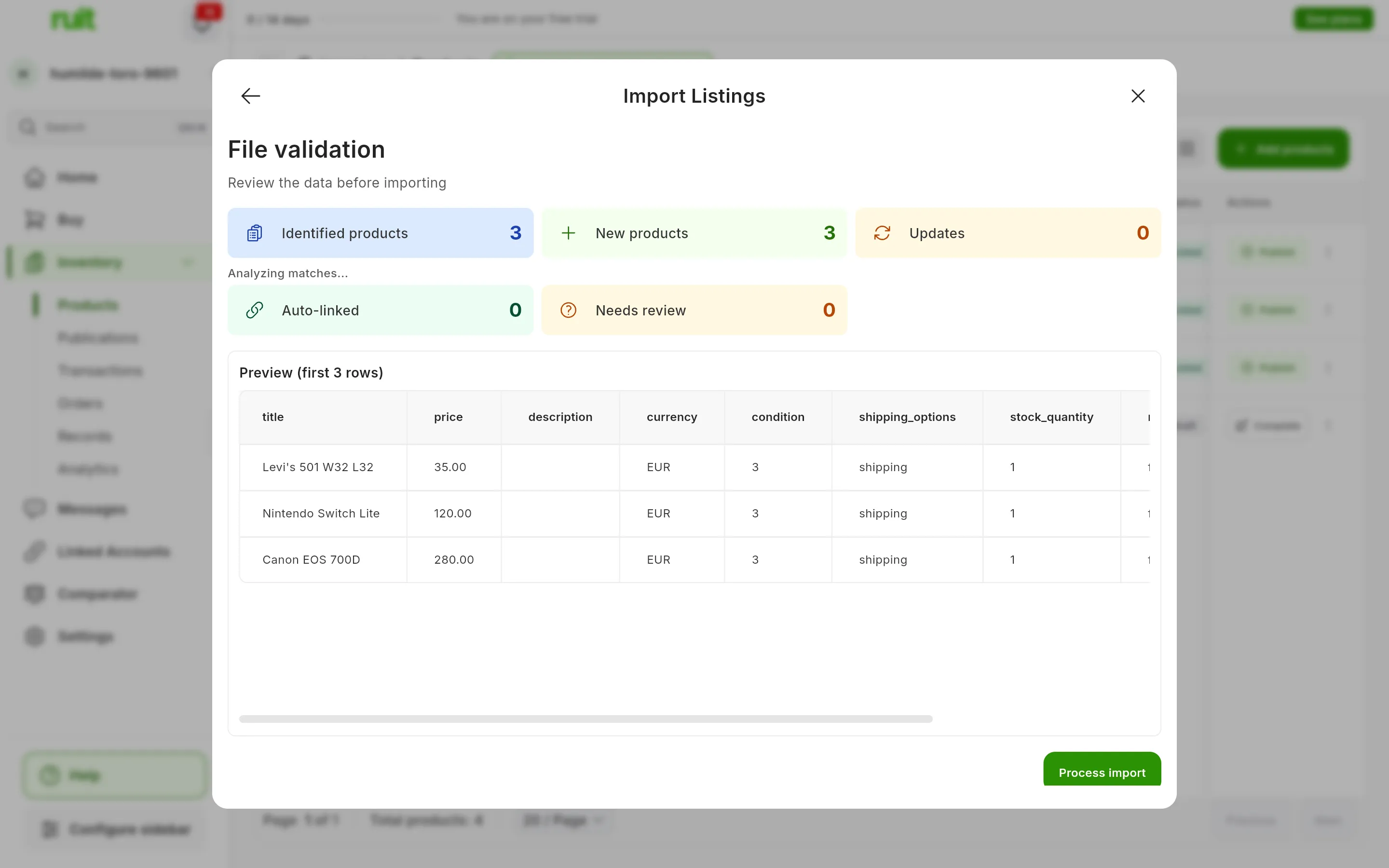
A file of three products with no errors: all three are new and there is nothing to review.
If there are errors, tick Ignore validation errors before you carry on: without the box ticked, nothing is imported. With it:
| What fails | What happens |
|---|---|
| The title is missing, the price is negative or cannot be read, or the currency is not a three-letter code | That row is not imported; the others are |
| A photo address is not valid, or the EAN or the ISBN is badly formed | The product is imported without that detail |
A price like 1,250 is ambiguous, because it can mean one thousand two hundred and fifty or one
point two five: write it with two decimals, 1250,00 or 1,25.
5. Import
Press Process import. RUIT shows the progress and you can close the window: the import carries on by itself. When it finishes you get a notification with the summary, how many are new, how many were updated and how many errors there were, and an email. Press View inventory.
What you have achieved
Your products are in the inventory, unpublished. The ones with at least one photo, a price above zero, a condition and a shipping method end up Ready to list; the rest are missing something and stay in Draft, as Product and listing statuses explains.
Next step: publishing your first listing.
If something is off
- It does not move forward on a phone. The file wizard only works in a wide window: on a phone it skips the matching and the validation, and it fails when processing. Do it from a computer.
- “Required fields are not mapped.” The title or the price is not matched. If the list does not show your columns separately, RUIT has not guessed the separator: save the file separated by commas, or as an Excel file, and upload it again.
- A product has been updated instead of created. It has the same SKU as one of yours. When updating, RUIT overwrites the title, the description, the price, the stock and the condition with what is in the file, and whatever is missing goes back to its default value: an empty description, Used and one unit. The photos and the tags are not touched.
- The photos have not arrived. Each address has to return an image; if it returns a web page or a format RUIT cannot read, that photo is skipped. Only the first 20 are saved.
- The import has finished with errors. In the notifications, View errors opens the list and lets you download it as a CSV. The rows that were discarded during validation do not appear there: they are in the validation report.
- “Cancel” does not stop it. A file import, once started, runs to the end: if you have made a mistake, let it finish and then delete whatever is left over.
- Review conflicts changes nothing. It sometimes appears before importing; what you choose there is not applied, because what decides whether a product already exists is the SKU.
- Your file comes from IberLibro. Use the IberLibro card, not CSV/Excel: RUIT recognizes the AbeBooks export as it is, as explained in selling on IberLibro.
Video
Video not recorded yet: Uploading a product spreadsheet and matching its columns
Did this article help?
Thanks for telling us.