Import listings from a marketplace
Bring the listings you already have live into your inventory: choose the account, tick the listings, review the matches and import them.
In this tutorial you bring the listings you already have live on a marketplace into your RUIT inventory. Each listing becomes a product, with its photos, and stays linked to its listing. It takes five minutes, plus however long RUIT takes to bring them in if there are many, and you can repeat it whenever you like: whatever you had already brought in is updated, not duplicated.
You need a marketplace account connected to RUIT and a verified phone; if it is not verified yet, RUIT asks you to do it when you import. For Wallapop and Vinted you also need the extension connected and the browser open for as long as the import lasts. Importing is not a paid feature.
1. Open the import
In Inventory, press Add products and, in the Add to Inventory window, Import Listings (2). On a phone, the Import button takes you straight there. RUIT shows you the marketplaces it can bring listings in from.
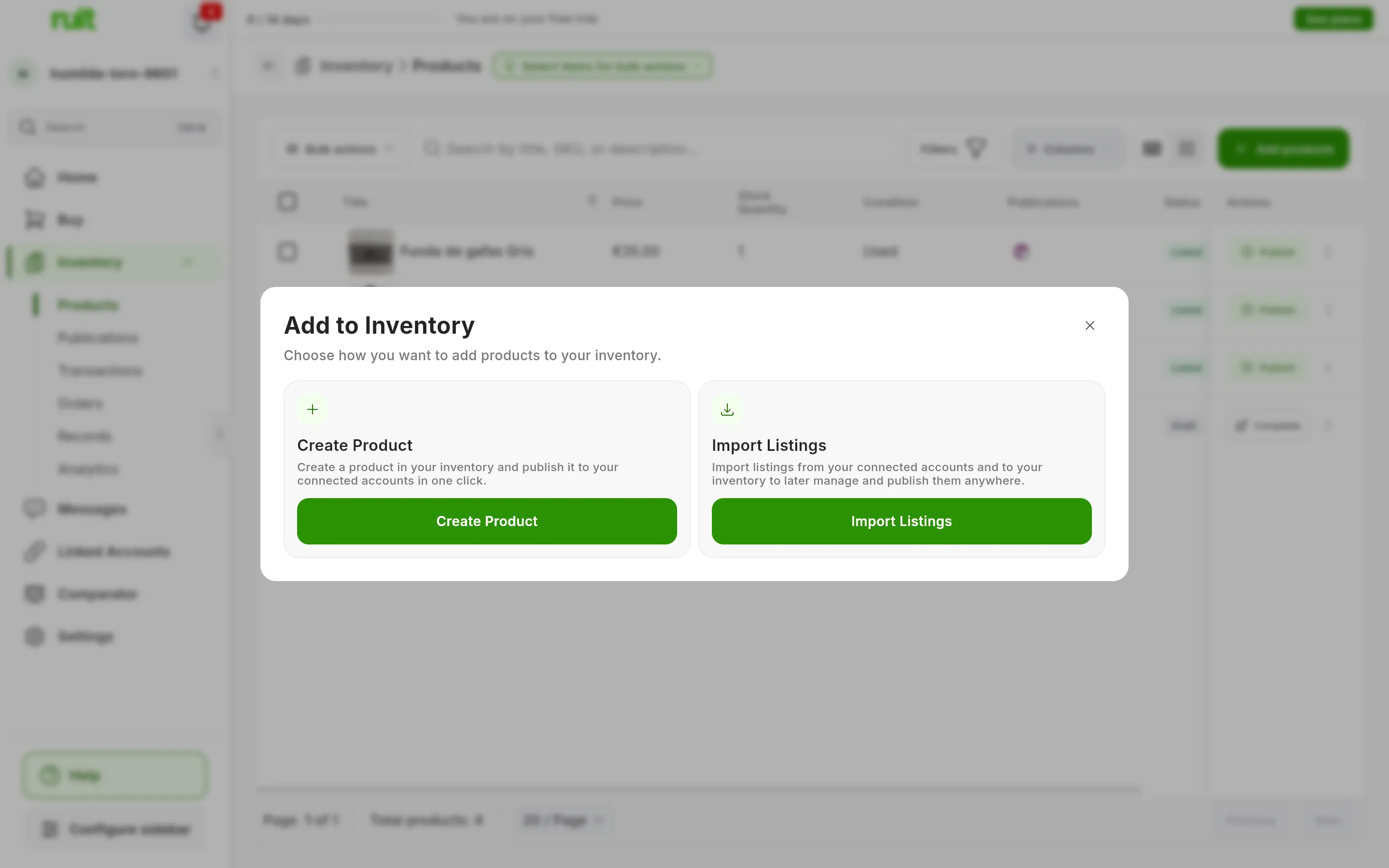
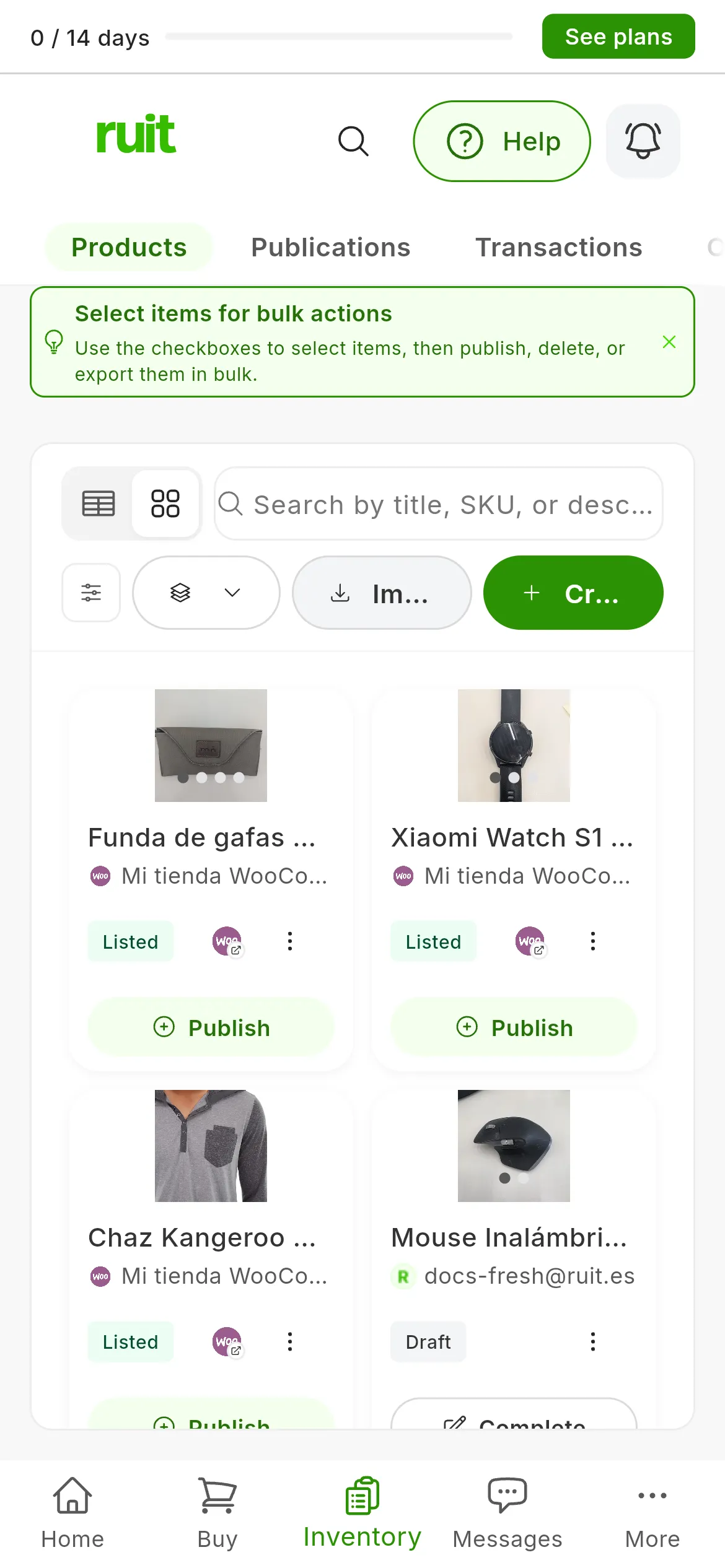
Import Listings (2) brings in what you already have live; Create Product (1) is for creating one by hand.
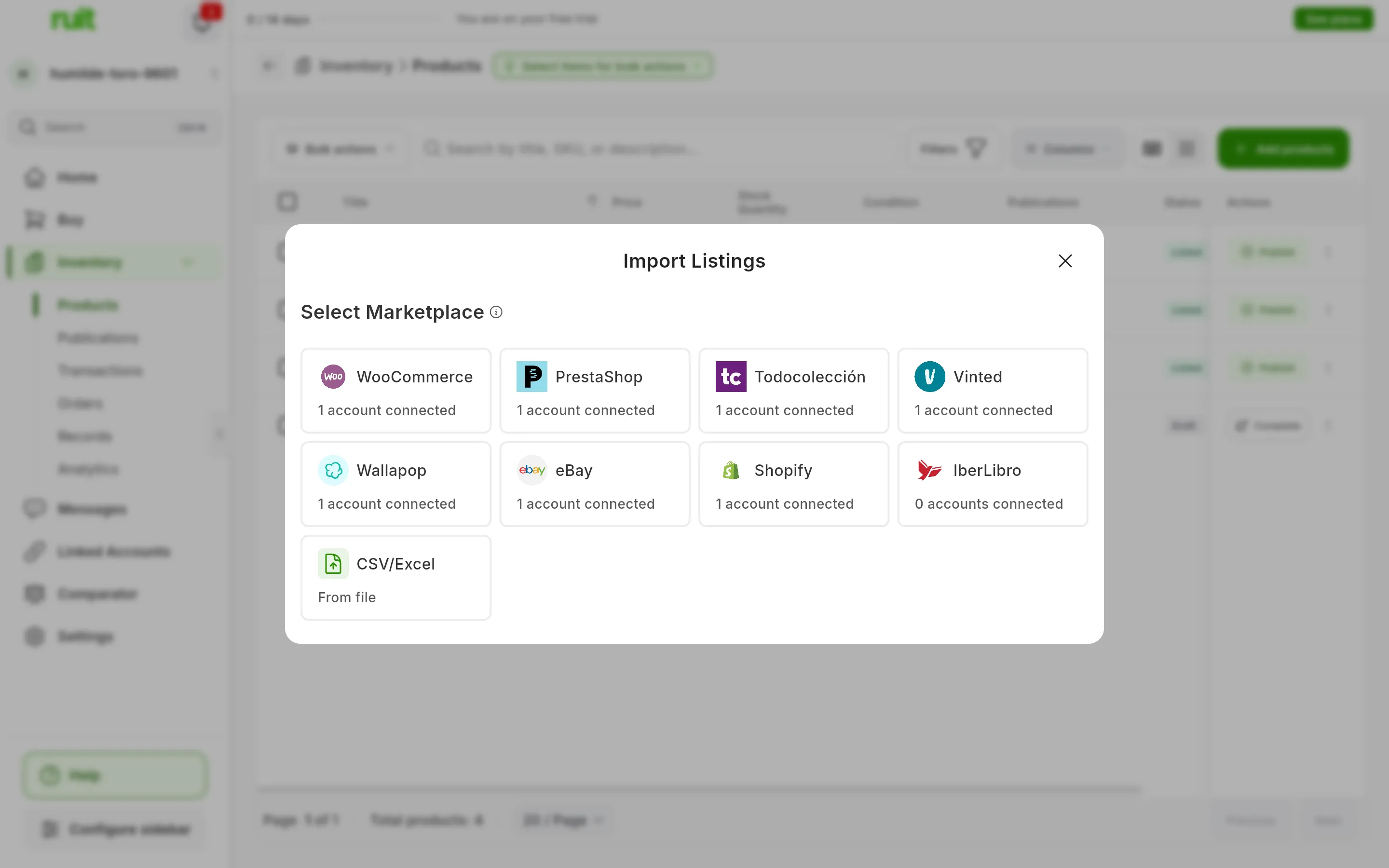
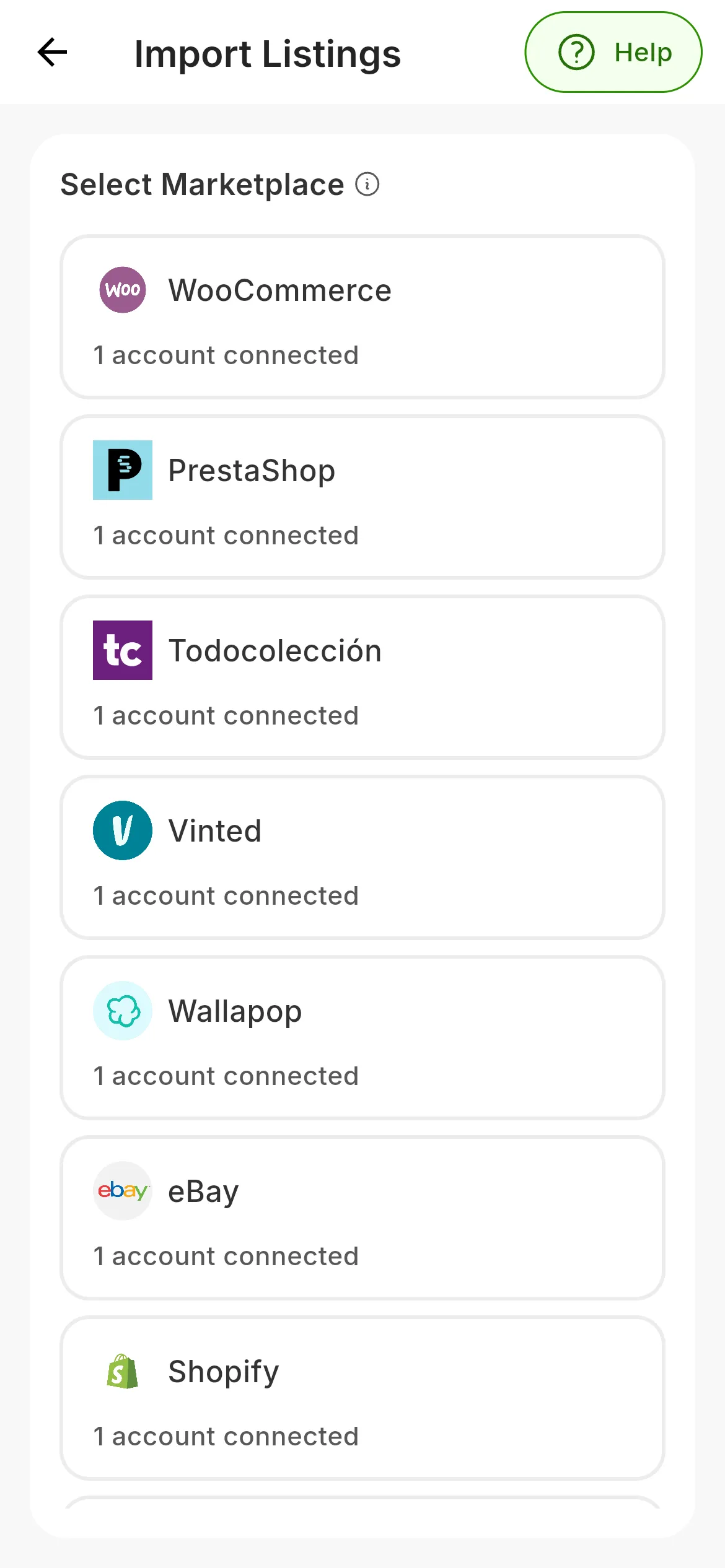
Under each marketplace, how many accounts you have connected on it. CSV/Excel is not a marketplace: it is the import from a file.
IberLibro listings are not read from your bookshop: when you pick it, RUIT asks you for the file you export from AbeBooks, as explained in selling on IberLibro.
2. Choose the account
Press the marketplace. Your Accounts on it appear below, at the end of the list on a phone: choose the one that has the listings and press Continue.
An account that shows as Expired has to be reconnected first, with its Reconnect button. And if, when you choose it, you see Please wait for the current import to finish, that account already has an import running: there can only be one at a time.
3. Tick the listings
RUIT shows you that account’s listings as cards, with their photo, their title and their price. Tick the ones you want to bring in and press Continue. At the bottom, next to the button, you can see how many you have ticked.
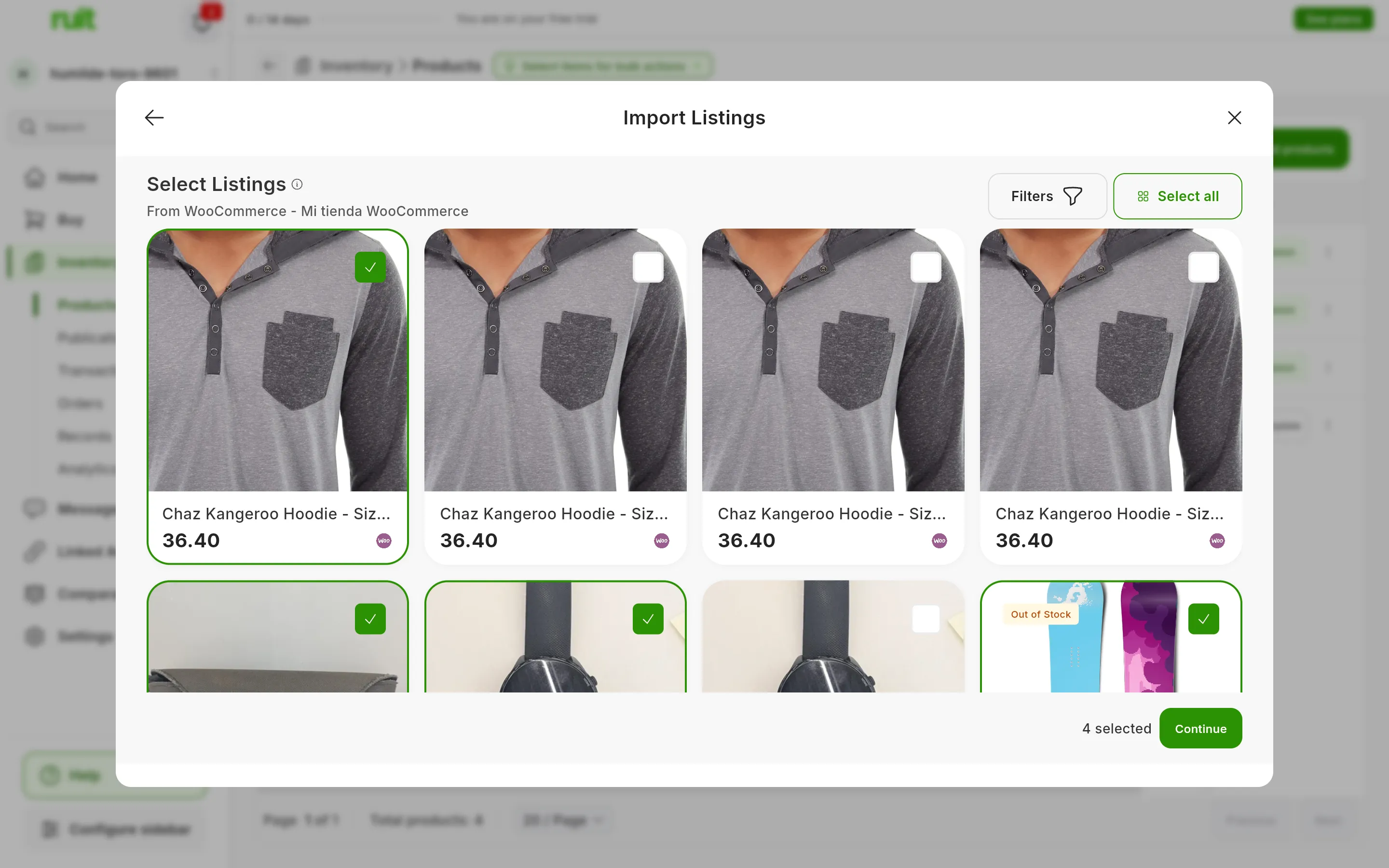
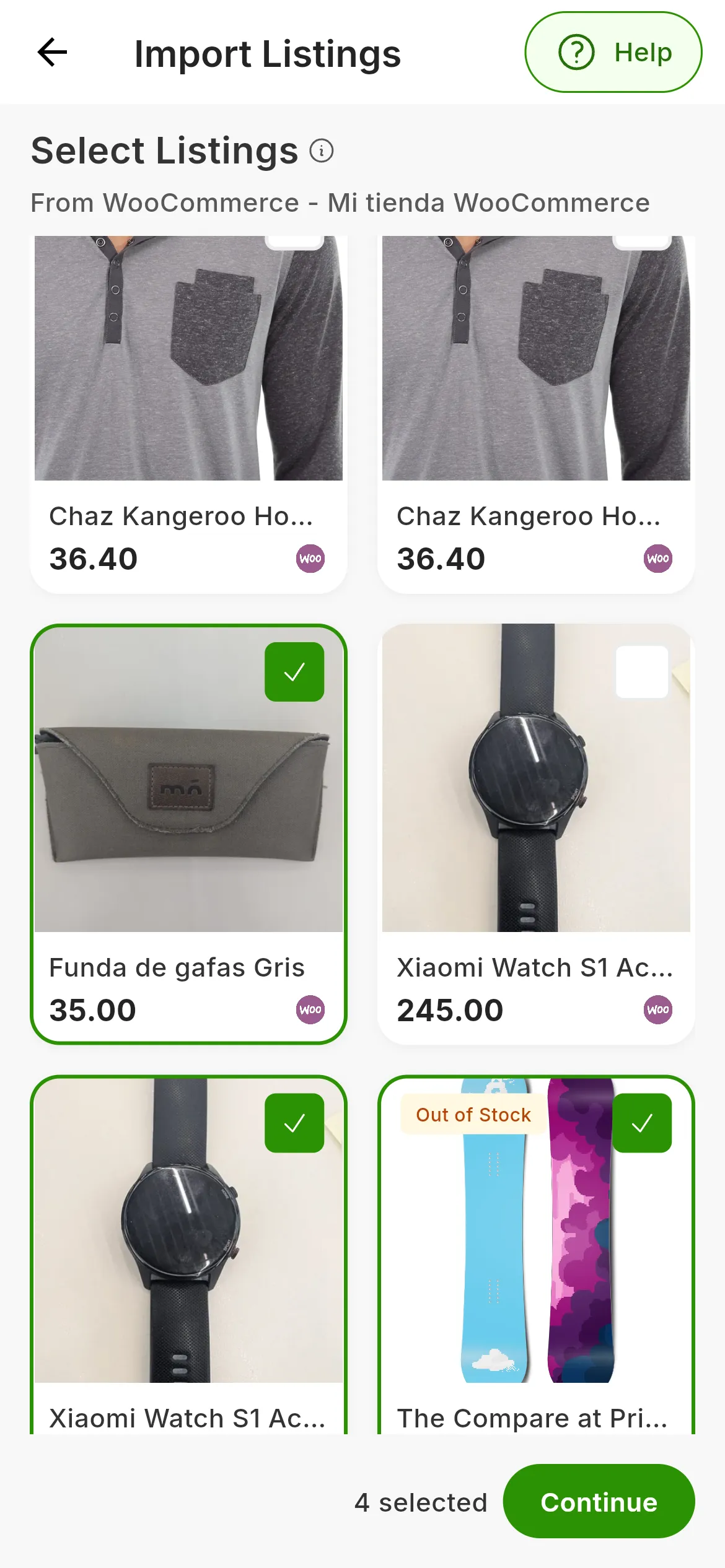
Four listings ticked. Select all ticks every listing in the account, not just the ones you can see.
Select all asks you to confirm and takes a moment to gather the listings if there are many. From Wallapop and eBay you get the listings that are for sale, and from Vinted all of them except the closed ones; on Wallapop and Vinted, Filters lets you choose other statuses, such as the reserved ones.
4. Read the summary
Before bringing anything in, RUIT compares each listing with the products you already have and tells you what will happen to each one. Nothing has been imported yet.
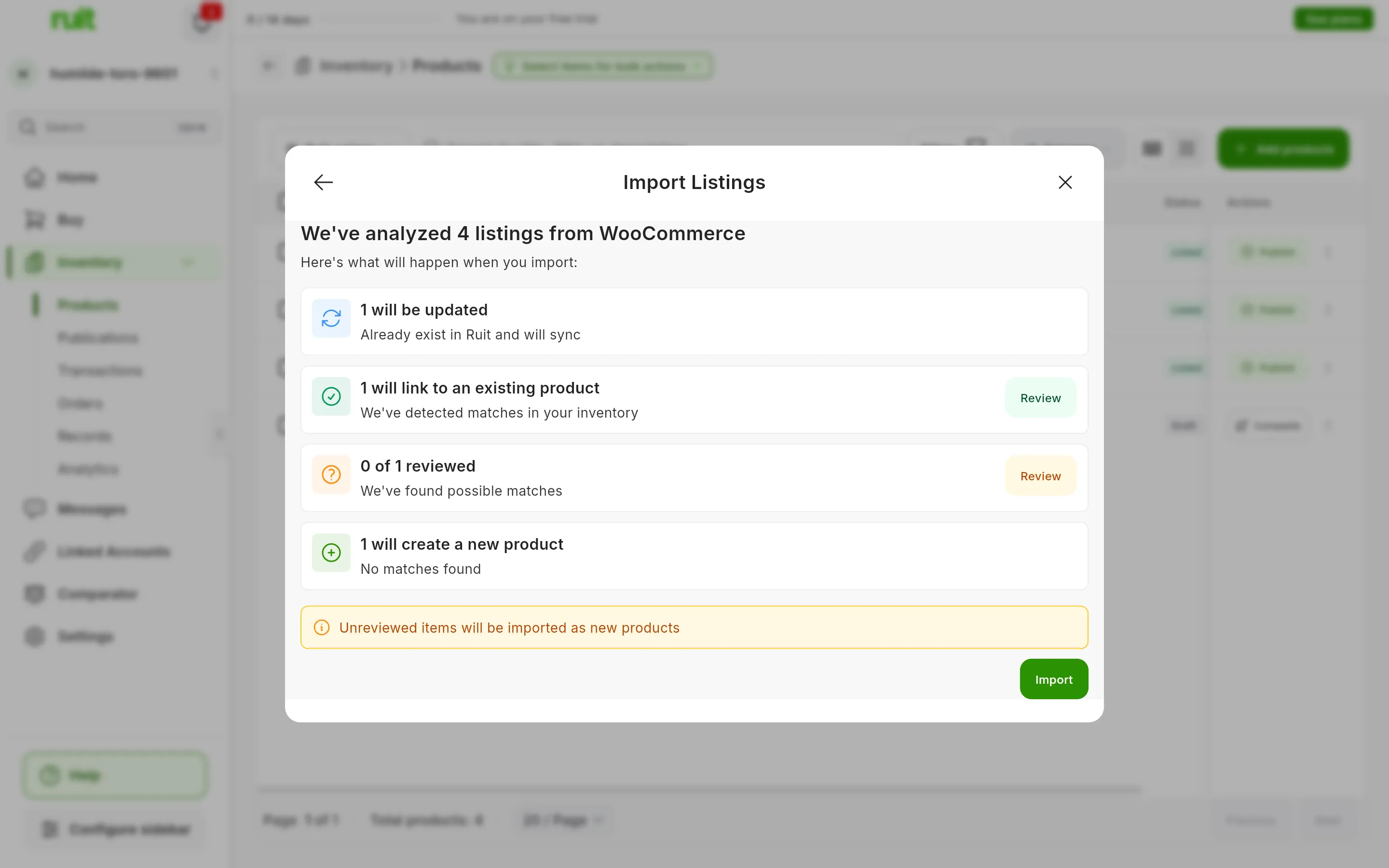
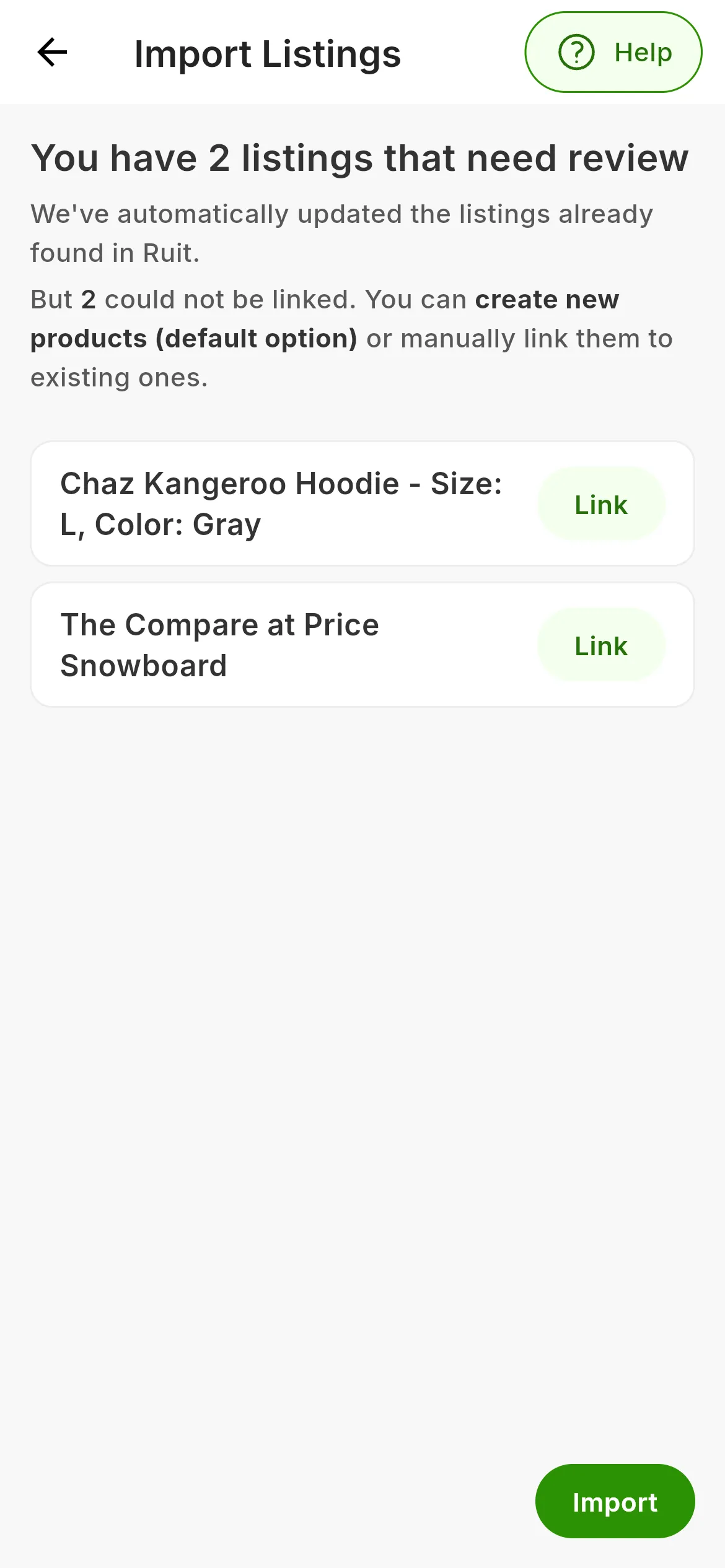
On a computer, one card per case, and only the ones that have some listing in them. On a phone, only the listings that have no product.
- Will be updated. You or someone in your organization had already imported that listing. RUIT refreshes the product’s title, description, photos, condition and shipping, but does not touch its price, its stock or its SKU.
- Will link to an existing product. The listing has the same EAN, ISBN or SKU as one of your products. Instead of creating another one, RUIT links the listing to that product, which keeps its title, its photos, its price and its stock. With Review you can see which product each one goes to.
- We’ve found possible matches, with its count of reviewed ones. The listing looks like one of your products, but RUIT is not sure which one. You decide in the next step.
- Will create a new product. It does not look like anything in your inventory. On your first import, it is normal for everything to end up here.
RUIT only links on its own when an identifier matches: the EAN or the ISBN on any marketplace, and the SKU on eBay, Shopify, WooCommerce, PrestaShop and Todocolección. A similar title is never enough, so Wallapop and Vinted listings go to review or to a new product.
On a phone, the summary is simpler: RUIT updates the listings you already had and shows you the ones that have no product, so you can Import all of them as new products or Link each one by hand. There is no step for reviewing matches.
5. Review the matches
If there is a possible-matches card, press its Review. RUIT shows you those listings one at a time: at the top, the listing you are about to import and, below it, up to five products in your inventory that look like it.
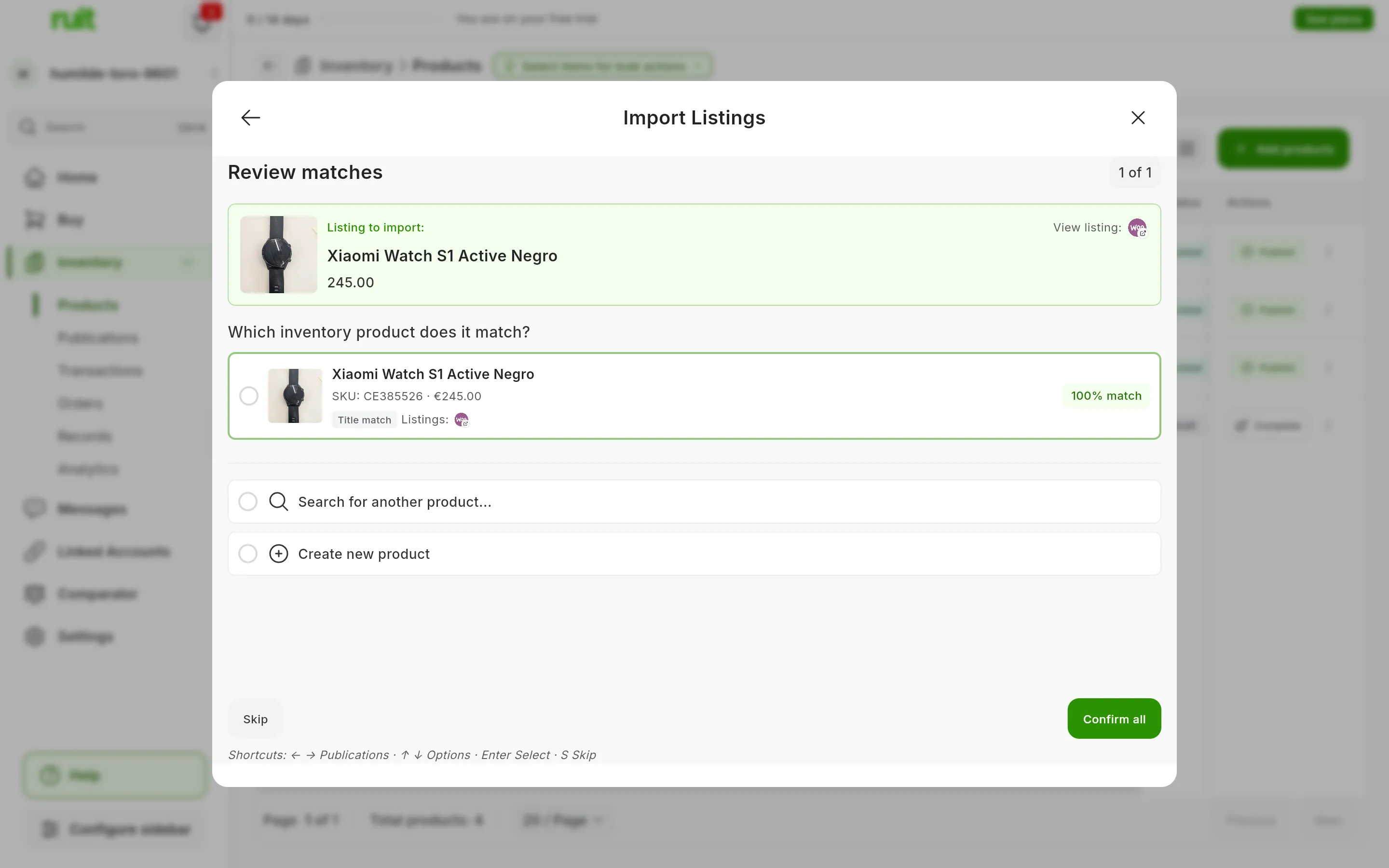
A listing with one candidate. The numbers mark its similarity, Search for another product…, Create new product and Confirm all.
For each listing, choose an outcome:
- The product that matches it, if it is in the list. Each candidate says why it looks similar, the same SKU or EAN or a similar title, and by how much (1).
- Search for another product… (2), if the right one has not come up: you look for it in your inventory and press Link Now.
- Create new product (3), if it is none of yours. Skip does the same.
Once you choose, RUIT moves on to the next listing. When you have finished, press Confirm all (4): you go back to the summary, which now says how many will be imported as you reviewed them. Nothing has been imported yet.
If you are reviewing a lot of them, the screen works with the keyboard: ← and → move between
listings, ↑ and ↓ go through the options, Enter chooses and S skips.
6. Import
Press Import. If you have left possible matches without reviewing them, RUIT reminds you with Create new products?: Review them takes you back to the review and Create as new imports them as new products.
The window shows the progress, with the new products, the updates and the errors counting up in real time. You can close it: the import carries on by itself and, when it finishes, you get a notification and an email with the result. Cancel stops it; whatever has already been brought in stays.
At the end you will see Import Successful! and how many products have been imported. Press View in Inventory.
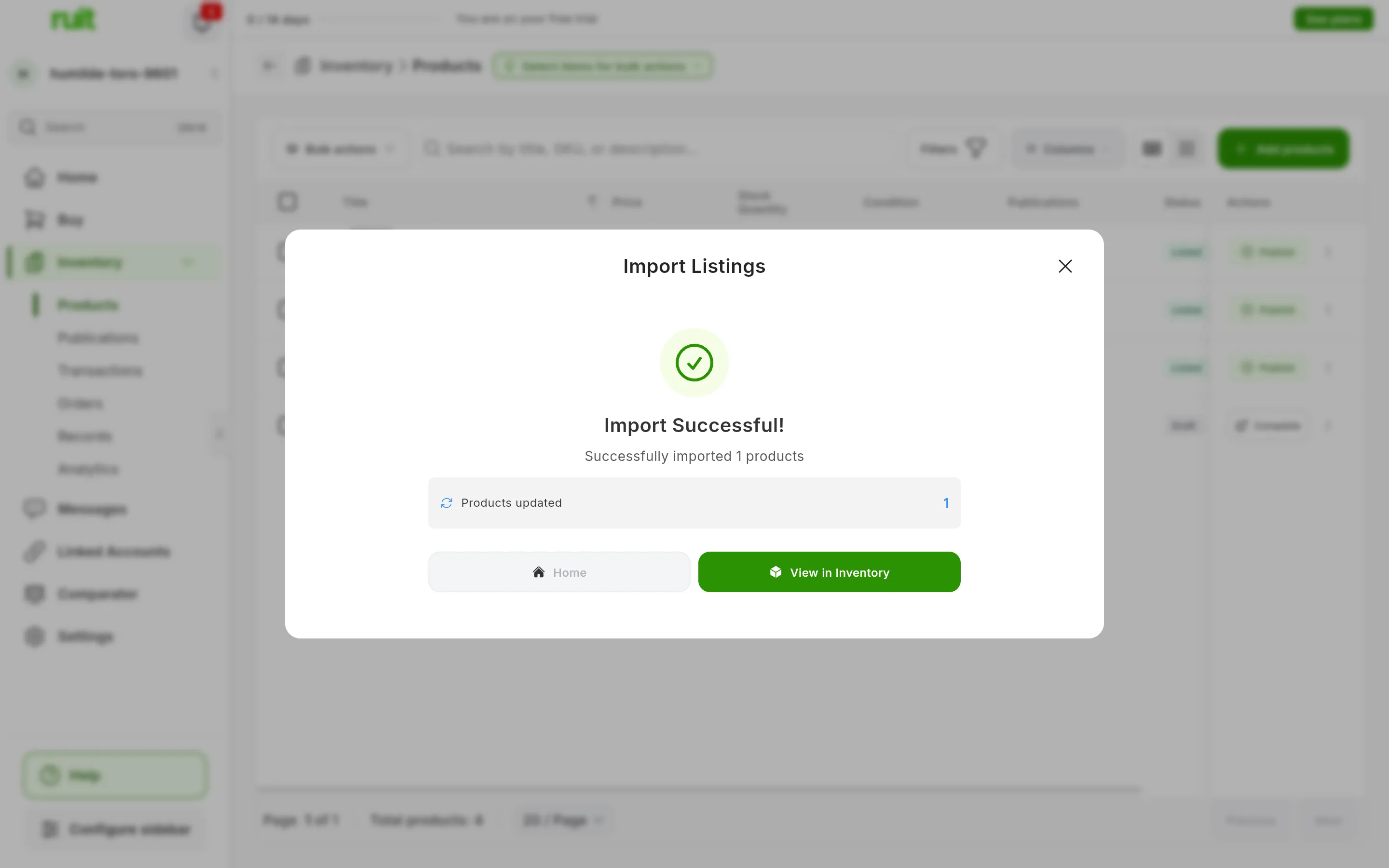
An import of a single listing that was already in the inventory: it has been updated, not duplicated.
What you have achieved
Your listings are now products in your RUIT inventory, each one linked to its listing. From now on RUIT keeps their price and their stock up to date on that marketplace, and you can publish them on the others.
Next step: publishing your first listing, to take one of these products to another marketplace.
If something is off
- I cannot see the summary or Review matches. In a narrow window, like a phone’s, the import does not look for matches and its summary is the simpler one from step 4.
- “Extension Issue” on Wallapop or Vinted. RUIT could not read your listings through the extension: check that it is connected and try again. If it disconnects halfway, whatever is left is not brought in and counts as an error; import again with the browser open.
- A product has arrived with stock 0 or as new. Each marketplace hands over what it has. From Shopify the condition always arrives as new and, if the listing had no quantity, the stock arrives as 0 (from WooCommerce, as 1). From Wallapop and Vinted, the product arrives with one unit and a SKU that RUIT generates.
- The category is missing. RUIT products have no category: you choose it when you publish, on each marketplace.
- A new listing has ended up on a product I already had. If its SKU is the SKU of one of your products, RUIT links it to that product instead of creating another one, even if you have not reviewed it.
- I chose a product in the review and RUIT has created another one. When importing, RUIT checks each link again and creates a new product if the chosen one is no longer valid: because it is archived or it has run out of stock, or because on Wallapop, Vinted or Todocolección it already has a live listing on that marketplace. The screen does not warn you.
- “Download error report” appears. Download it: it is a CSV with each listing that has not been imported and the reason why.
Video
Video not recorded yet: Bringing in the listings from a connected account
Did this article help?
Thanks for telling us.