Invite your team and choose their role
How to invite someone to your organization and how they accept, what each role can do, what each person sees and how to change a role or remove someone.
You add someone to your organization by email: you invite them, they receive a link and, when they open it, they join your team with the role you gave them. The owner and the admins can send invitations.
Inviting someone
-
In Team Members, press Invite member. On a phone, the button is in the organization’s Overview.
-
Type their Email.
-
Choose their Role: Admin, Manager or member. Nobody joins as owner through an invitation.
-
Tick the Stores (optional) they are going to work in. If you tick several, you can choose which one they start in under Landing store (optional), or let RUIT choose it with Auto (org default or single assigned store).
-
Press Send invitation.
RUIT confirms it with Invitation sent to and the email address. A manager or a member needs at least one store: if you tick none, the invitation is not sent. The owner and the admins work in all of them without you ticking any.
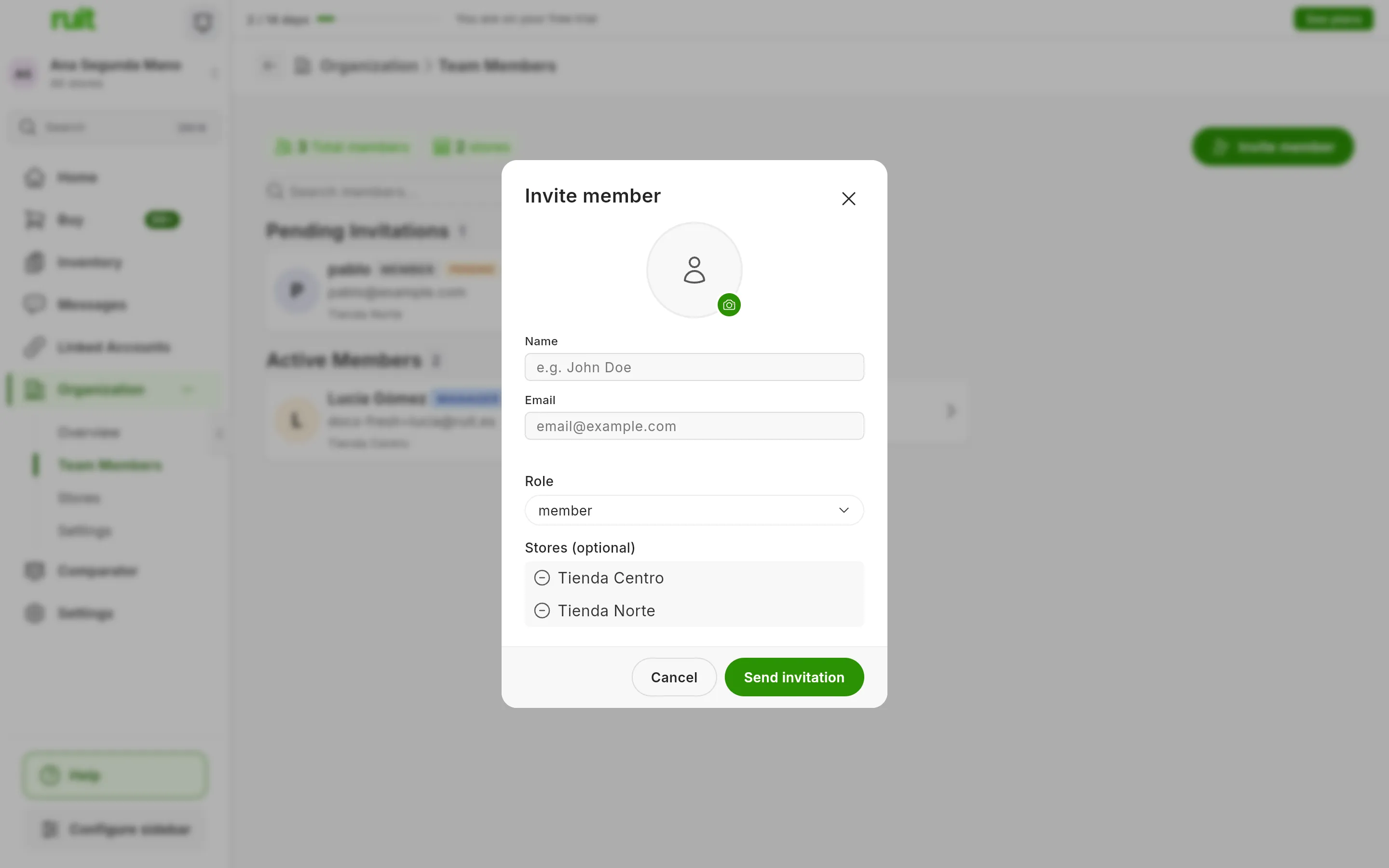
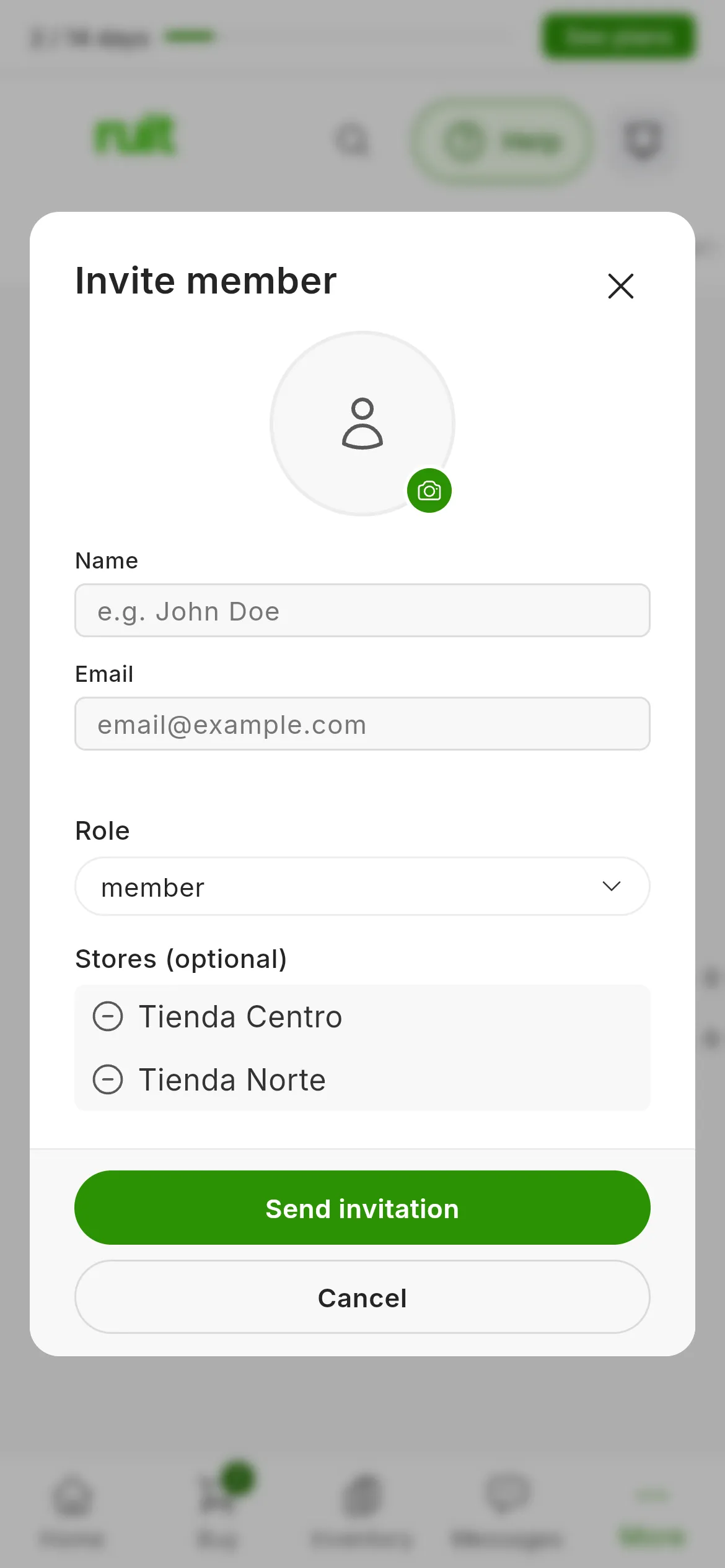
The invitation form, with the organization’s two stores to choose from.
Pending invitations
Until someone accepts it, the invitation sits in Pending Invitations, above Active Members, with the role and the stores you gave it and the PENDING label.
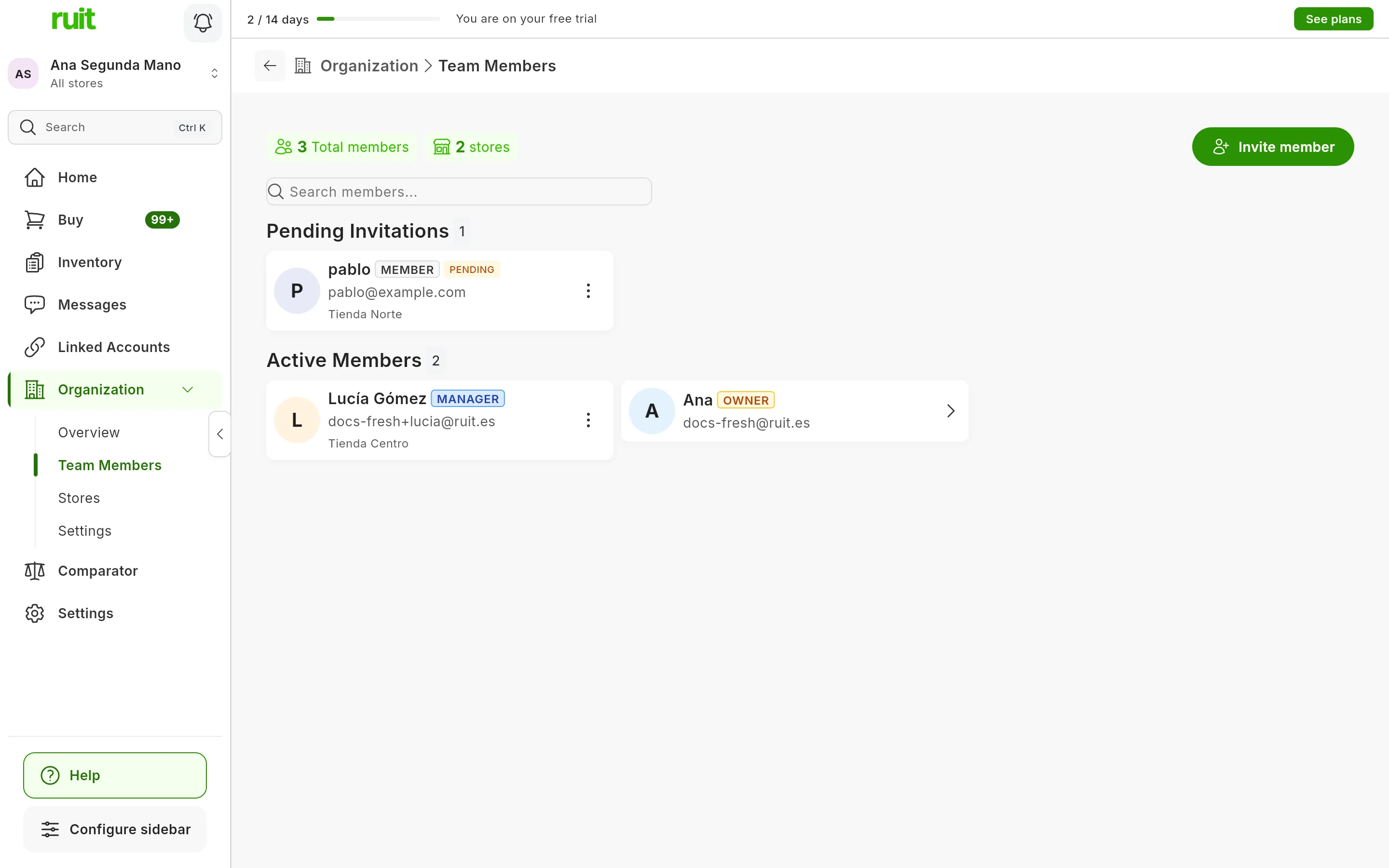
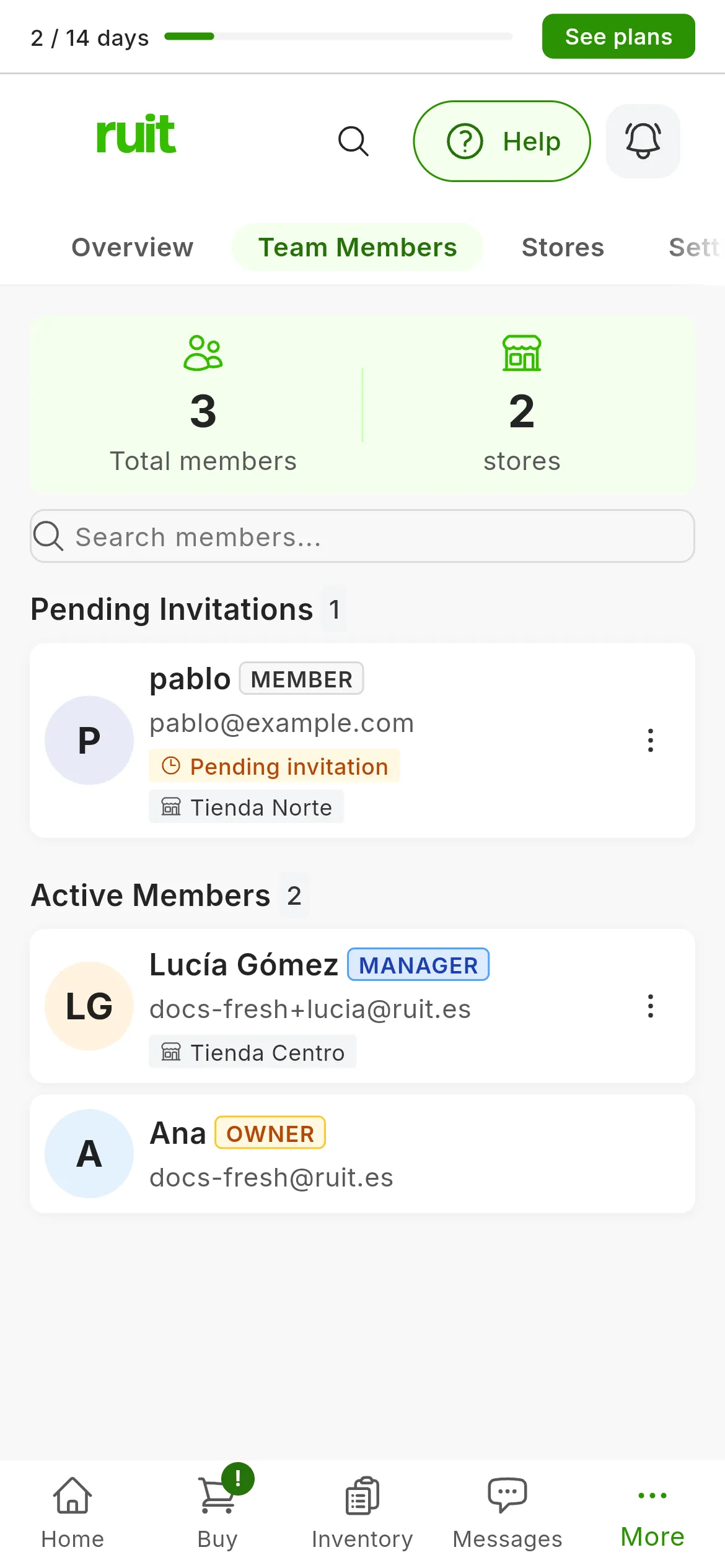
One pending invitation and the organization’s two active members.
The invitation link expires after seven days. To withdraw it before then, or to invite someone again after their invitation has expired, open the menu on their card and press Cancel invitation. Then you can send them a new one.
Accepting an invitation
The invited person receives an email with the organization’s name and a link. When they open it:
- If they are already signed in with that email address, they join the organization.
- If not, RUIT shows Sign in to accept the invitation: they sign in, or create an account, with the email address the invitation was sent to. As soon as they are in, they join the organization.
When it works, they see Invitation accepted, the store they start in and the Open organization button. If not, RUIT tells them why:
| Message | What happened | What to do |
|---|---|---|
| This invitation has expired. | The seven days have passed | Ask for a new invitation |
| This invitation was sent to a different email address. | They signed in with another account | Sign in with the invited email address |
| This invitation has already been accepted or is no longer valid. | They already used it, or it was cancelled | Ask for a new invitation if needed |
The four roles
Each person on the team has a role. Pressing their card in Team Members opens their details, with their Role Permissions and their Assigned stores.
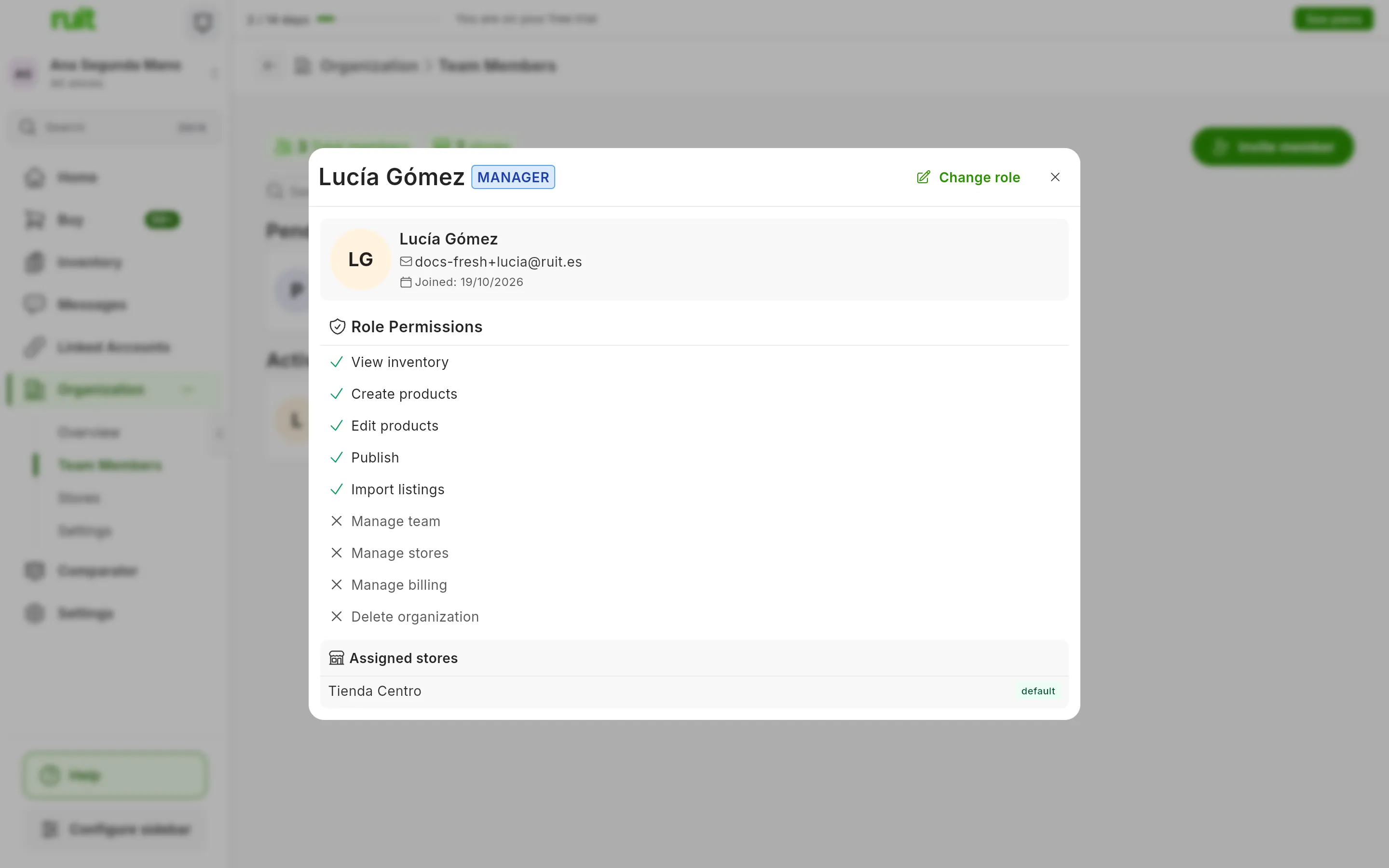
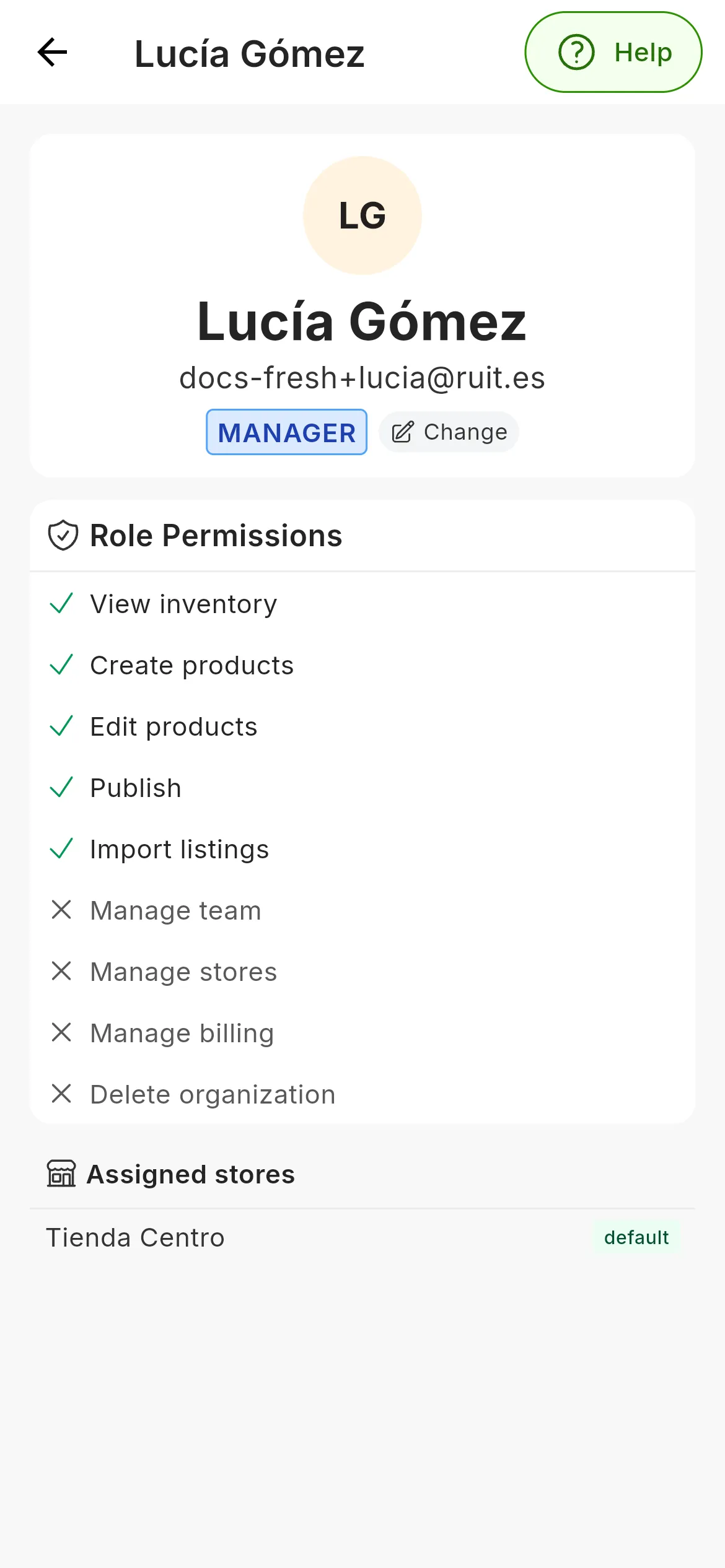
A manager works with the catalog, but does not manage the team or the stores.
| What they can do | Member | Manager | Admin | Owner |
|---|---|---|---|---|
| View the inventory and publish | Yes | Yes | Yes | Yes |
| Create and edit products, and import listings | No | Yes | Yes | Yes |
| Invite, change roles and remove someone from the team | No | No | Yes | Yes |
| Create stores and work in All stores | No | No | Yes | Yes |
| Change the organization’s name and logo | No | No | Yes | Yes |
| Create and change pricing rules | No | No | Yes | Yes |
There is only one owner: whoever owns the organization. Their role cannot be changed, they cannot be removed from the team and nobody becomes owner from here.
What each person sees
- Owner and admins see all the stores, each one separately or all at once, and in the inventory they can filter by store.
- Managers and members see what belongs to their stores, plus what belongs to the whole organization.
- Marketplace accounts, Wallapop, Vinted, eBay, Todocolección and IberLibro, belong to whoever connects them: only that person sees them and publishes or replies to messages with them, and not even the owner has access. Online store accounts, WooCommerce, Shopify and PrestaShop, are shared with the whole organization.
Each person sees the messages of the accounts they can use.
Changing a role or removing someone
-
In Team Members, open the menu on their card, or their details.
-
To change the role, press Change role (in their details on a phone, Change), pick the new one in Select new role and press Update role.
-
To remove them from the team, press Remove member and confirm with Remove.
Changes apply at once. Whoever leaves the team stops seeing the organization, and what they created in it stays in the organization.
Video
Video not recorded yet: Sending an invitation and accepting it
Did this article help?
Thanks for telling us.