Connect eBay to RUIT
Connect eBay to RUIT: create the three business policies on eBay, authorize RUIT on eBay's website and say where you ship from. You only do it once.
In this tutorial you connect your eBay account to RUIT. eBay does not ask for keys or an extension: you give RUIT permission on eBay’s own website and come back. Before a tool can publish for you, though, eBay requires three business policies (payment, shipping and return) and the place you ship from, which RUIT only asks for if it is missing. It takes ten minutes and you only do it once.
You need an eBay seller account and to be signed in to it in this browser. It makes no difference whether it is a personal or a business account, or which eBay you sell on: RUIT reads your account’s country and publishes on that eBay.
1. Open your business policies on eBay
Go to eBay’s business policies page, which is
ebay.com/bp/manage: the Business policies screen. You can also get there from
My eBay → Account → Selling → Business policies. If you sell on another eBay, change the
domain: ebay.co.uk/bp/manage, ebay.es/bp/manage, ebay.de/bp/manage.
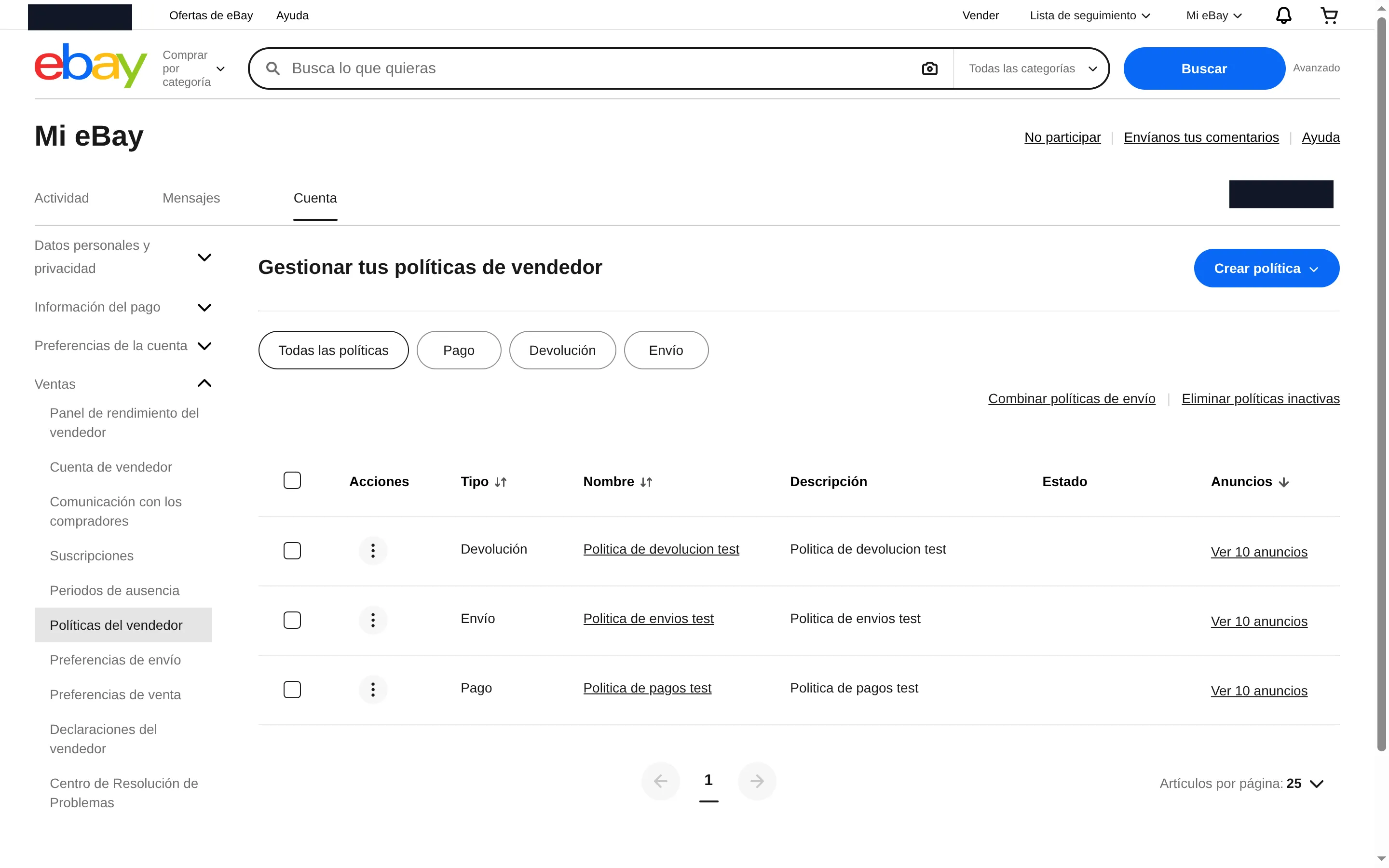
The list of your policies. You need at least one of each type: payment, shipping and return. If the table already has all three, skip to step 5.
2. Create the payment policy
Press Create policy and pick Payment. Give it a name you will recognize and leave the Require immediate payment box ticked for Buy It Now: it is what takes an item off sale the moment it sells. Press Save.
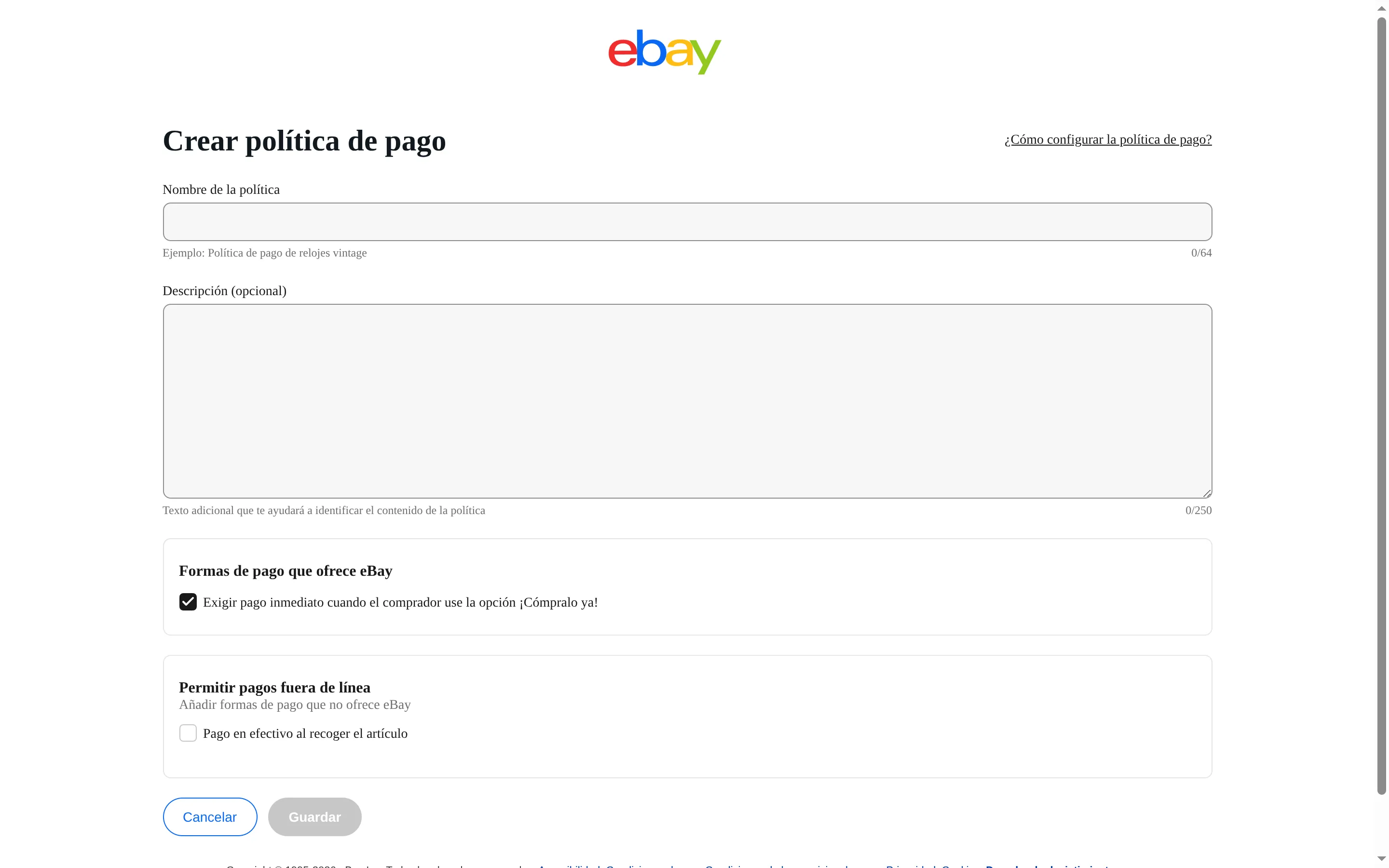
The name is just for you. Leave the second box, the one for cash on pickup, as it is unless you sell in person.
3. Create the shipping policy
Press Create policy and pick Shipping. Give it a name, choose the cost type and press Add primary service to say which carrier you ship with and how much you charge. Check the Handling time, which is how long you commit to taking to ship, and press Save.
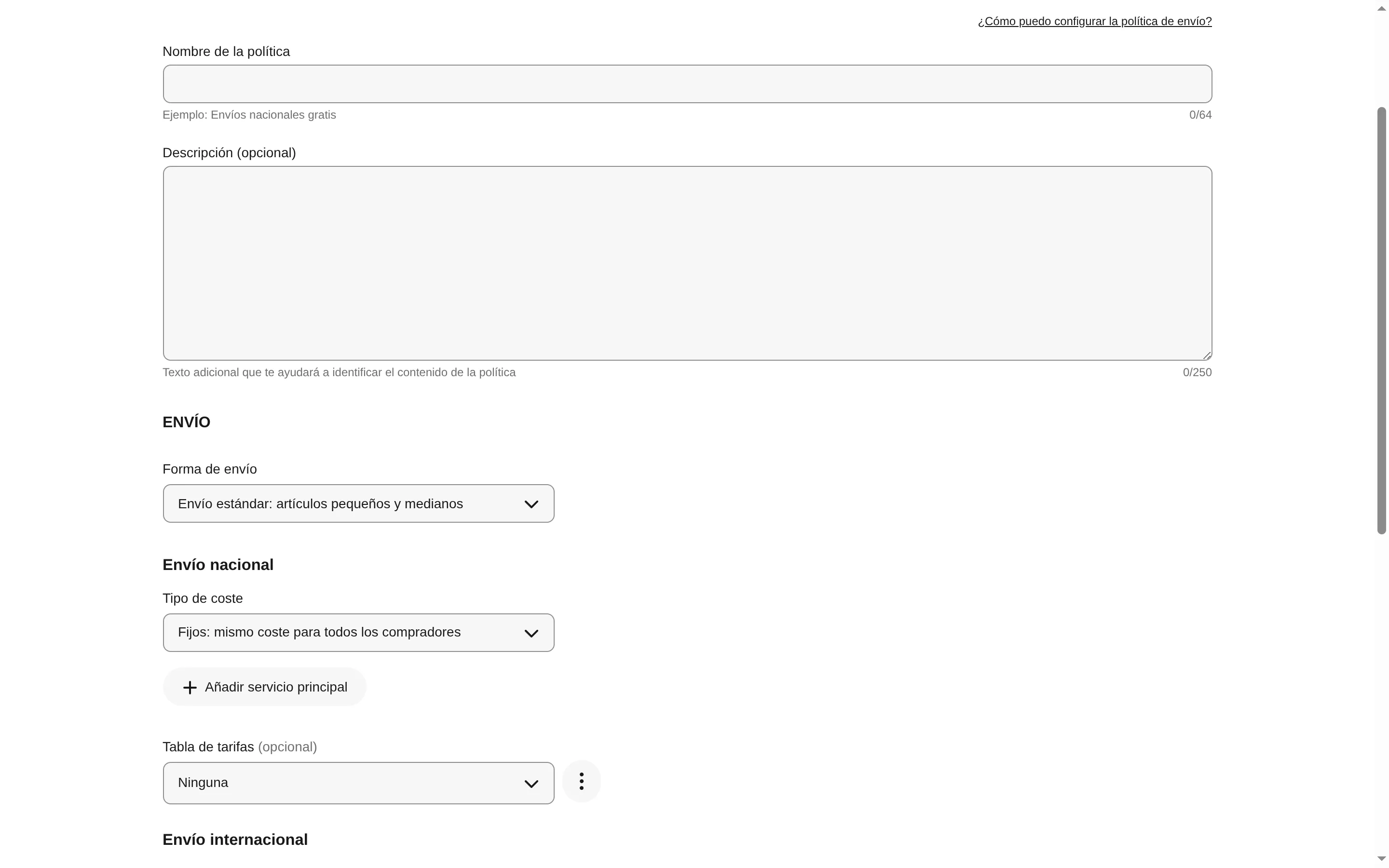
eBay will not let you save without a primary service. International shipping and local pickup are optional.
4. Create the return policy
Press Create policy and pick Return. Give it a name and use the Accept returns toggle to decide whether you take domestic returns; if you do, eBay asks for the return window and who pays for return shipping. Press Save.
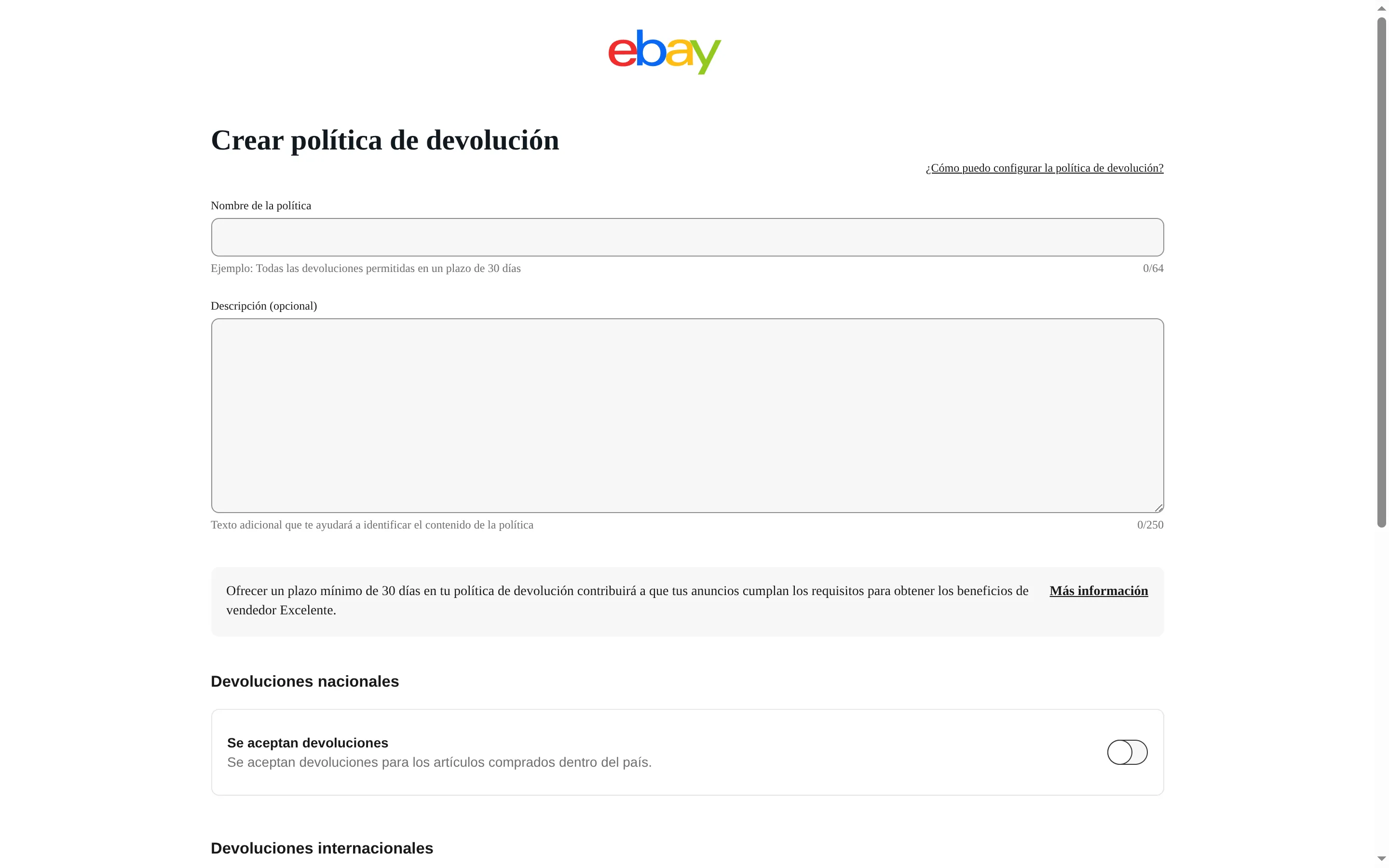
The domestic returns toggle. eBay recommends a return window of at least 30 days.
5. Authorize RUIT from eBay
Go back to RUIT. Open Settings → Accounts, press Connect Account and pick eBay.
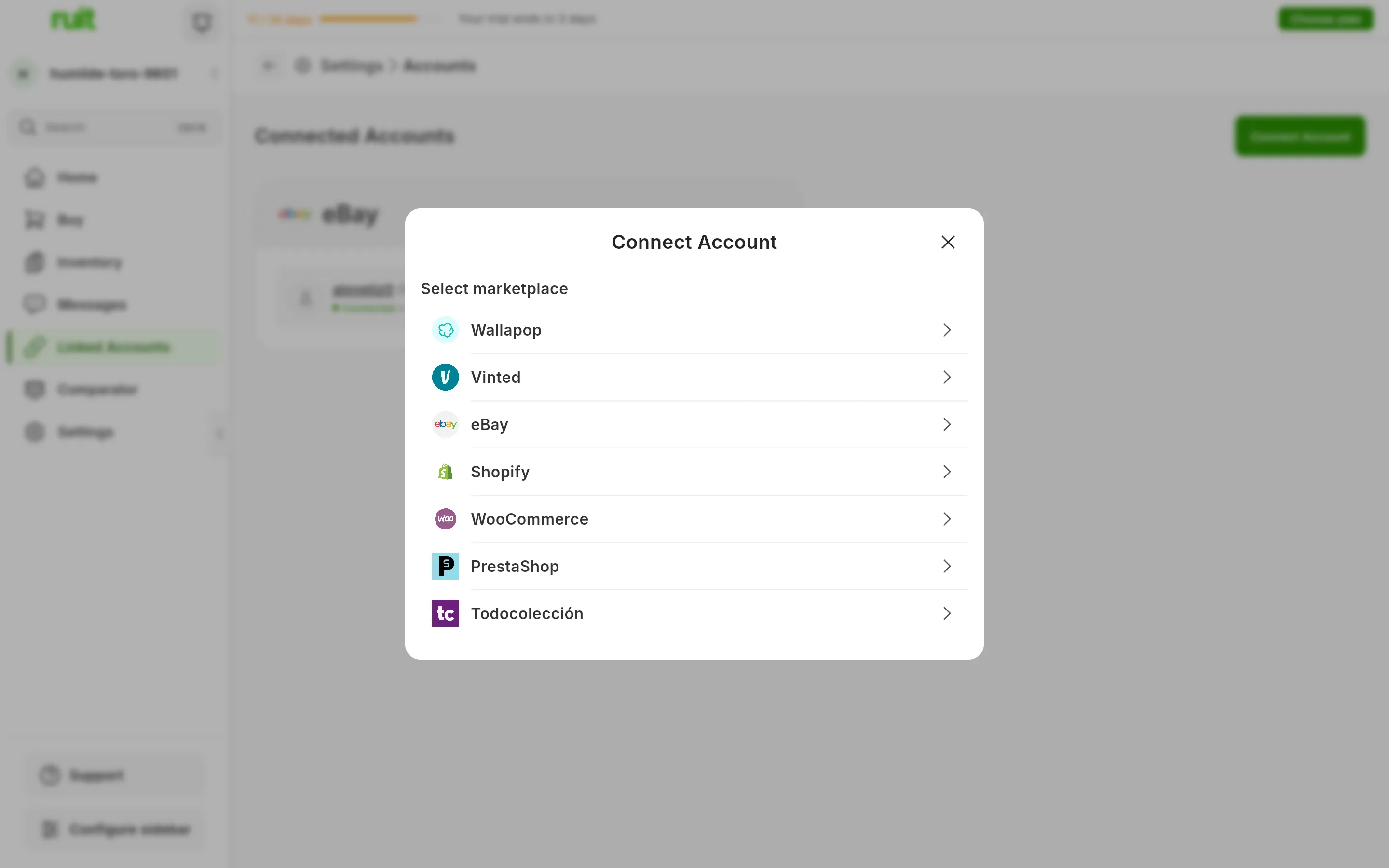
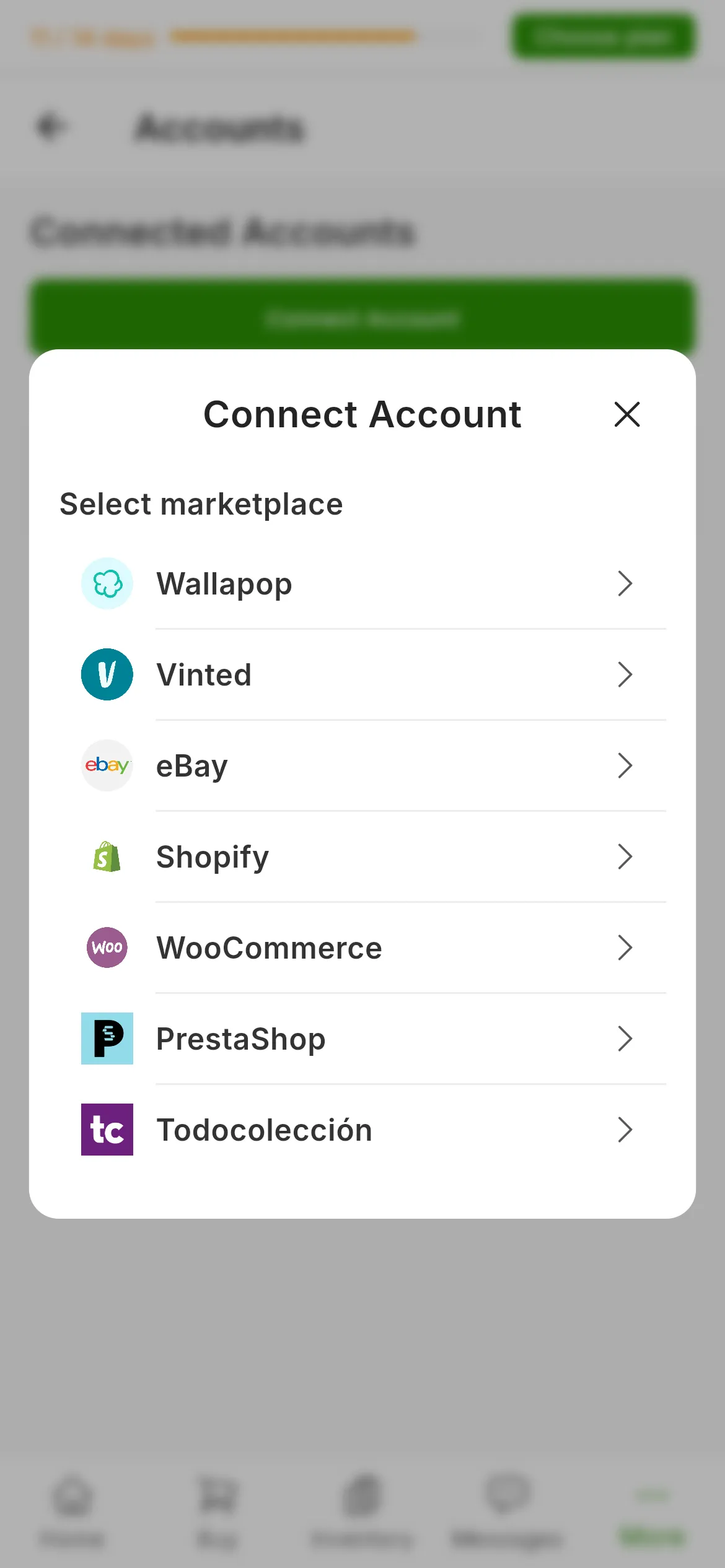
The marketplace selector. The number marks eBay.
RUIT explains that eBay requires authorization and offers you the Connect with eBay button. Pressing it opens the eBay website.
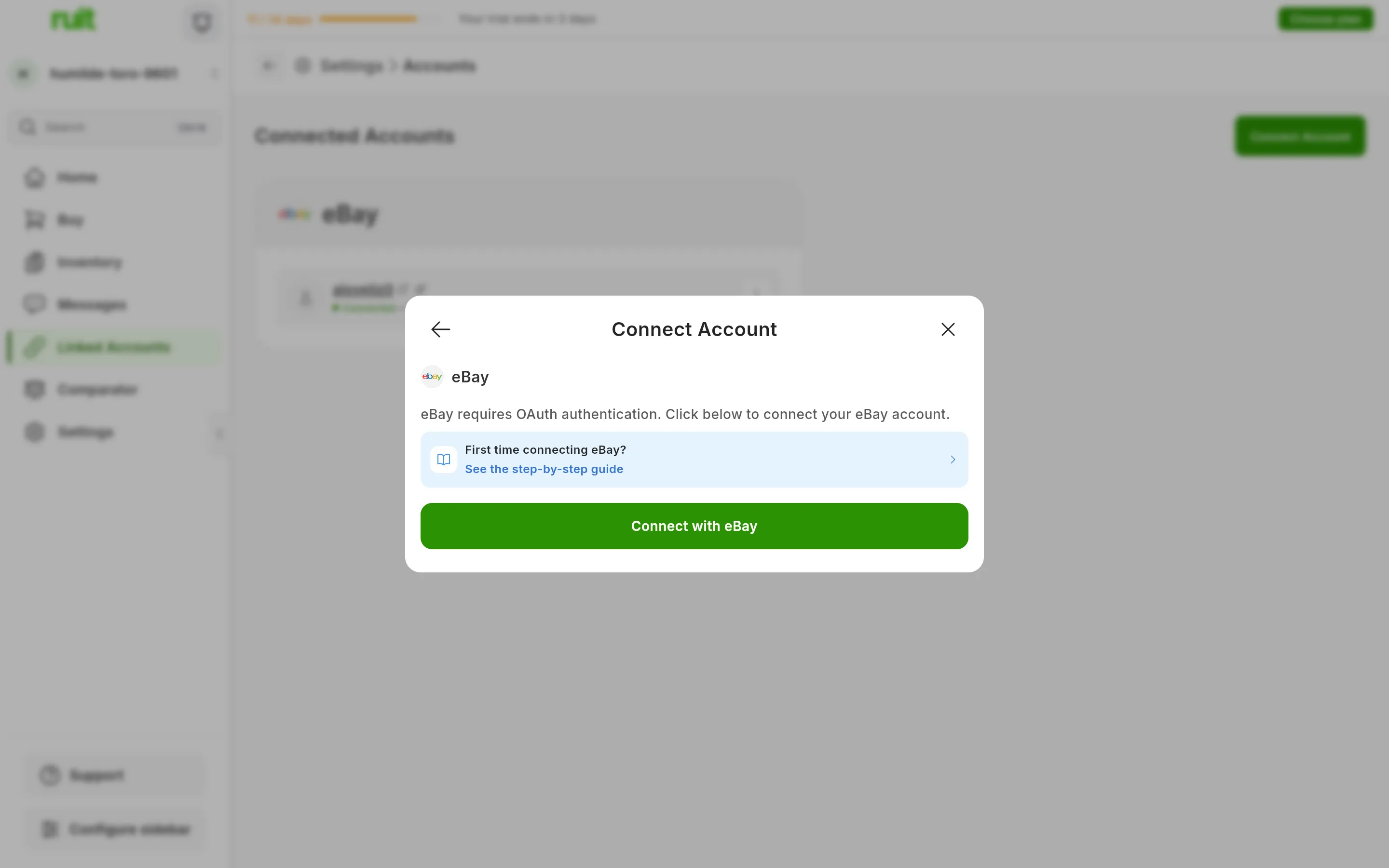
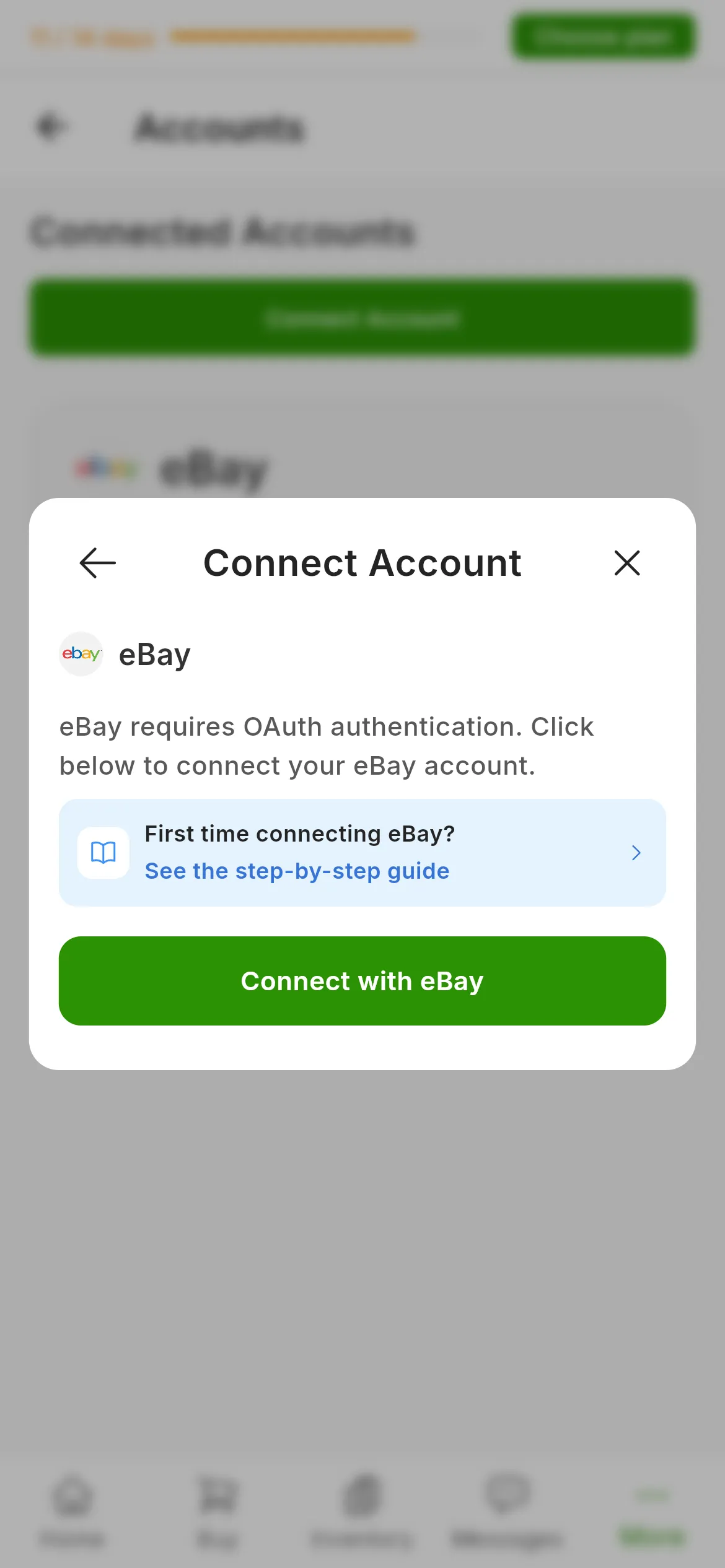
The eBay dialog. The number marks Connect with eBay, which takes you to the eBay website.
On eBay, sign in with your account if asked and accept the permission RUIT requests: publishing and editing listings, and reading your sales and your policies. eBay sends you back to RUIT with the account already connected.
6. Say where you ship from, if RUIT asks
As soon as you are back, RUIT checks the account with eBay. If your account is missing the inventory location, a technical detail that eBay requires of any tool that publishes for you and that you will not find in any menu of your eBay account, RUIT shows you Connect eBay with two checks already done, Account authorised and Business policies activated, and one last question: where do you ship your products from? Type the postal code and the city, check the country and press Finish. RUIT creates the location on eBay with those details.
If your account already had a location, because you published before with RUIT or another tool, this step does not appear.
What you have achieved
Your eBay account is connected and ready to publish. Under Settings → Accounts you will see the eBay card with your username and the green connected dot. Unlike Wallapop and Vinted, it has no reconnect button, because the permission lives in RUIT and not in your browser. If the account were missing anything, the card itself would say so, with the Fix it button next to it.
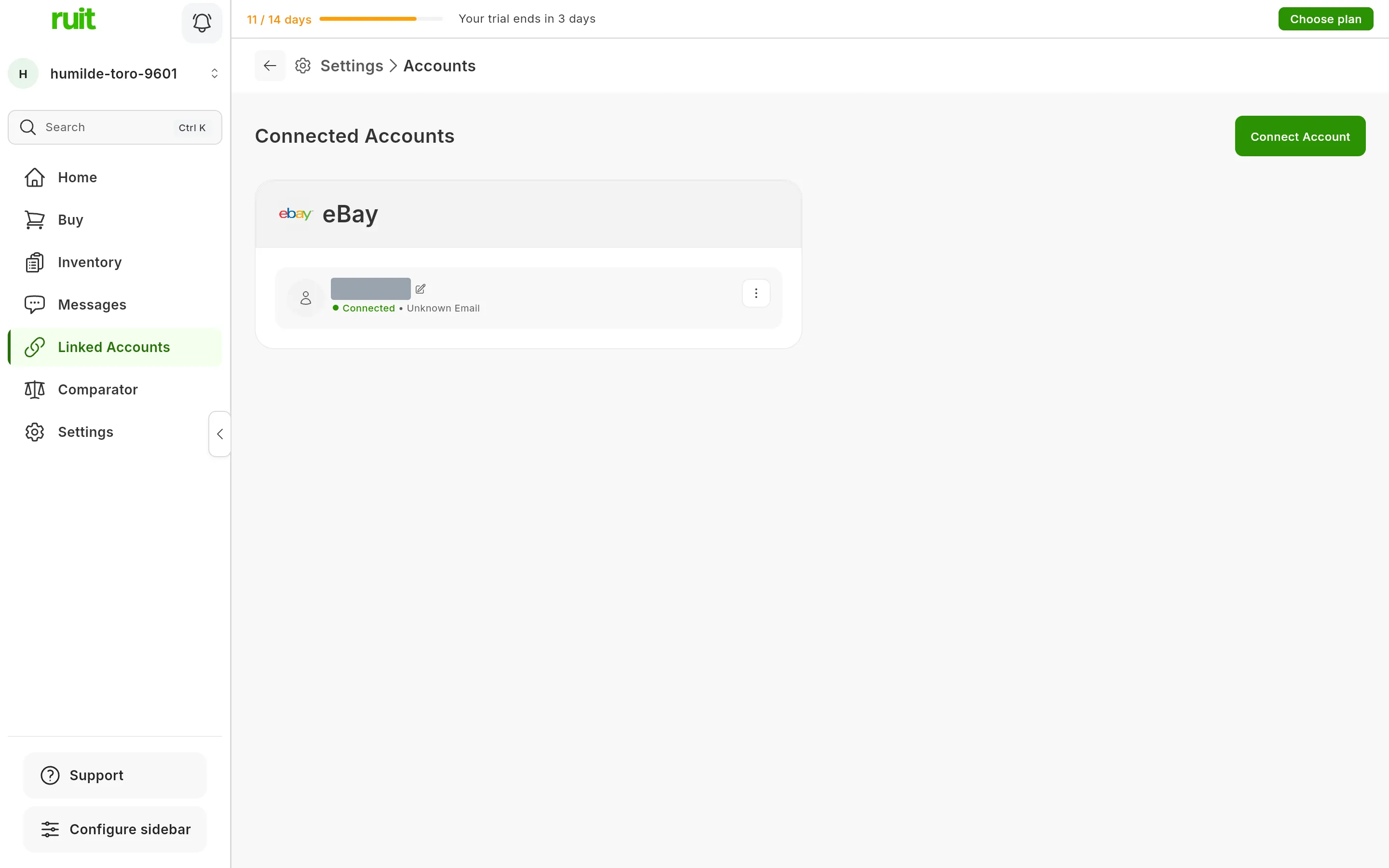
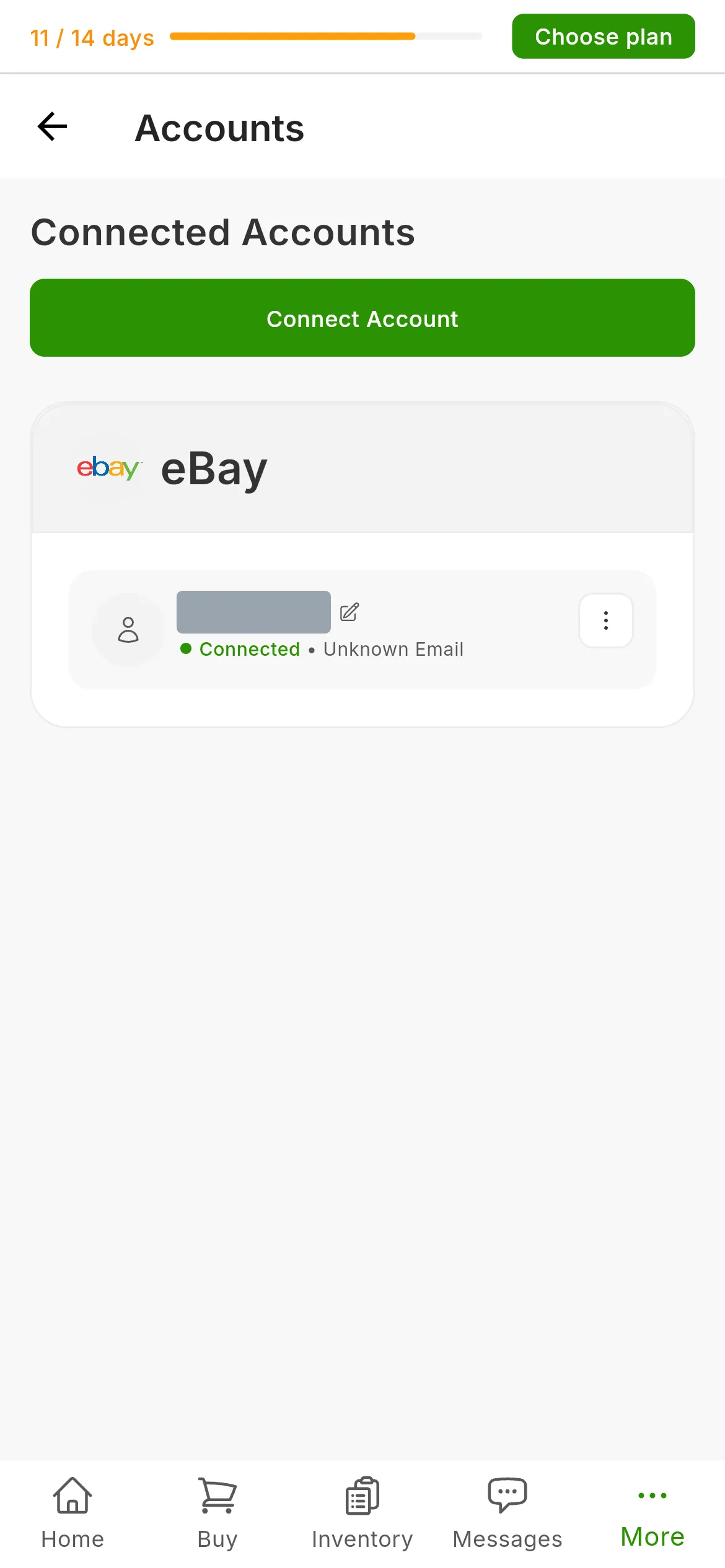
The eBay account, connected. When RUIT has not been able to check it with eBay, the card says so and offers Check again.
Next step: importing from a marketplace to bring in the listings you already have on eBay, or publishing your first listing.
If something is off
- The card says “This account cannot publish” and names the policies. eBay cannot find one of the three. Create it in the step it belongs to and press Check again; RUIT asks eBay once more.
- The card says the postal code is missing. Press Fix it and step 6 opens.
- “eBay rejected this connection.” The permission is no longer valid; press Link again and repeat step 5.
- “We could not check this account with eBay.” eBay did not answer; it is not a problem with your setup. Press Check again in a moment.
- “eBay will refuse these listings.” You sell as a business and none of your return policies accepts returns. Edit the policy RUIT names, on eBay, and check again.
- You sell on eBay in several countries. A listing lives on one eBay only, the one your account belongs to. RUIT does not publish the same listing on several eBay sites at once.
Video
Video not recorded yet: Connecting an eBay account
Did this article help?
Thanks for telling us.