How to install the RUIT extension
Install the RUIT Chrome extension and connect Wallapop, Vinted and the rest of your marketplaces to your account in a couple of minutes.
In this tutorial you install the RUIT Chrome extension and leave it connected to your account. It takes two minutes and there is no key to copy anywhere: once you add it, the extension links itself.
You need a computer with a Chromium-based browser: Chrome, Edge, Brave, Opera or Vivaldi. The extension is what lets RUIT talk to Wallapop and Vinted, which have no public API: it uses the session you already have open in your browser to import your listings, publish, receive messages and detect sales. Marketplaces with an API (eBay, Shopify, WooCommerce, PrestaShop and Todocolección) connect without it.
1. Open the extension’s listing
There are two ways in, and both lead to the same Chrome Web Store listing:
- On Home, press Install on the Install the extension task.
- If you have already hidden the first-steps list, go to Settings → Extensions and press Connect Extension or Download Extension.
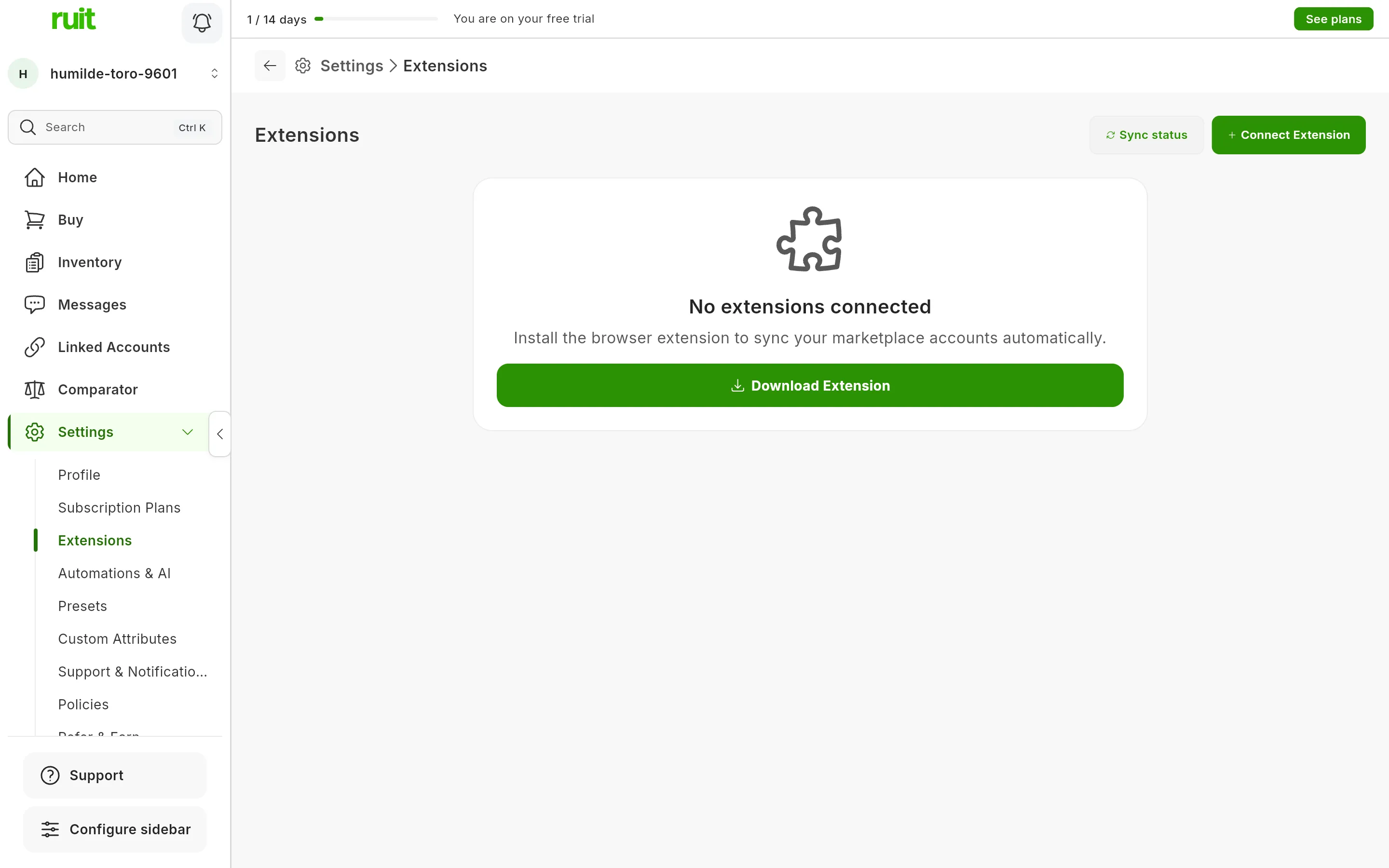
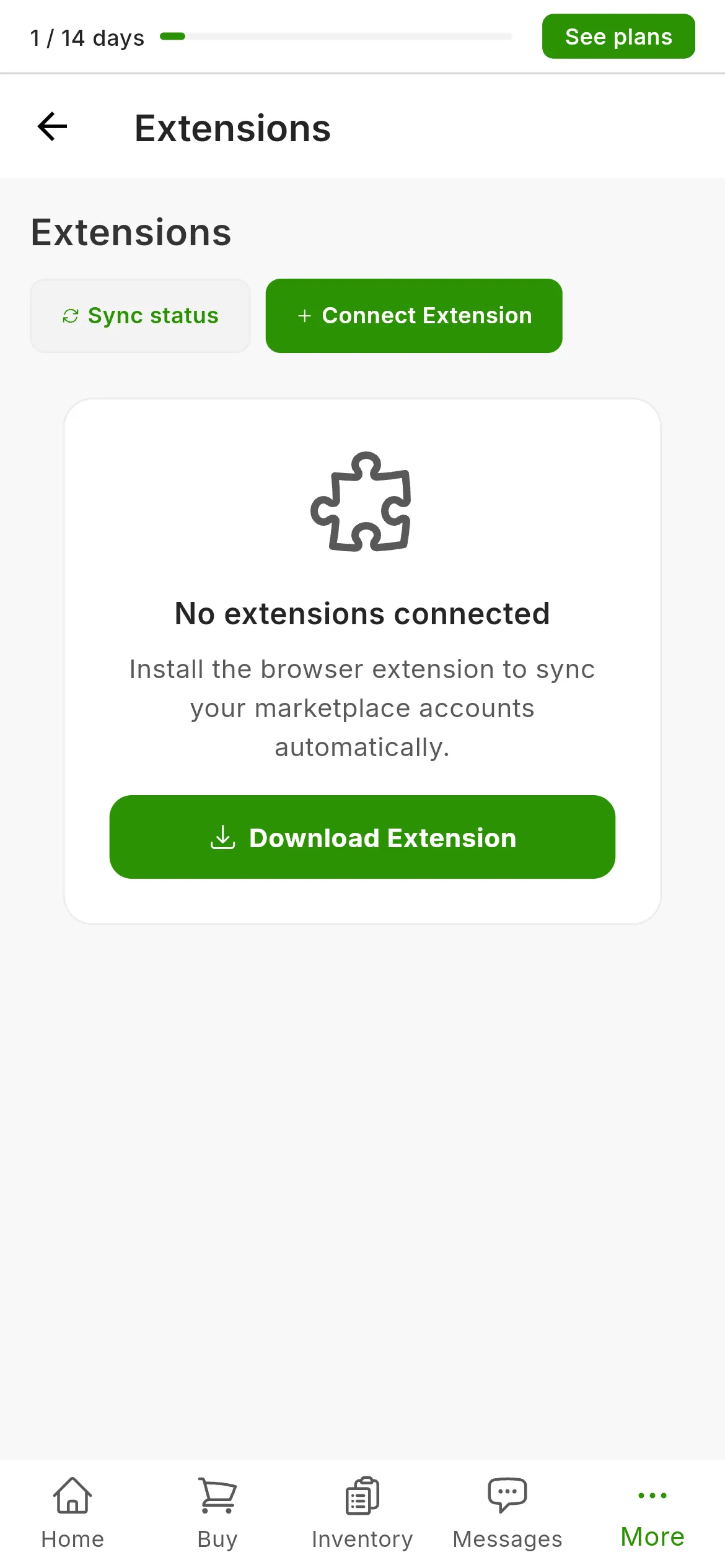
Settings → Extensions before installing anything. Both buttons open the Chrome Web Store listing.
2. Add the extension to Chrome
On the Chrome Web Store listing, press Add to Chrome and confirm in the browser’s prompt.
Video not recorded yet: Installing the extension from Settings
3. Walk through the welcome tab
Chrome opens a RUIT tab by itself that starts with This tab opened when you installed Ruit in Chrome. It is three steps of reading, nothing to fill in: what the extension does, what it needs to work and which marketplaces do not need it. Press Next on each one.
At the end it offers to pin the extension to the Chrome toolbar: click the puzzle-piece icon and hit the pin next to RUIT. That way you can see its connection status at a glance, without opening any menu. If you are already signed in on that browser, the tab recognizes you and takes you to your Home.
Video not recorded yet: Pinning the extension to the toolbar
4. Check that it shows as connected
Go back to Settings → Extensions: the extension now shows up as a card with its name and the green Connected dot. If it comes up gray, press Sync status: the status is read when the screen opens, and your extension may have connected after that. On Home, the Install the extension task ticks itself off.
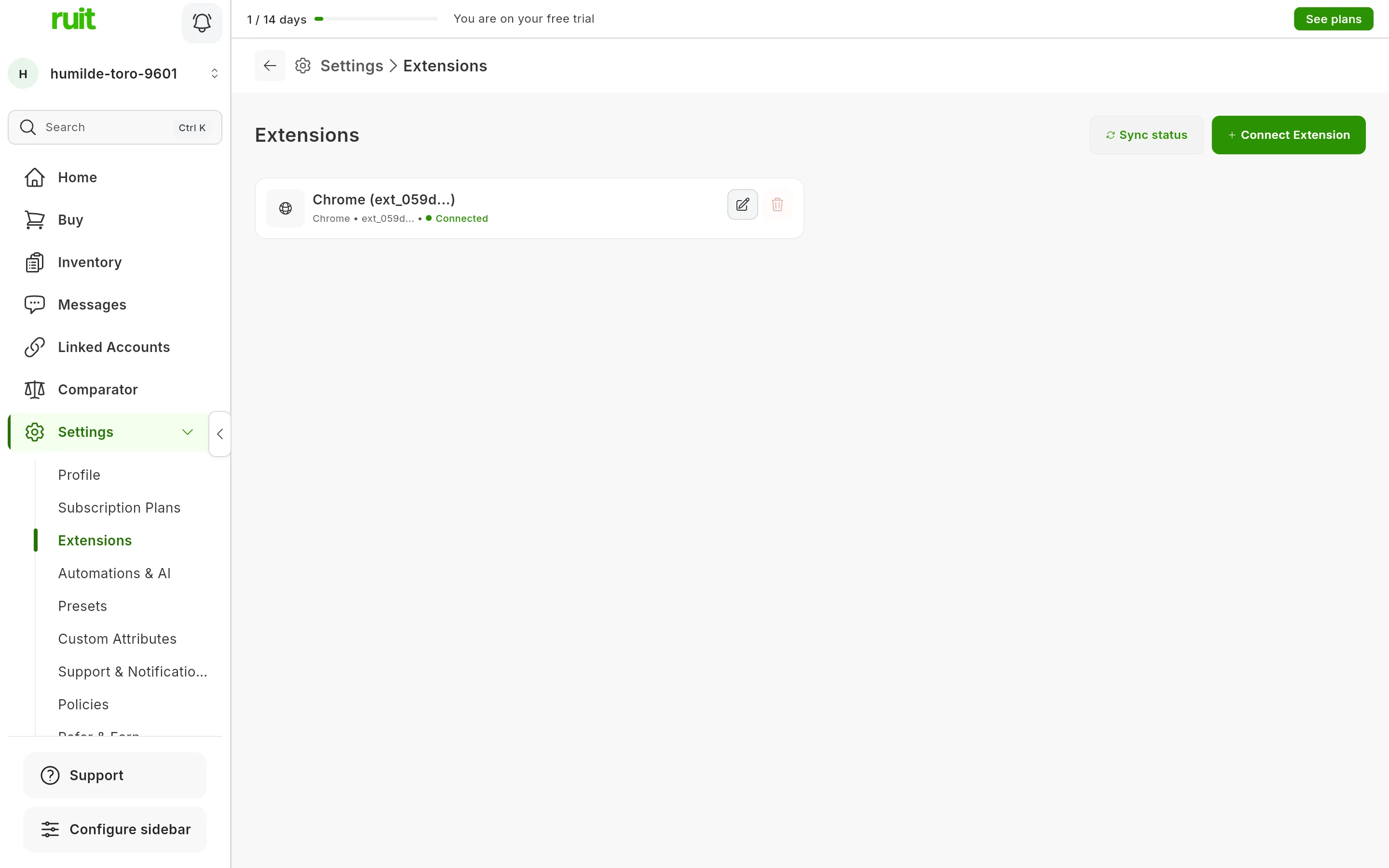
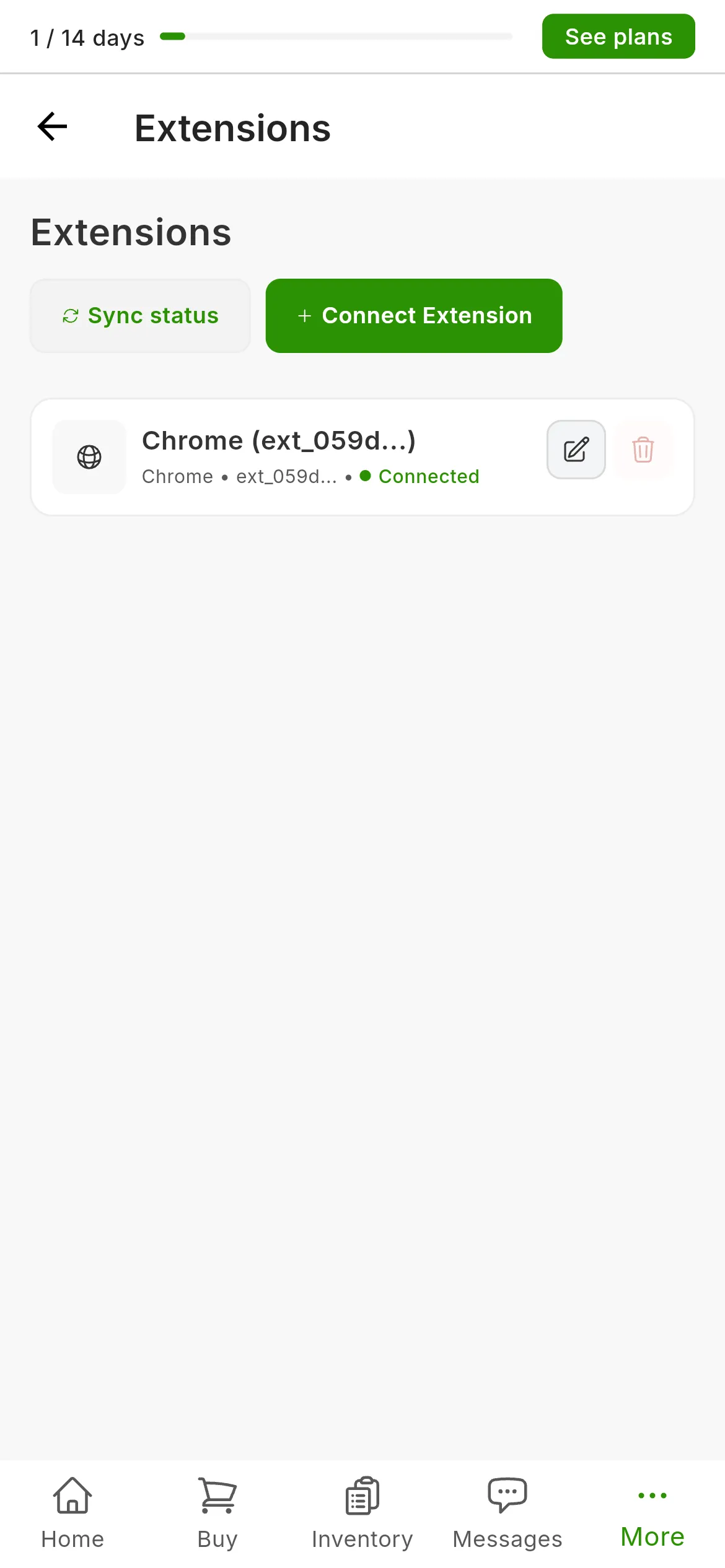
The extension already connected. If you have just installed it and the card is not there, the number points at the button that refreshes it.
What you have achieved
Your browser has the extension connected to your RUIT account. From here on, every Wallapop or Vinted account you connect is tied to this install, and RUIT works through it while the browser is open and you are signed in to RUIT.
Next step: connect your first account from Settings → Accounts. The first time, RUIT will ask you to verify your phone.
If something is off
- The extension shows as disconnected. What keeps it connected is your RUIT session in that
same browser, not the marketplace one. If you have signed out of ruit.es there, sign back in and
the extension reconnects by itself within seconds. The other two usual causes are having the
browser closed altogether and the extension being disabled: check that in
chrome://extensions. - Operations fail with a “No Response” warning. It is the marketplace session that has expired, not the extension: open the marketplace in a tab, sign in and try again.
- You work from several computers. Each install shows up as a separate extension under Settings → Extensions, and you can rename them to tell them apart (“workshop laptop”, “home desktop”). Each marketplace account is tied to the extension it was connected from: if you delete that extension, those accounts stop syncing until you reconnect them from another one. It is explained in using several extensions at once.
Did this article help?
Thanks for telling us.