The products table
Everything in Inventory → Products: the search box, the filters, the columns, selection, bulk actions and the actions for each product.
Inventory → Products is the list of everything you have in RUIT: one row per product, with its price, its stock, its listings and its status. This page explains each part of the screen.
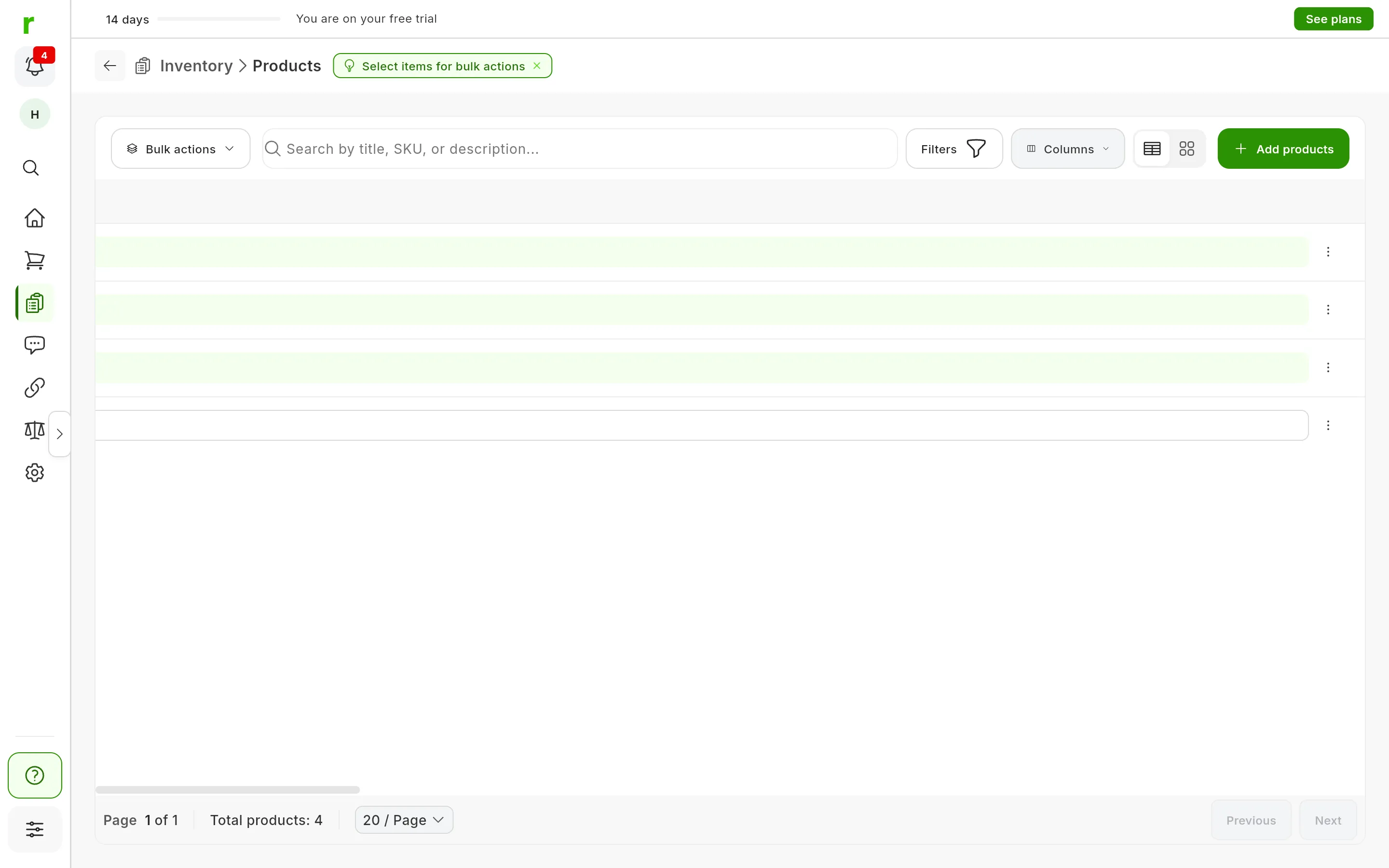
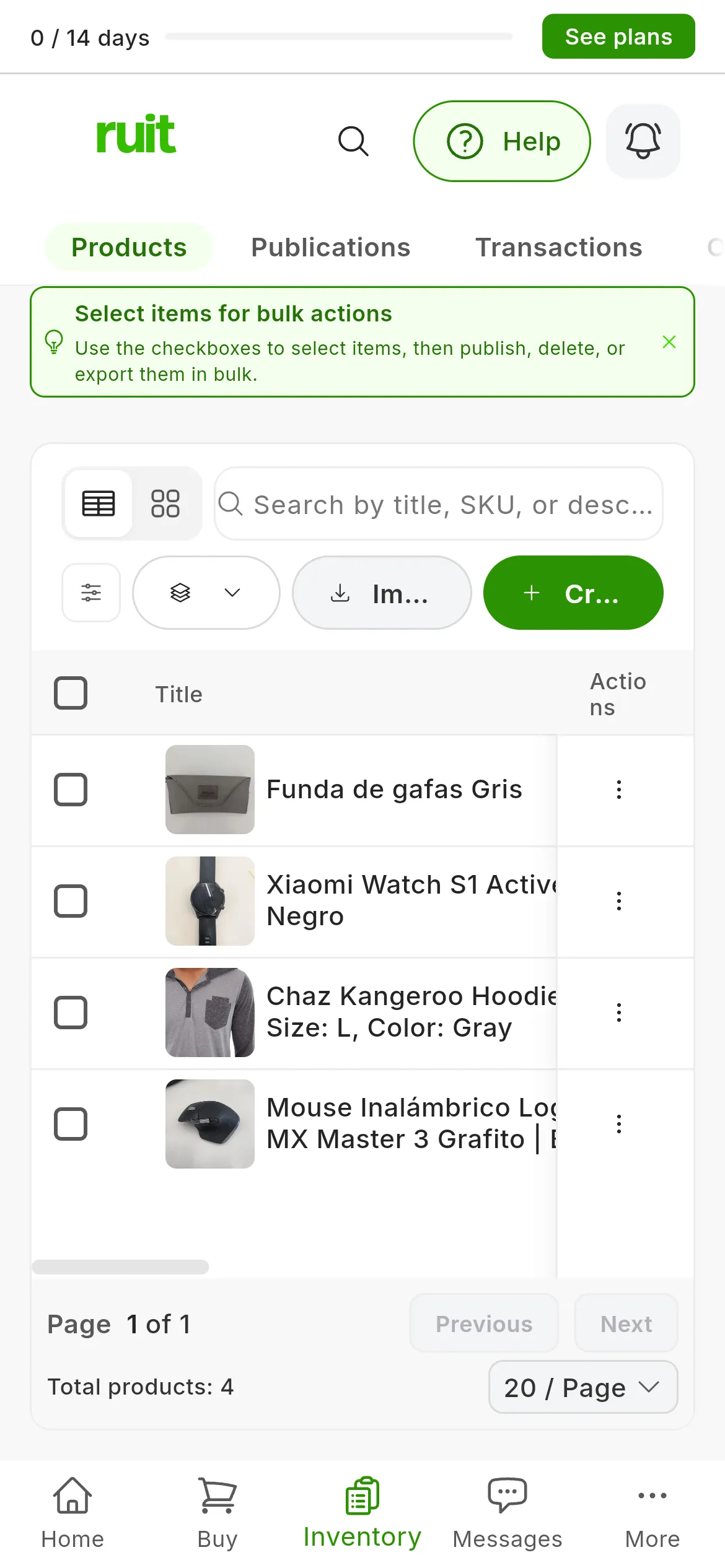
The numbers mark Bulk actions, the search box, Filters, Columns, the switch between table and cards, and Add products. On a phone, there is no Columns (4), and number 6 is Create.
The top bar
| Control | What it does | |
|---|---|---|
| 1 | Bulk actions | Acts on the products you tick; further down, in Selecting and acting in bulk |
| 2 | Search box | Searches the title, the description and the SKU. If you type several words, they all have to appear; in quotes, it looks for the whole phrase |
| 3 | Filters | Opens the filters panel. In parentheses, how many you have active |
| 4 | Columns | Choose which columns you see, in what order and how wide |
| 5 | Table or cards | Switches between the table and a grid of cards. The choice is not remembered |
| 6 | Add products | Create a product or import your listings |
Below the bar a chip appears for each active filter, like State: Draft. Pressing it removes that filter. The Without publications in, Store and Attributes filters have no chip: you remove them from the panel.
The columns
By default you see seven, plus Actions. If they do not fit, the table scrolls sideways and Actions stays fixed on the right:
| Column | What it shows | Can you edit it here? |
|---|---|---|
| Title | The first photo and the title. Pressing it opens the product page | Yes, with the pencil that appears when you hover over it |
| Price | The product’s price, without the discount | Yes: press the cell and type, for example, 20.00 |
| Stock Quantity | The units you have left. At zero, it is highlighted | Yes |
| Condition | Brand New, Like New, Used, Fair or Poor | Yes, with the dropdown that appears when you hover over it |
| Publications | One logo for each listing that is not deleted, sold ones included. Pressing the logo opens the listing | No |
| Status | Draft, Ready to list, Listed or Archived; Product and listing statuses explains them | No |
| Source | Where it comes from: the marketplace account it was imported from, the file, or who created it in RUIT | No |
When you edit a cell, Enter or clicking outside it saves, and Esc cancels.
With Columns you can show 20 more, such as SKU, Description, Notes, Sale Price, Brand, Size, Weight, Tags or Shipping Options, reorder them by dragging and change their width. Under QUICK PRESETS you have Compact View, Detailed View, Financial View and Inventory View, and with Save current you save your own. RUIT remembers what you choose on your user, on any device.
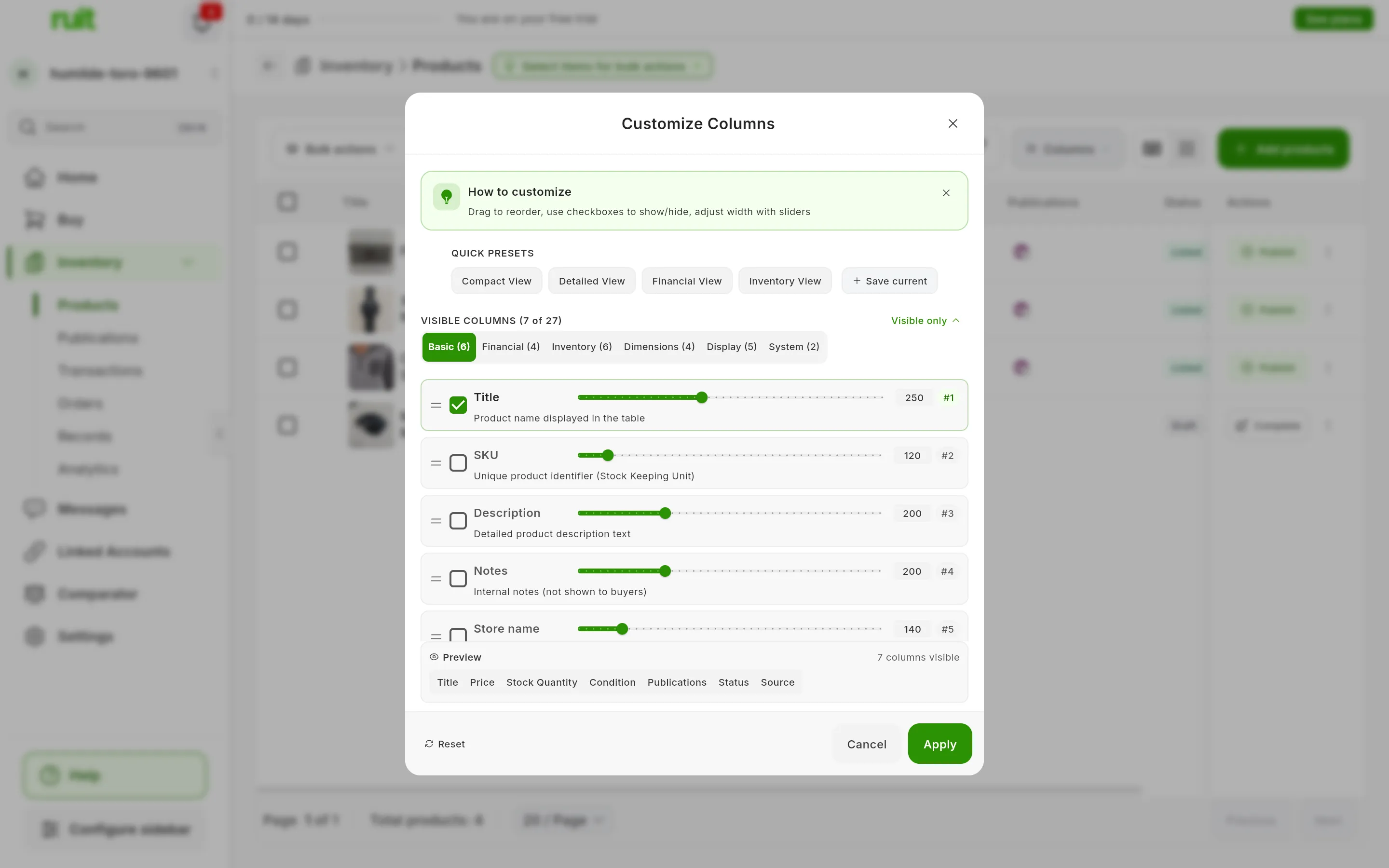
After pressing Show all, each group also shows its hidden columns; Visible only goes back. The changes reach the table when you press Apply.
Searching, filtering and sorting
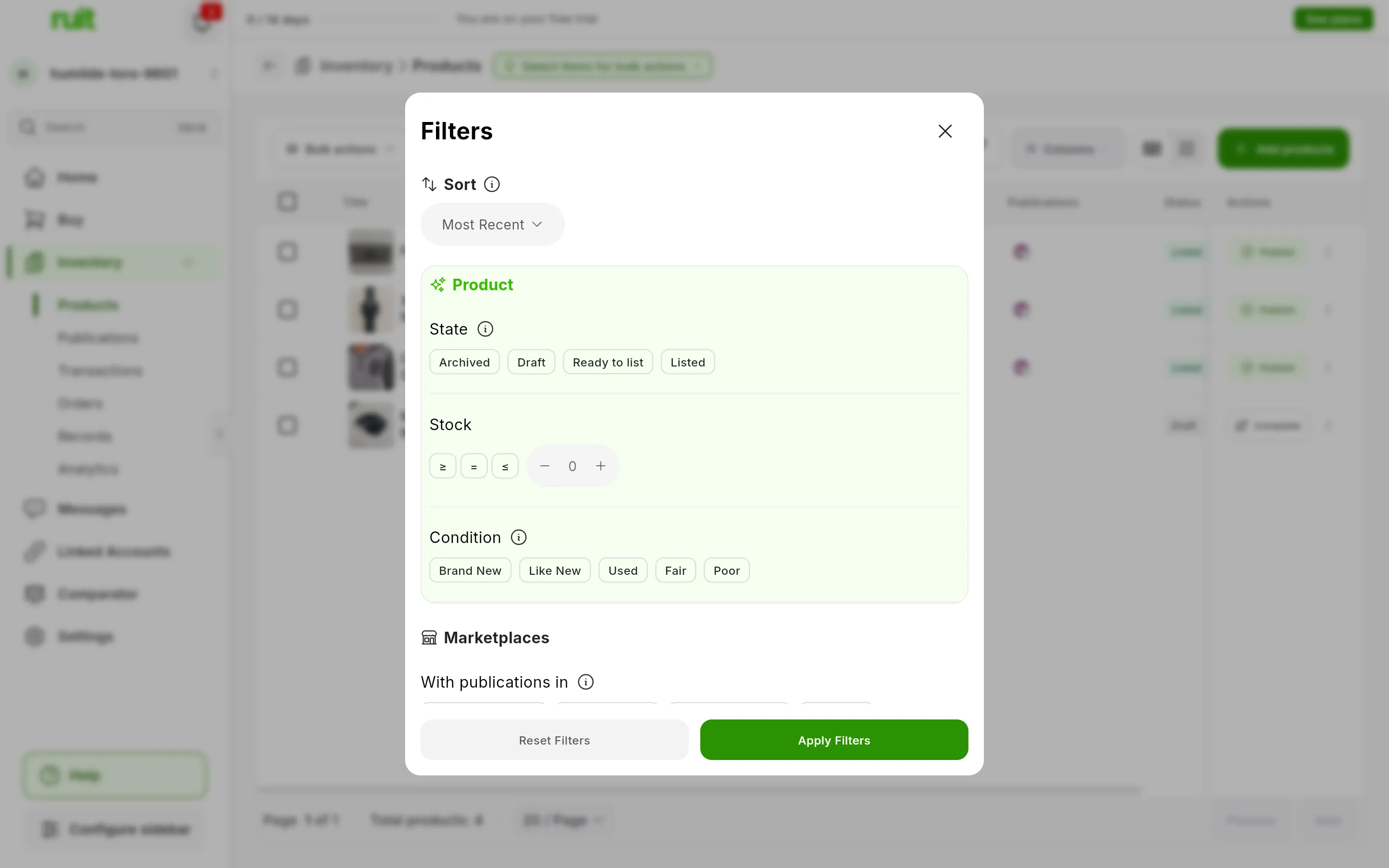
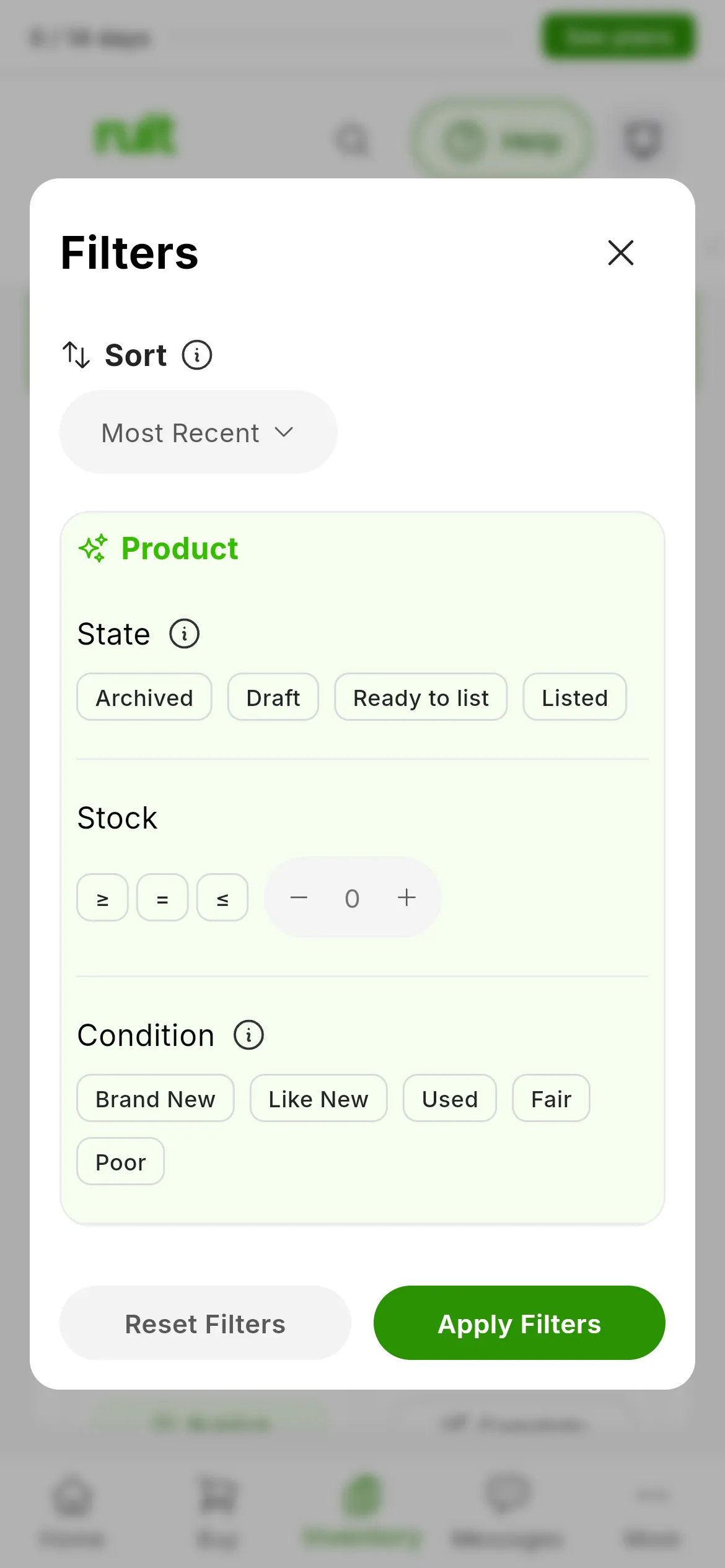
The filters panel. Nothing changes until you press Apply Filters.
| Group | Filters |
|---|---|
| Sort | By creation or update date, price or title |
| Product | State, Stock (greater than, equal to or less than a number) and Condition |
| Marketplaces | With publications in and Without publications in, marketplace by marketplace; Store, if your organization has several; and Bulk publish job |
| Catalog | Price Range, Discount, Tags and Attributes |
| Imports | Source: an imported account, a CSV file or what was created in RUIT |
With publications in requires the product to have a listing on every marketplace you tick, even if that listing is sold or deleted. Without publications in finds the products that have no live listing on those marketplaces: it is the way to find what you still have to publish on each site. Reset Filters clears the panel; for the table to reflect it, press Apply Filters afterwards.
The table is sorted by creation date, most recent at the top. Pressing a column header sorts by that column and pressing it again reverses the order. Publications, Tags and Source cannot be sorted, and sorting by Status does not change the order.
Selecting and acting in bulk
Tick the checkbox of each product, or click an empty area of its row. With Shift and a click you
tick every product between two rows, and the checkbox in the header ticks the whole page. With
something ticked, the header offers Select all to tick every result, up to 10,000, and
Deselect all. The selection is kept when you change page or filter and it is cleared when you
leave the section.
Bulk actions has three options:
- Schedule Publications opens the bulk publishing wizard with the ticked products. A job allows up to 50 listings, counting each product on each account.
- Multi-delete deletes the ticked products and their listings from RUIT. Your listings on the marketplaces are not touched: if you want them gone from there too, delist them first.
- Export products as CSV… exports the ticked products or, if none are ticked, whatever you have filtered.
The actions for each product
Each row carries its main action on the right, with its name: Publish, if the product is complete, or Complete, if it is in Draft. The ⋮ button, or a right click on the row, opens the rest:
| Action | What it does |
|---|---|
| View details | Opens the product page |
| Edit | Opens the product for editing; it does not appear on drafts, which you finish with Complete |
| View publications, View transactions, View orders, View records and View messages | Open that section filtered by the product |
| Delete | Deletes the product and its listings from RUIT; your listings on the marketplaces are not touched |
The card view
Each card shows the photos, the title, the source, the status, up to three marketplace logos and the ⋮ button. It does not show the price or the stock, and it has no checkbox: to tick products, go back to the table. Pressing the card opens the product page. The cards load 20 at a time as you scroll.
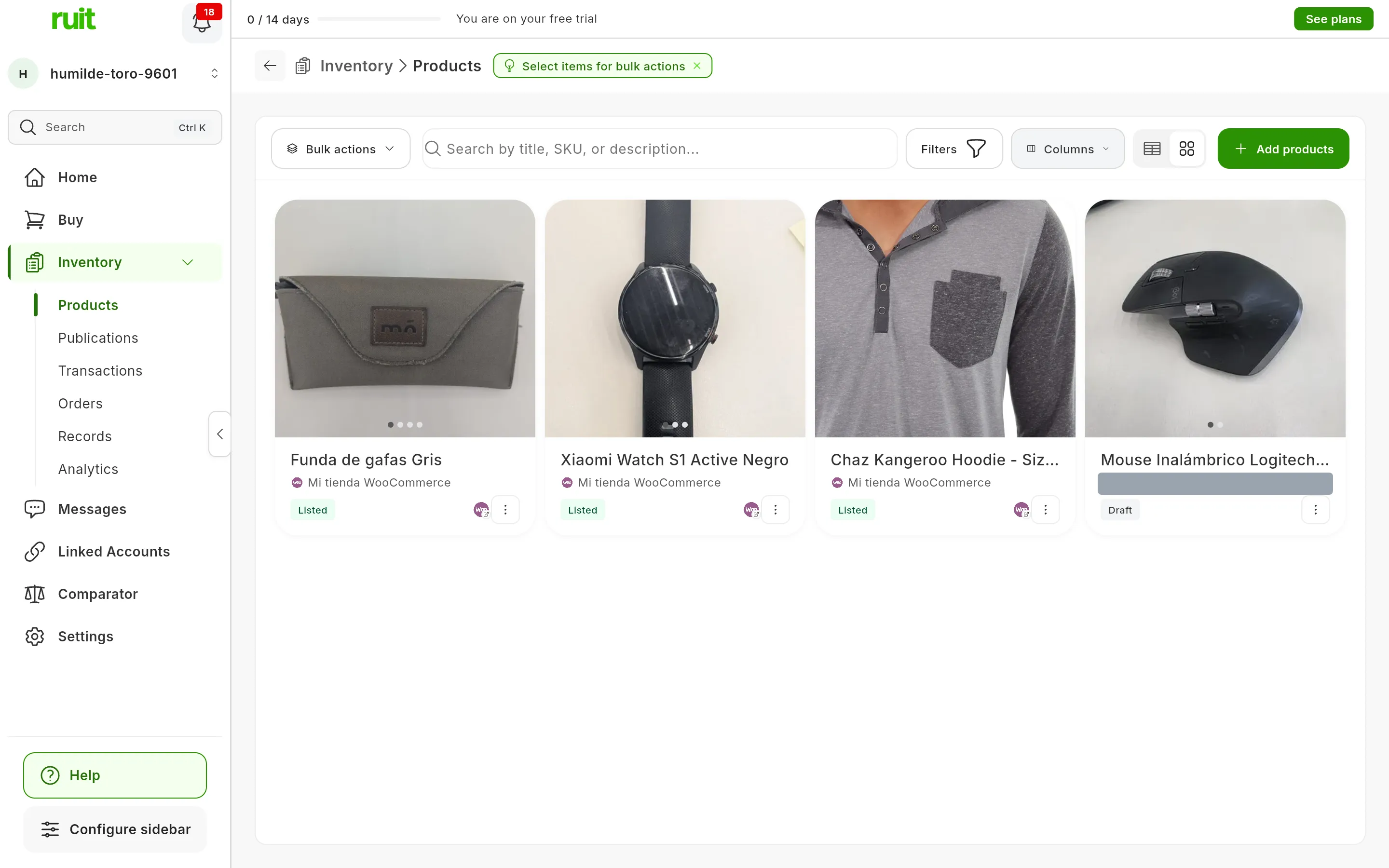
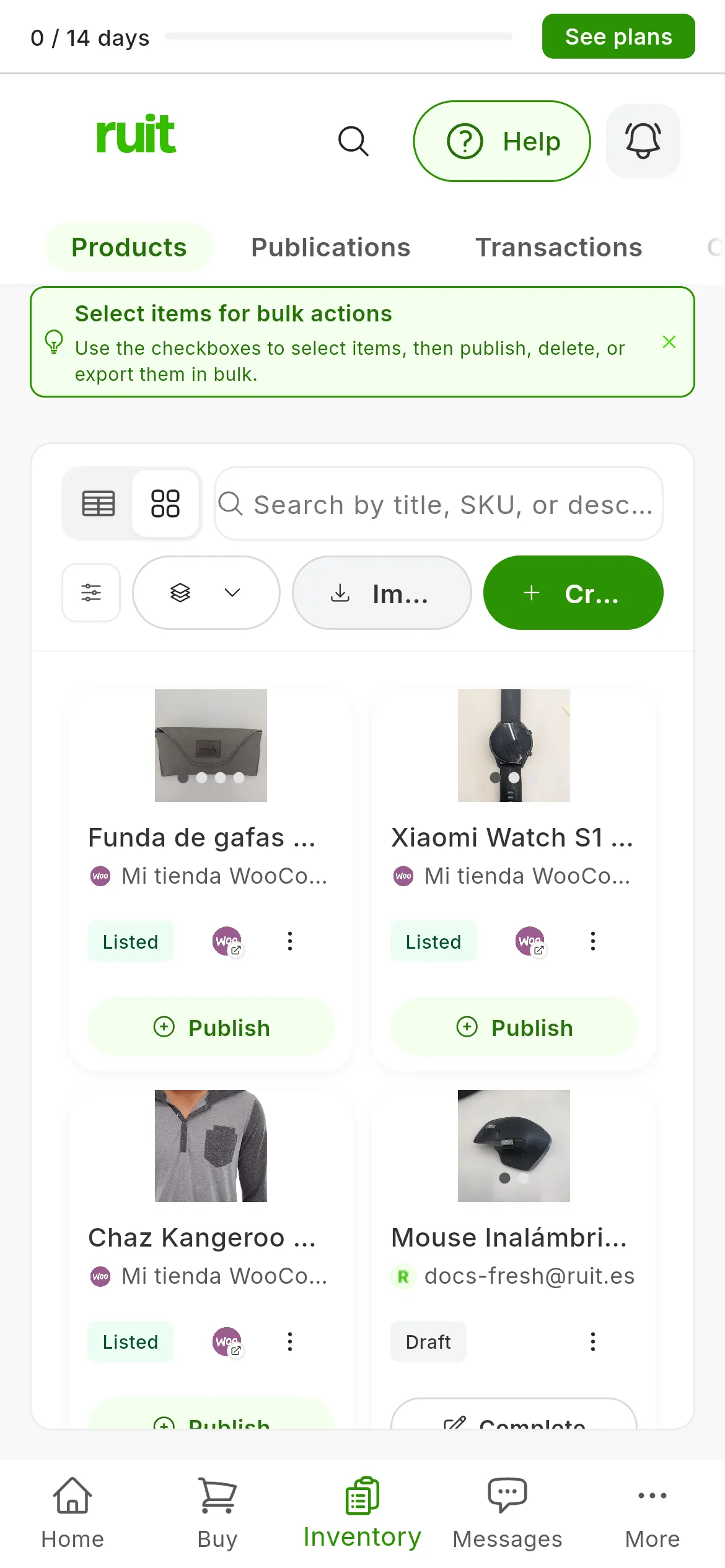
The same products as in the table, as cards.
In a narrow window
On a phone, or in a narrow window, the screen starts with the cards and each card carries its Publish or Complete button underneath. The bar changes: instead of Add products you have Import and Create, which take you straight there, and Columns disappears. Filters and Bulk actions are the two unlabeled icons to their left: the layers icon is Bulk actions. If you switch to the table, each row’s actions are in its ⋮, or you can press and hold the row.
Changing pages
At the foot of the table you have the page you are on, the total number of products, how many you see per page, from 10 to 500 and 20 by default, and the Previous and Next buttons. The page size is kept for as long as you have the app open.
Did this article help?
Thanks for telling us.