Organizations and stores
What an organization is in RUIT, how many people and stores each plan allows, how to switch organization and store, and how to create a store.
An organization is your business inside RUIT, shared with your team. Inside it you all work on the same inventory, the same listings and the same orders, split into stores: one per location, per warehouse or per product line.
Besides the organizations you belong to, you have your Personal account, where you work on your own. It has no team and no stores.
How many people and stores you can have
Working as a team depends on your plan. These are the team members and the stores each one includes:
| Plan | Team members | Stores |
|---|---|---|
| Free | 1 | 1 |
| Starter | 1 | 1 |
| Plus | 1 | 1 |
| Pro | 2 | 2 |
| Business | 5 | 5 |
| Enterprise | No limit | No limit |
On Enterprise, the team and the stores are tailored to you: write to us in the chat and we set it up with you.
Switching organization and store
Only one organization is active at a time, and within it, one store or All stores. What you see in the app is what belongs to that organization and that store: the inventory, the listings, the orders, the messages and the connected accounts. No view mixes two organizations.
On a computer, the active organization is at the top of the side menu, with the store under its name. Pressing it opens a menu:
| Option | What it does |
|---|---|
| Stores | Expands All stores and the stores you work in, to switch from one to another |
| Manage organization | Opens the organization overview |
| Profile | Opens your profile |
| Switch to | Lists your other organizations and your Personal account |
| Sign out | Signs you out of RUIT |
On a phone, the active organization is shown at the top of More. Tapping it opens Organizations, with all of yours and your Personal account. You switch store in More › Organization › Stores: each store’s menu has Switch to this store.
When you go back to an organization, RUIT puts you in the store you were in. The first time, the owner and the admins start in All stores, and everyone else in the default store.
The organization overview
Manage organization opens the Overview. At the top are the organization’s name and type, and below them, how many members, stores, products, listings and invitations it has. The Invite member, Add store and Manage roles shortcuts take you to what they name, and the blocks underneath show the team by role, the stores and the pending invitations.
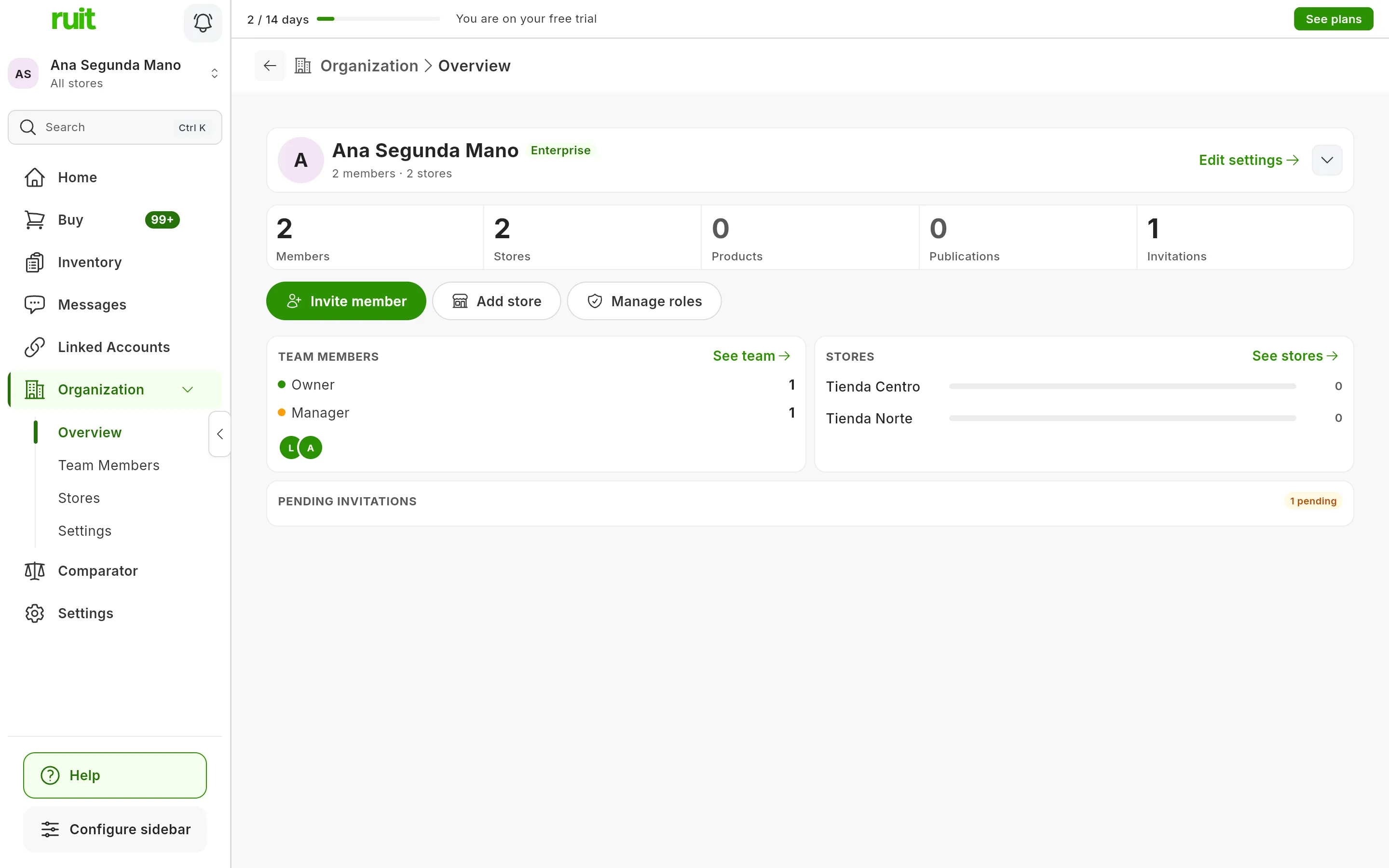
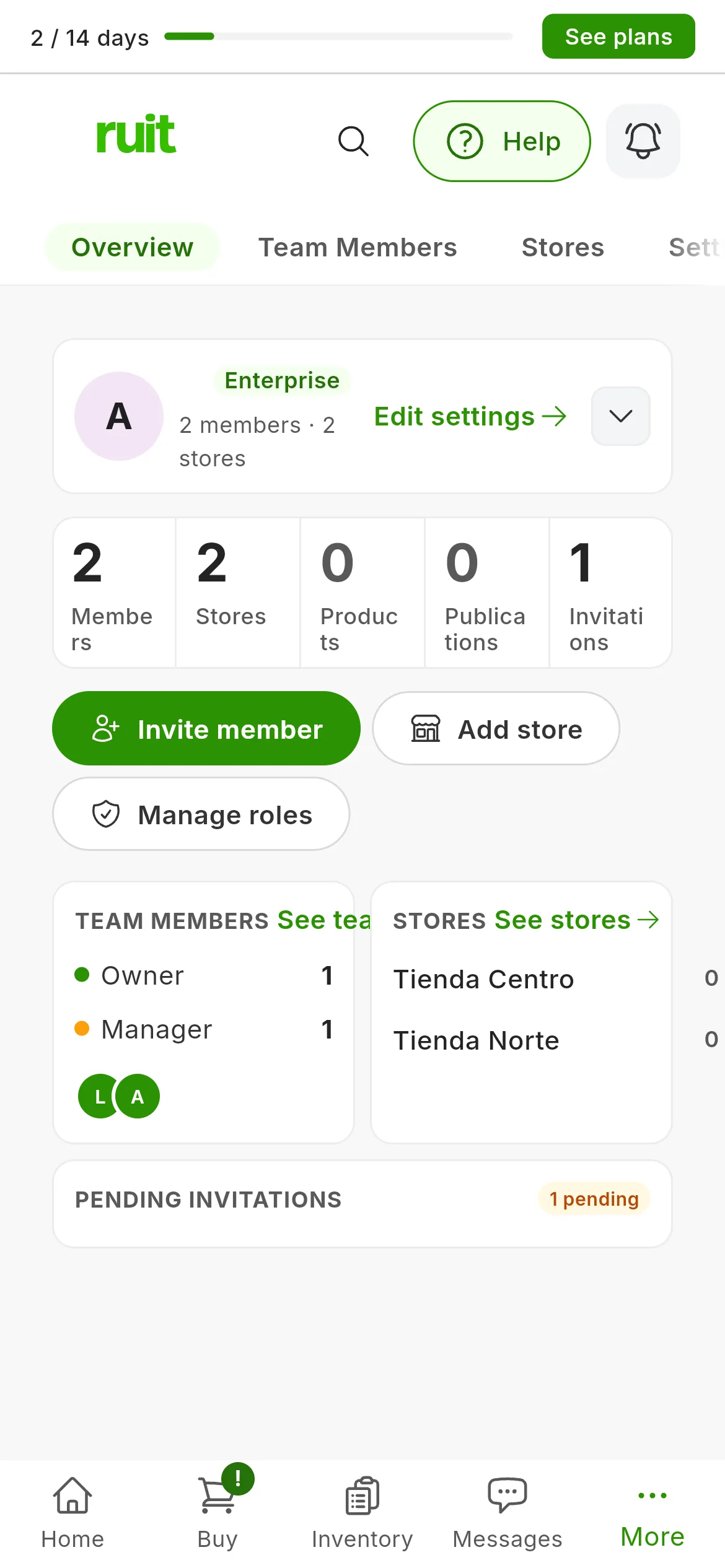
The overview of an organization with two members, two stores and one pending invitation.
From Organization, in the side menu on a computer or in More on a phone, you also reach Team Members, Stores and Settings. In Settings you change the organization’s name and logo, and save them with Save changes. Only the owner and the admins can do this: everyone else sees Only owners and admins can edit organization settings.
The stores
A store separates one part of the business. Every organization has a default store, marked DEFAULT, and can have more. Stores shows them all, with how many people work in each one, and the one you have active carries the CURRENT mark.
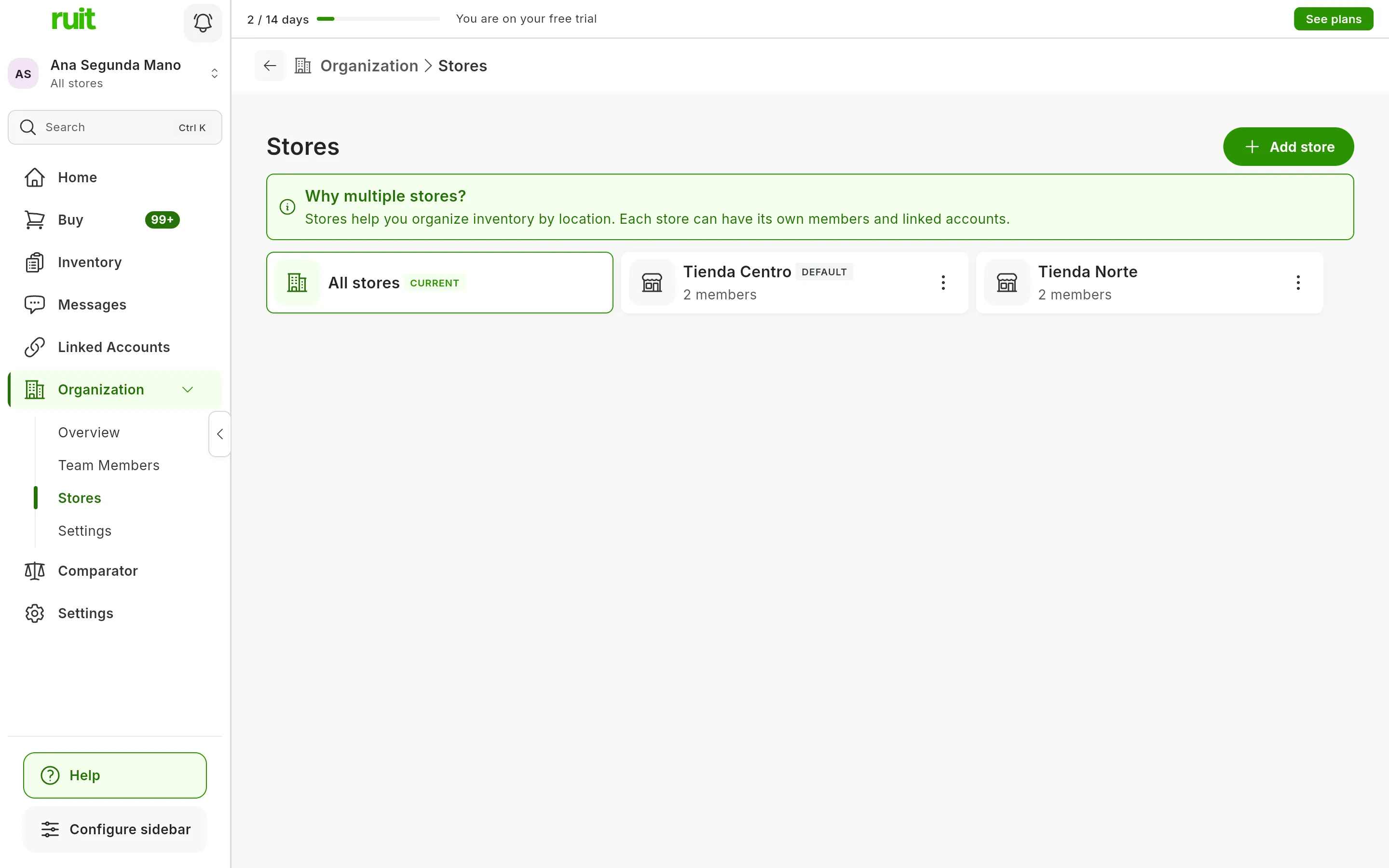
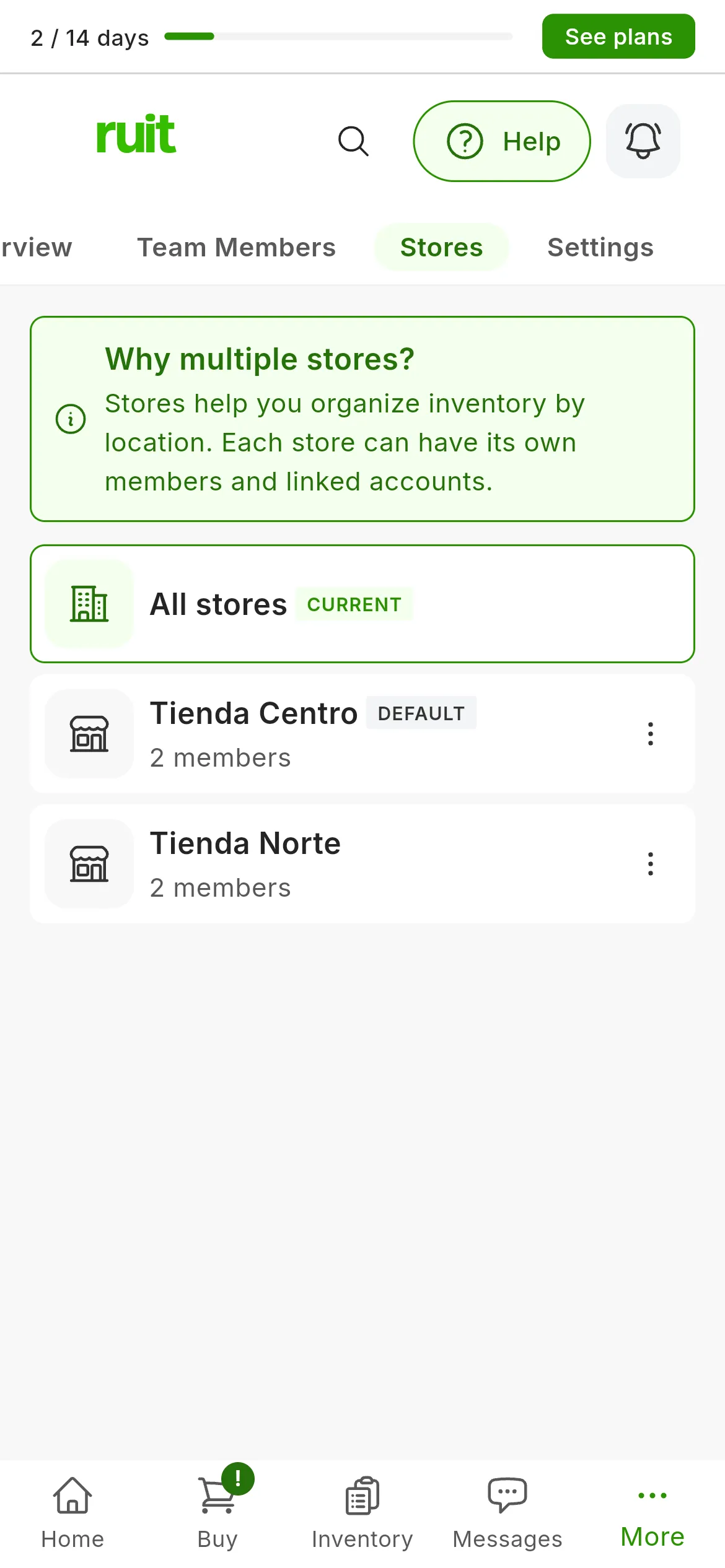
Two stores and the view of all of them at once, which is the active one.
What belongs to a store, such as its products, its listings and its orders, is seen by whoever works in it. What belongs to no store belongs to the whole organization, and the whole team sees it: it is what the owner and the admins create when they work in All stores.
| Role | Which stores they work in |
|---|---|
| Owner and Admin | All of them, each one separately or in All stores |
| Manager and member | Only the ones assigned to them |
The number of people in each store counts whoever is assigned to it, the owner and the admins, who work in all of them, and the invitations that have not been accepted yet.
Creating a store
-
Press Add store, in Stores or in the Overview. On a phone it is in the Overview.
-
Type the Store name and, if you like, its Address.
-
Press Create.
RUIT confirms it with Store created successfully, and the new store appears in the list. Only the owner and the admins can create stores.
Video
Video not recorded yet: What an organization holds and where you see it
Did this article help?
Thanks for telling us.