Reply to messages and negotiate offers from RUIT
How to reply to a buyer, with an AI draft if you want, and how to accept, reject, counter and send offers on each marketplace.
From a conversation’s chat you reply to the buyer, with an AI draft if you want, and, on Wallapop and Vinted, accept, reject or counter their offers without leaving RUIT.
Replying
Write in Type a message, at the bottom of the chat, and press Enter or the round button.
Only text is sent: to send photos or files, use the marketplace’s app.
Your reply goes out through each marketplace’s own route: on Wallapop and Vinted, through the extension, and on eBay, directly. The other marketplaces have no chat in RUIT.
The message appears in the chat straight away, with a clock while it goes out. If it does not go out, the clock turns into a red warning and RUIT tells you why, for example Message failed to send and the reason. A message that did not go out is not retried automatically: send it again.
AI reply suggestions
The Suggest reply with AI button, next to the message box, drafts a reply. RUIT sends nothing on its own: the draft stays there for you to review.
-
Open the conversation and press Suggest reply with AI (1), the sparkle button next to the message box.
-
The draft appears above the message box, with the AI suggestion label.
-
Press Use (2) to move it into the message box, or Edit (3) to move it there and keep writing in it. The X, Dismiss, removes it.
-
Review it and send it like any other message.
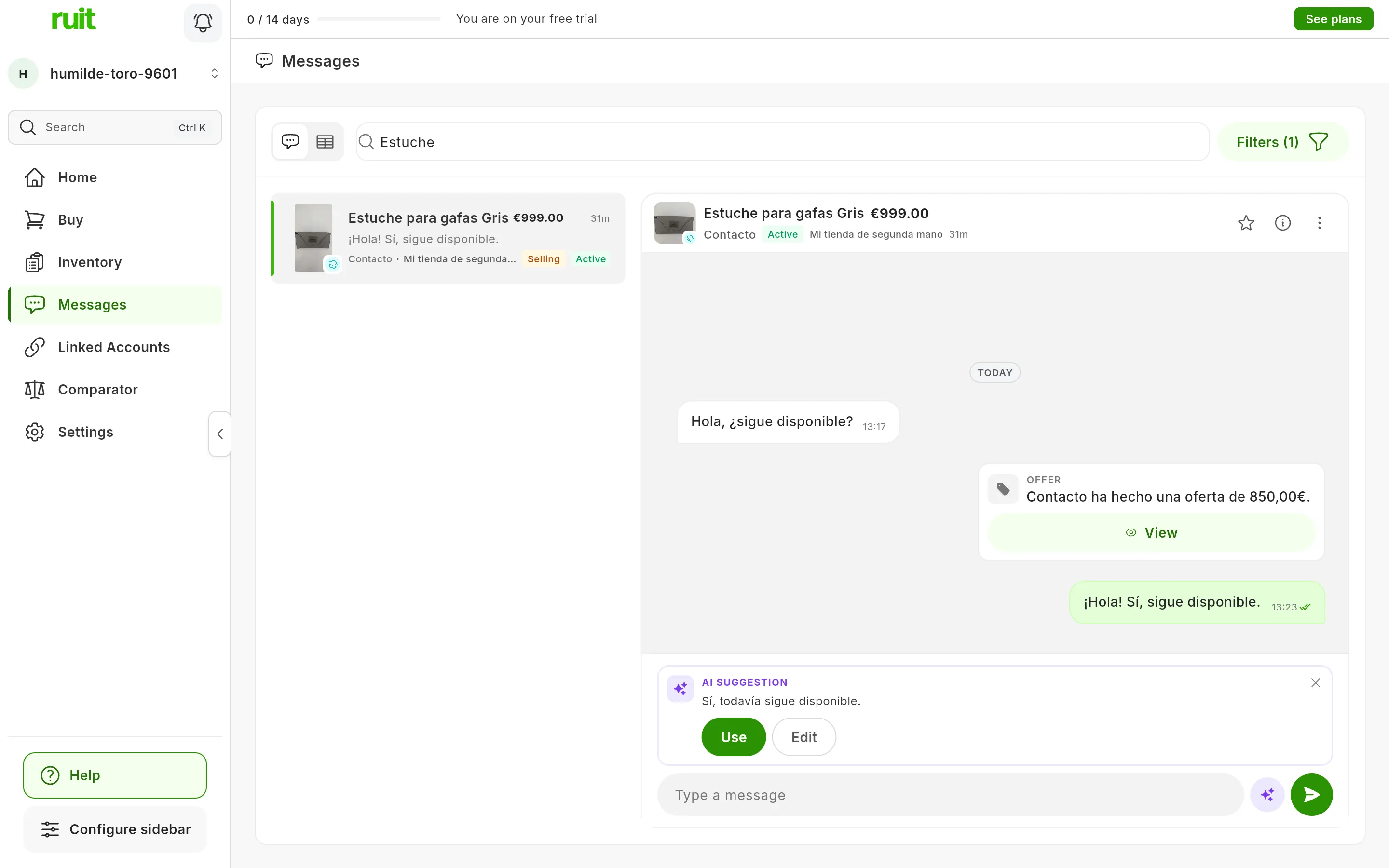
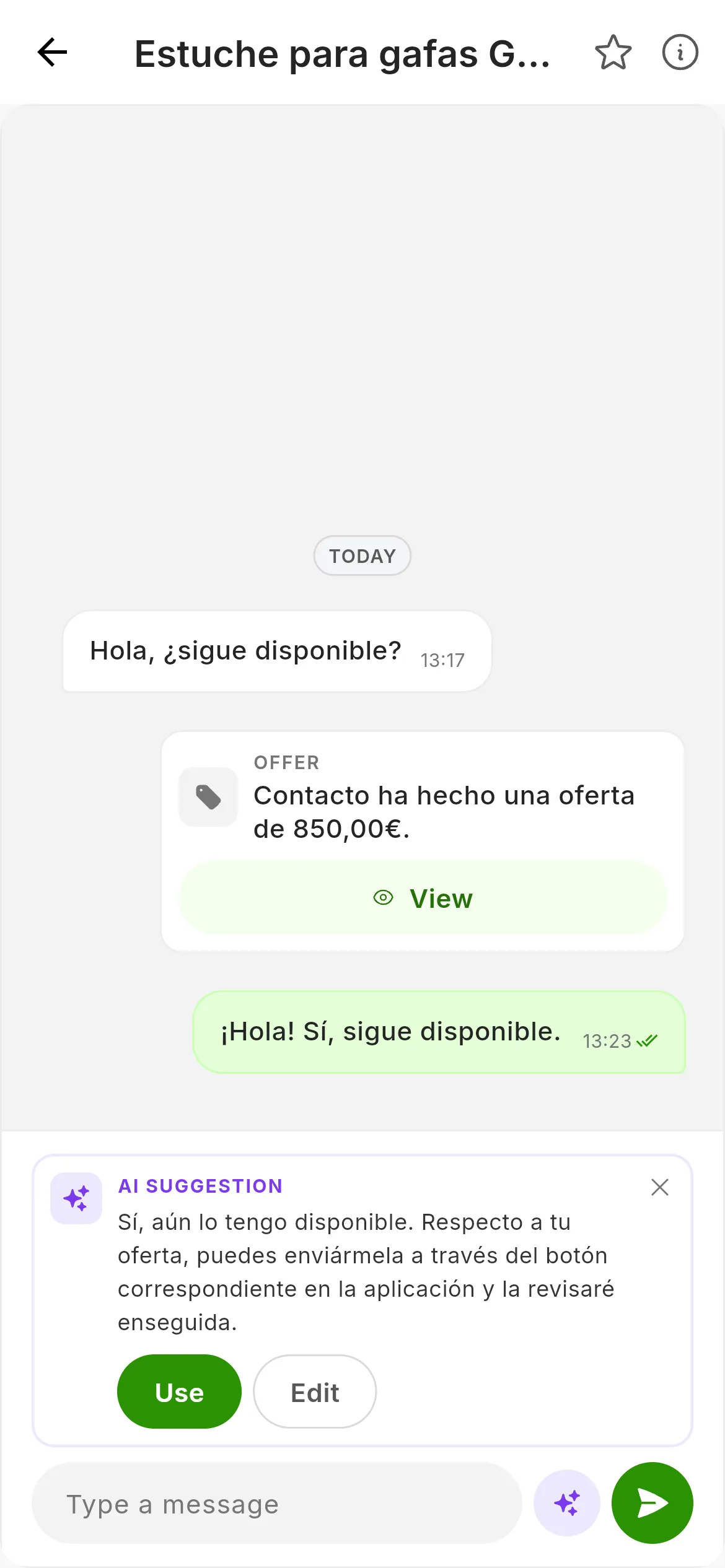
The AI draft. Nothing goes out until you press send.
What it takes into account
It reads the conversation at that moment, its latest messages and the listing’s title and price, and answers in the buyer’s language. It can propose a price, but it never treats an offer as accepted. Always check measurements, condition and details before sending.
When it is available
- Only on Wallapop and Vinted, and in conversations where you are the seller. In an eBay conversation or a purchase, when you press the button you will see AI suggestions are not available for this conversation.
- There has to be a received message to reply to. If there is none, you will see There is no received message to reply to.
- The extension has to be connected, because the conversation is read live. If it is not, you will see Connect the RUIT extension to generate suggestions.
- It is a paid feature: if your plan does not include it, the button shows you the plans.
The offers
Offers show up in the chat as a card with their status: Pending, Accepted, Rejected, Expired, Redeemed or Cancelled. On Vinted they arrive with their price. On Wallapop they arrive without it: press View and RUIT loads the offer’s details.
While the buyer’s offer is still pending, the card has Accept, Reject and Counter. On Vinted, only when you are the seller and the transaction is still open; on Wallapop, after pressing View. The offers you make have no buttons.
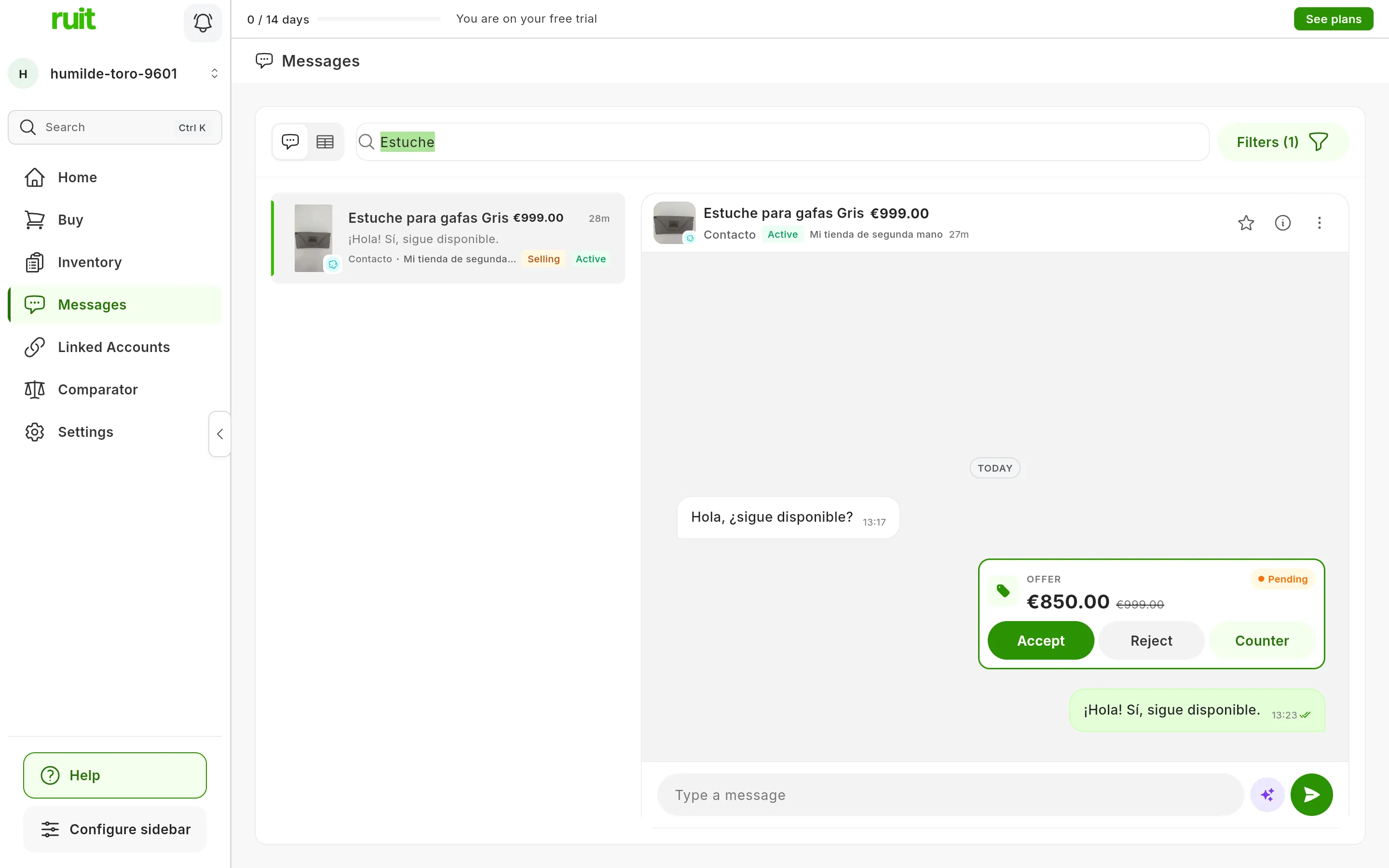
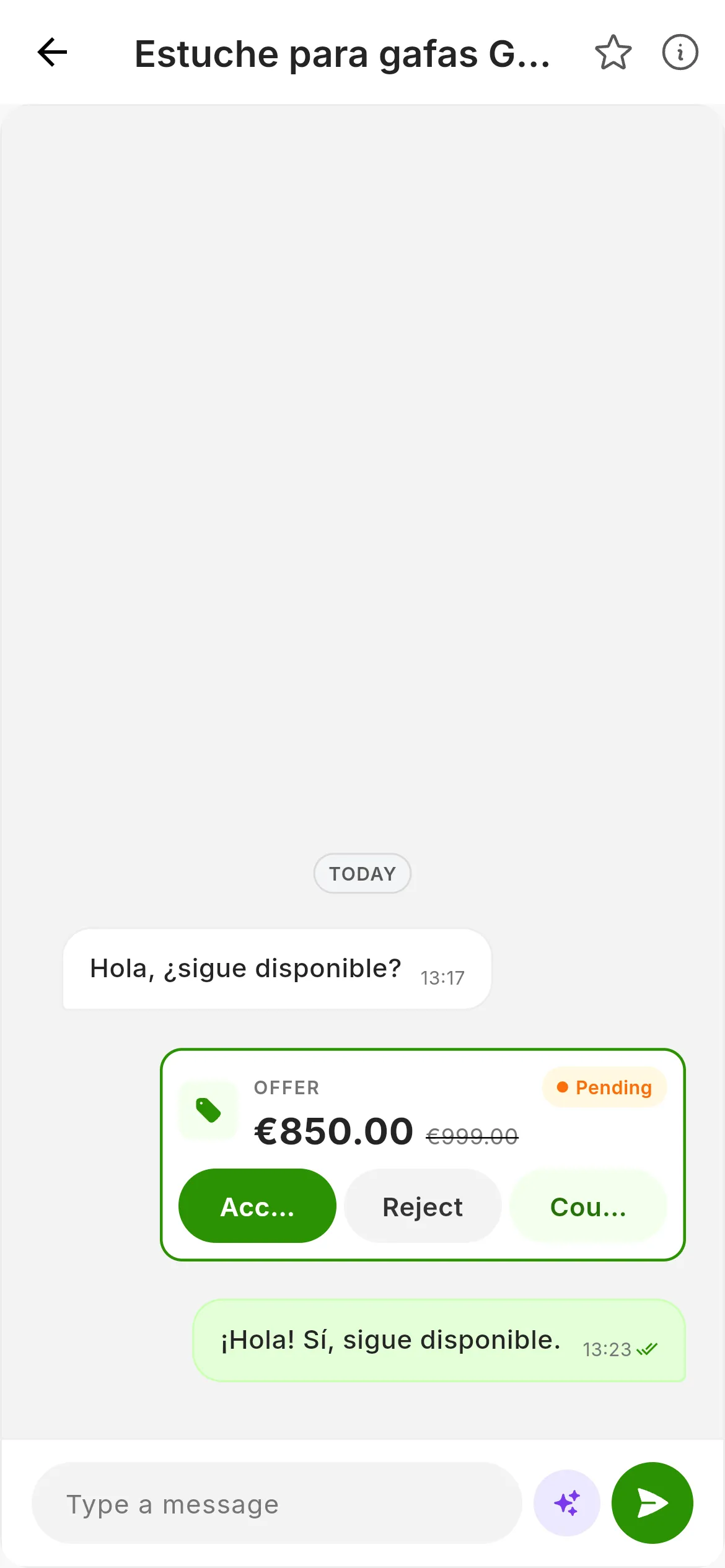
The offer after pressing View: Accept (1), Reject (2) and Counter (3).
Making a counter-offer
-
Press Counter on the card.
-
Type the amount in New price (€) (1), in whole numbers.
-
Press Send (2). To leave it without sending, press the X.
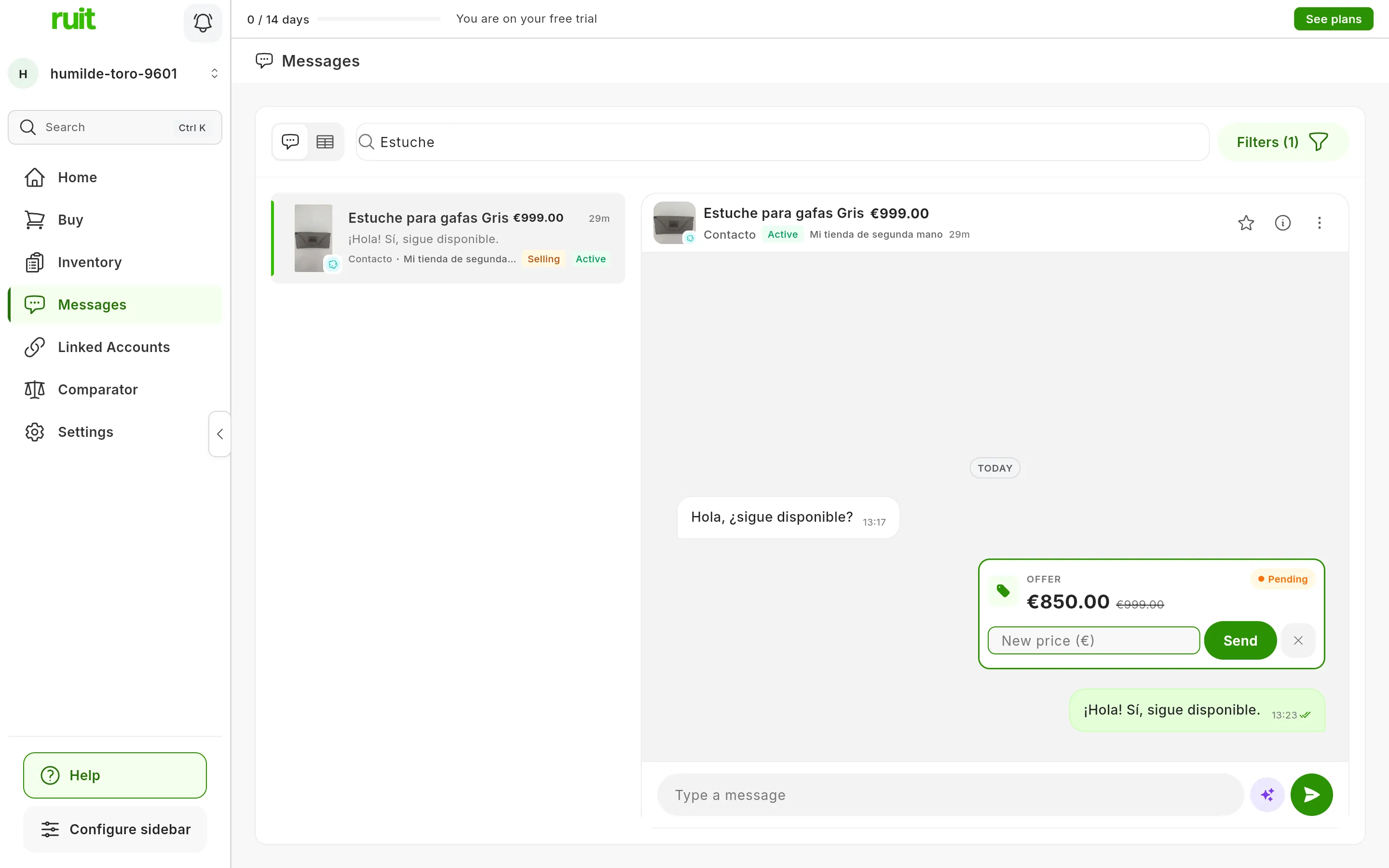
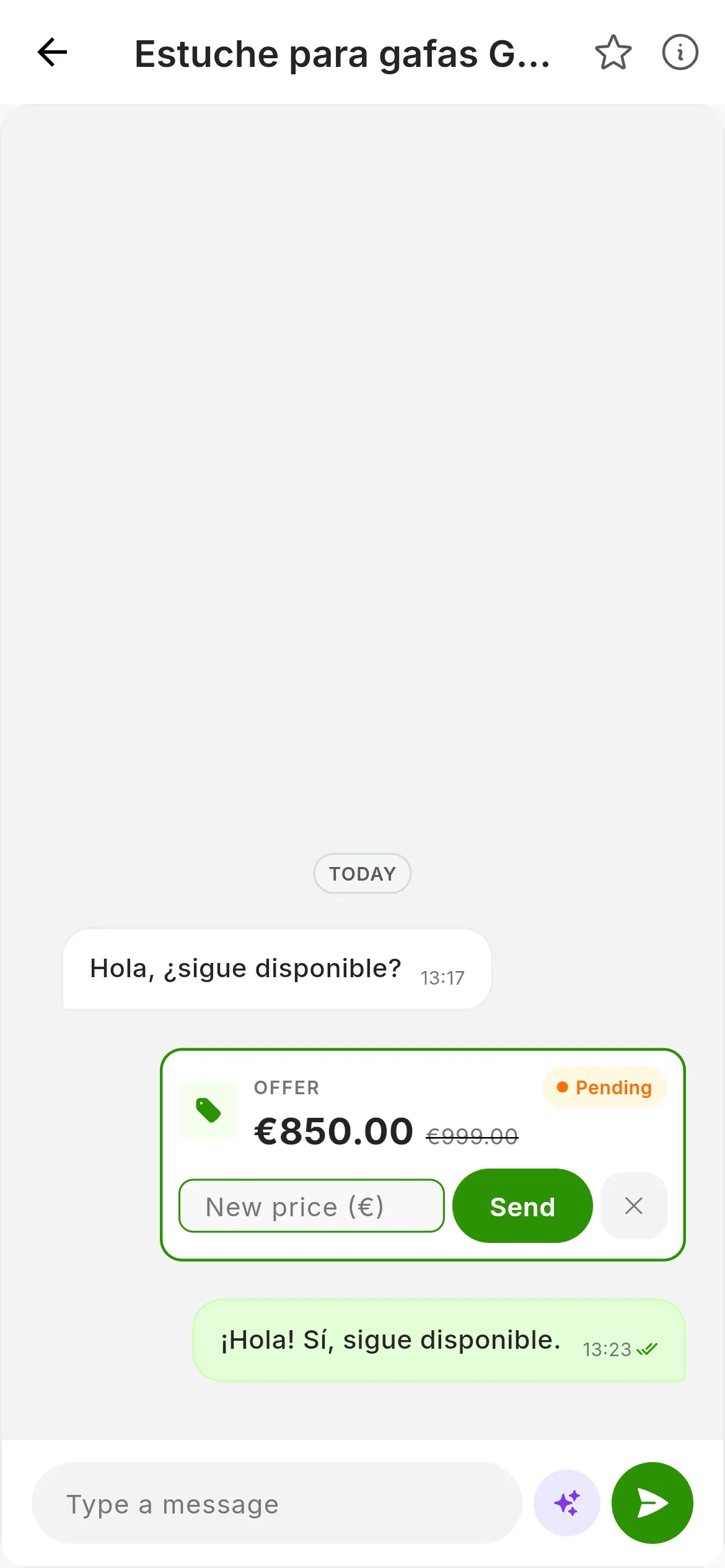
The counter-offer, before sending it.
If it goes through, the card changes to show Offer Accepted, Offer rejected or Offer Countered. If not, you will see Could not complete the offer action. When the cause is the extension, Extension Issue also opens, with the Go to Linked Accounts button. If the extension did not respond in time, the notice asks you to check that you are logged in to the marketplace and also has Open Wallapop or Open Vinted, depending on the conversation.
Making an offer yourself
On Vinted you can propose a price yourself with Send offer, next to the message box. It appears in the conversations where you are the seller and that already have an open transaction.
What you can do on each marketplace
| Action | Wallapop | Vinted | eBay |
|---|---|---|---|
| Reply | Yes, with the extension | Yes, with the extension | Yes |
| AI reply suggestion | Yes, when you are the seller, with the extension | Yes, when you are the seller, with the extension | No |
| Accept, reject and counter | Yes, after pressing View | Yes, when you are the seller and the transaction is still open | No: they are handled on eBay |
| Make an offer yourself | No | Yes, under the same conditions | No |
Did this article help?
Thanks for telling us.