Delist a listing, and automatic delisting
How to delist a listing from RUIT and what each marketplace does, when RUIT delists them at zero stock and what happens if you delete one on the marketplace.
Delisting a listing takes it off the marketplace. You can do it yourself from RUIT, and RUIT does it for you when a product runs out of stock, so that nobody buys a unit you no longer have. This guide explains both ways and what happens if you delete a listing directly on the marketplace.
Delisting a listing from Publications
- Go to Inventory → Publications. If you see cards, switch to the table.
- On the listing’s row, open the dropdown in the Status column and choose Delist, the last option, in red. On a phone, swipe the table sideways to reach that column.
- Confirm with Delist. The Delist publication window reminds you that the listing is removed from the marketplace and that its data stays in RUIT.
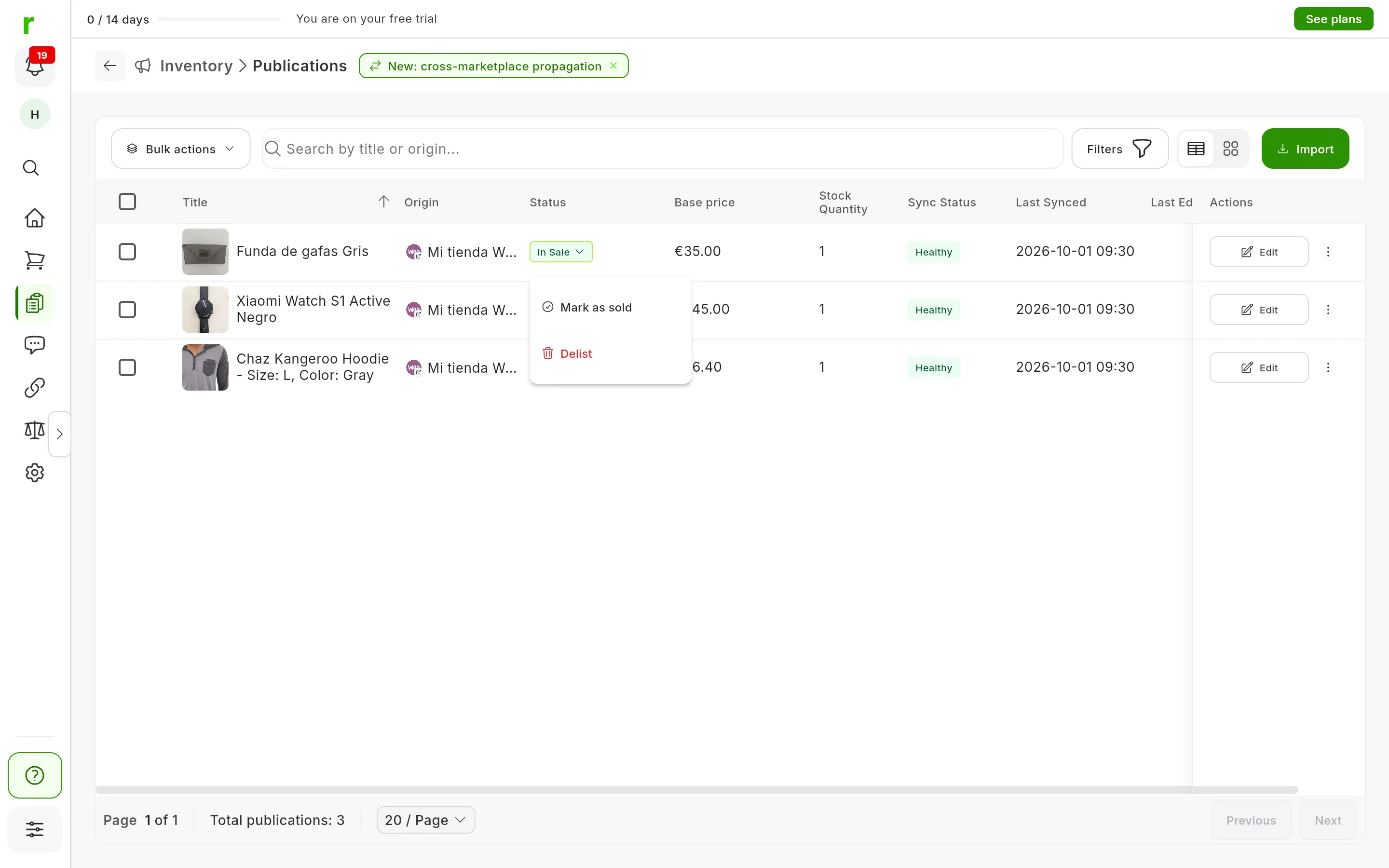
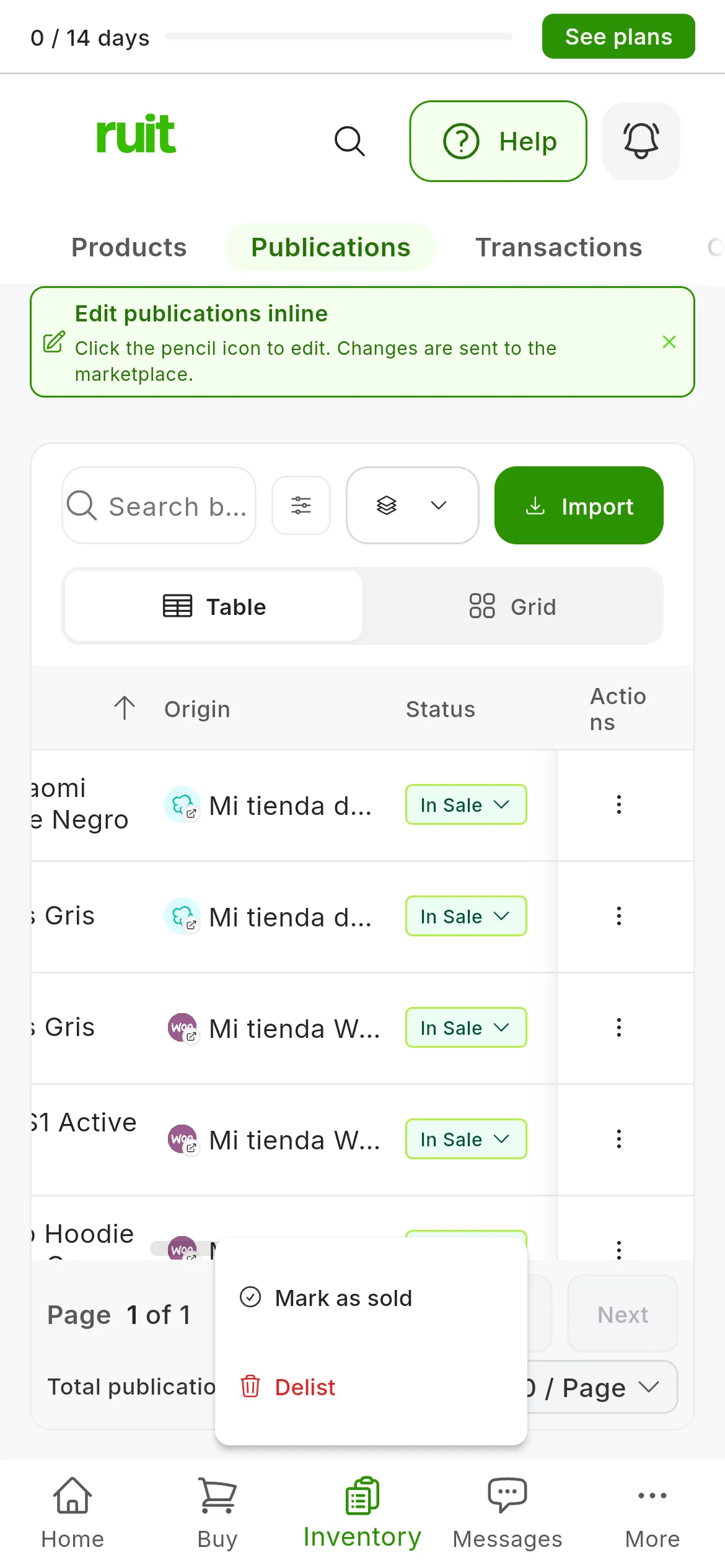
Delist appears in the status dropdown of In Sale and Reserved listings. To delist a listing in another status, use the bulk action or the product page.
Several at once
Tick the rows, press Bulk actions → Delist and confirm. On a phone, Bulk actions is the button with the layers icon. It works for any listing that is neither sold nor deleted.
Delisting a listing from the product page
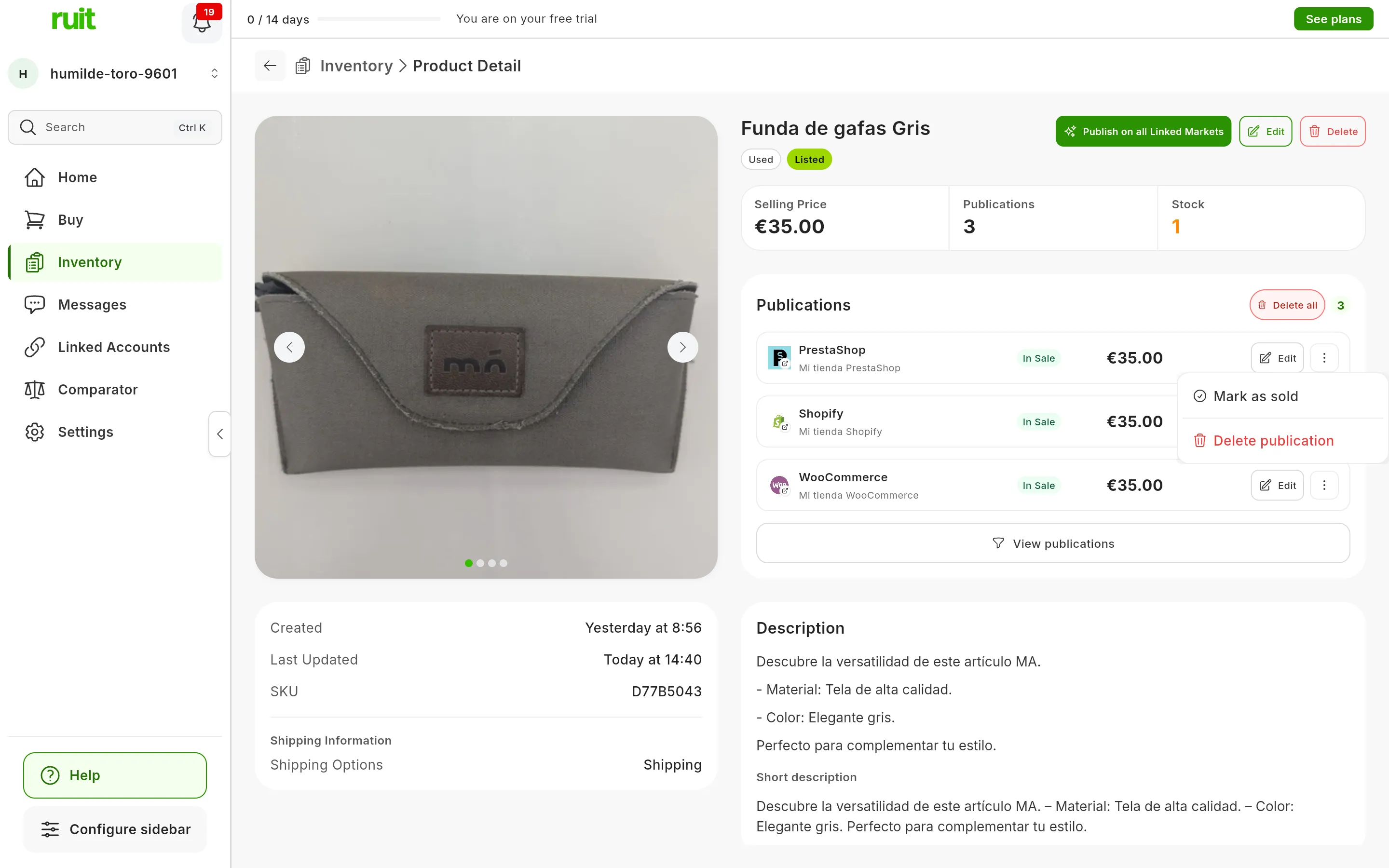
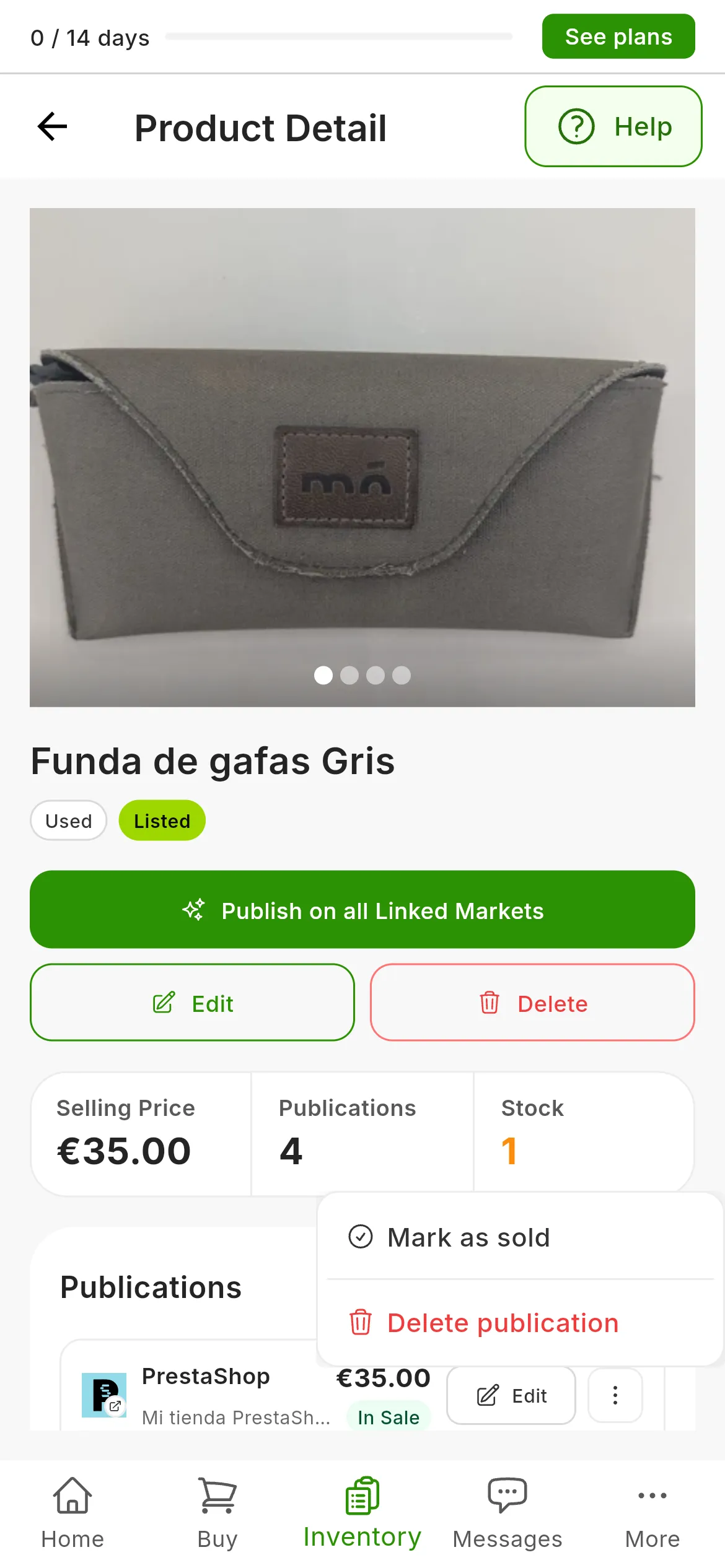
On the product page, each listing has its card under Publications.
- Open the card’s ⋮ menu and choose Delete publication.
- Confirm with Delete.
It appears on any listing that is not already deleted. To remove all of the product’s listings at once, press Delete all, to the right of the Publications heading, and confirm.
What happens on each marketplace
Delist and Delete publication do the same thing on the marketplace; only the place you use them from changes.
| Marketplace | What happens to the listing |
|---|---|
| Wallapop | It is deleted |
| Vinted | It is deleted |
| eBay | It is ended: it stops being for sale, but its history stays visible on eBay |
| Todocolección | It is deleted |
| IberLibro | It is deleted |
| WooCommerce | The product is deleted from your store |
| PrestaShop | The product is deleted from your store |
On Wallapop and Vinted, delisting goes through the extension, which has to be connected.
In RUIT, the listing does not disappear: it stays in Publications with the Deleted status. If it was no longer on the marketplace, RUIT marks it as Deleted all the same.
Automatic delisting when you sell
When a product’s stock reaches 0, RUIT delists its listings or leaves them with no quantity, depending on what each marketplace allows. It does not matter how it reaches 0: through a sale RUIT detects, one you record yourself or because you lower the stock.
| Marketplace | What happens to the listing |
|---|---|
| Wallapop, PRO accounts included | It is deleted |
| Vinted | It is deleted |
| eBay | It is ended |
| IberLibro | It is deleted |
| Shopify | It is archived: it stops showing in your store, but you can recover it. In RUIT it becomes Inactive |
| WooCommerce | It stays published, with the quantity at 0 |
| PrestaShop | It stays published, with the quantity at 0 |
| Todocolección | It is taken off sale, and comes back when you restock |
Each time it delists one, you get the Publications Auto-Delisted notification, which says on which marketplaces.
The switch
Automatic delisting is on by default. It is controlled by the Enable automatic delist switch, in Settings → Automations & AI → Sync & delist, inside the Delist card. There is only one, and it applies to all your marketplaces.
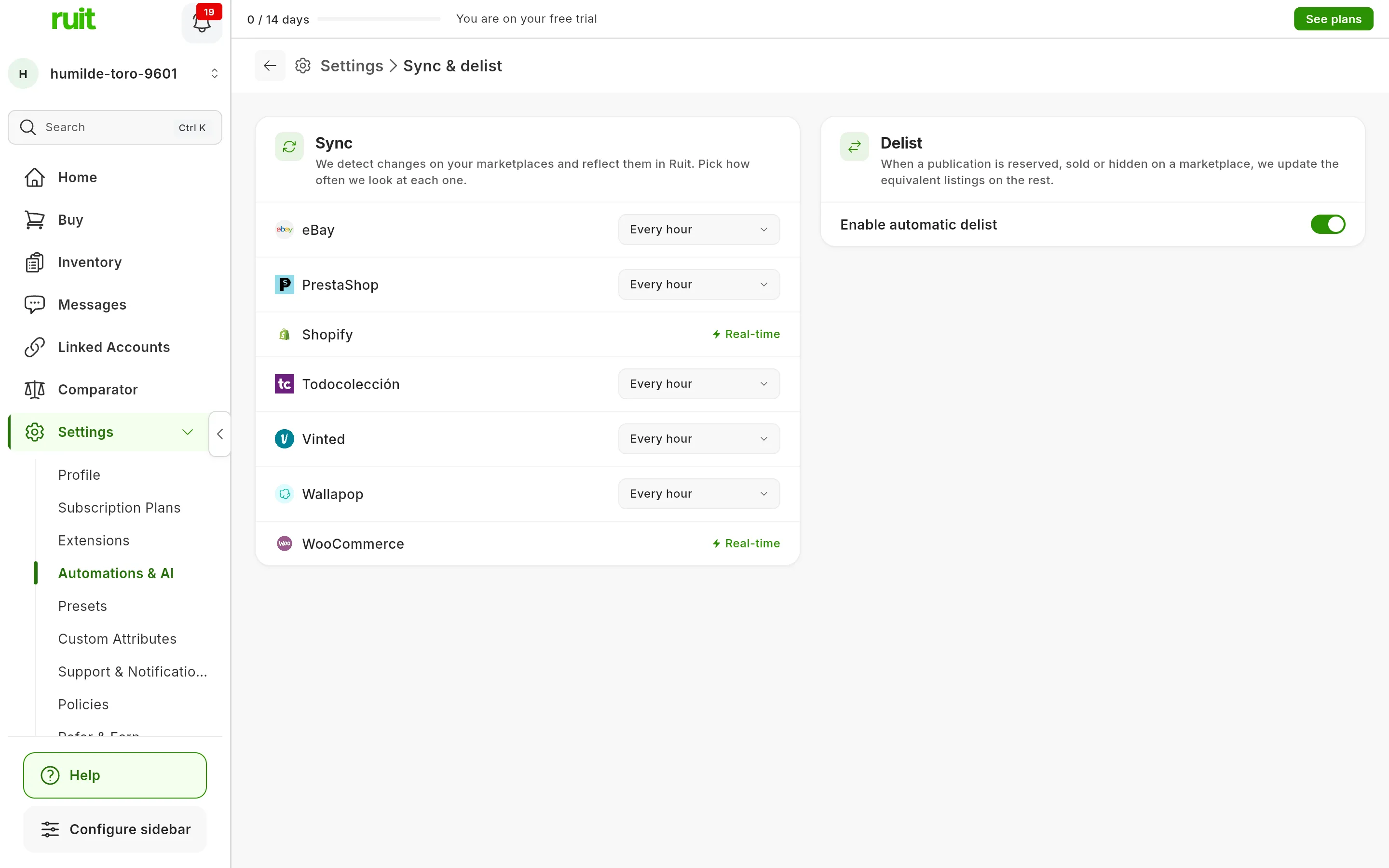
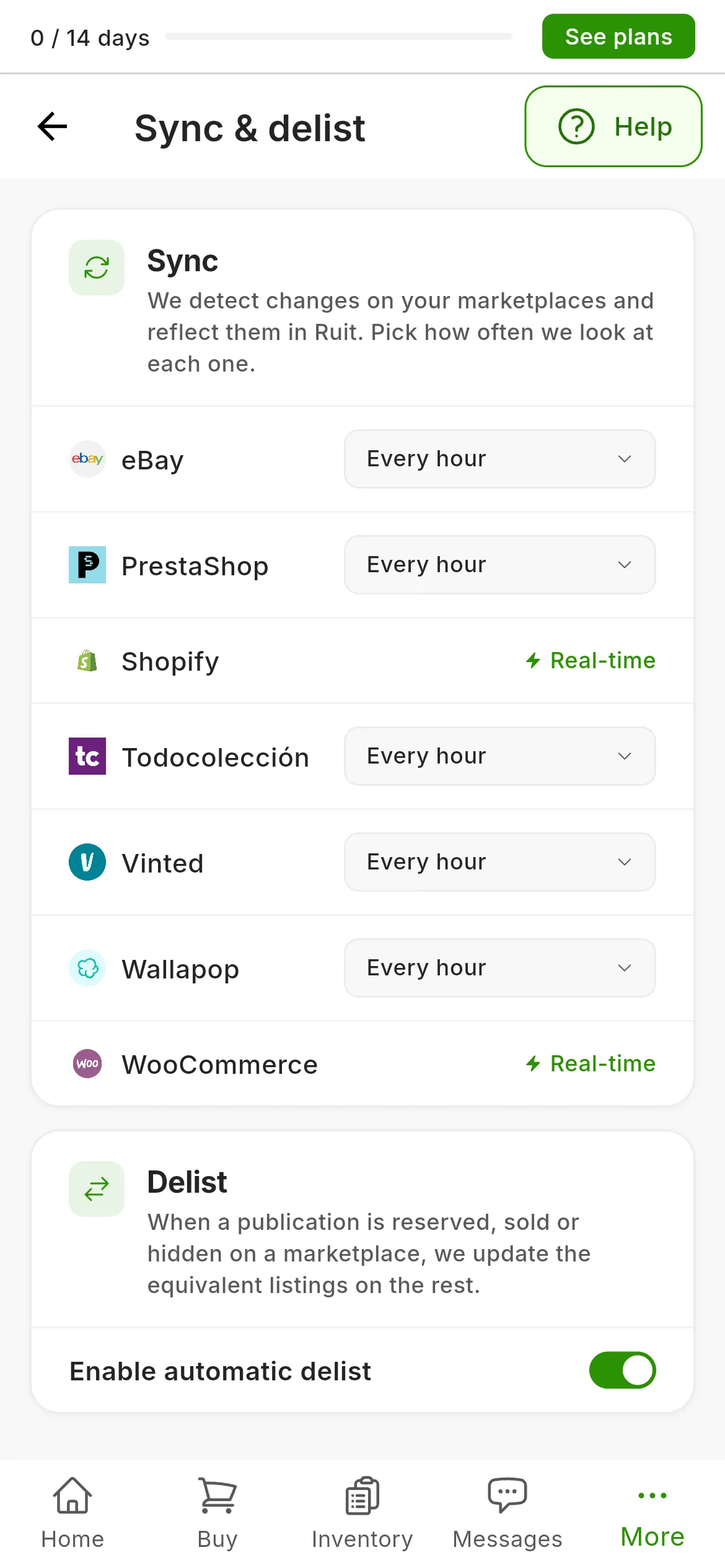
In the Delist card (1), Enable automatic delist comes switched on.
If you switch it off, RUIT stops delisting listings when a product runs out of stock, and those listings stay live. What it does keep doing is lowering the product’s stock with each sale and, when you delete a listing on Wallapop, Vinted, Todocolección or PrestaShop, delisting the product’s other listings, as explained next.
If you delete the listing on the marketplace
On Wallapop, Vinted, Todocolección and PrestaShop, RUIT finds out during the sync. So as not to mistake a temporary failure for a deletion, it waits until two syncs in a row cannot find the listing. Then:
- it marks that listing as Deleted;
- it delists the product’s other live listings, even if you have automatic delisting switched off;
- and, if it has delisted any, it lets you know with Publications Auto-Delisted.
The sync runs every hour, unless you change that marketplace’s frequency in the Sync card on the same screen. If RUIT does not manage to delist a listing, it keeps retrying for 48 hours. If it still cannot, it warns you with Listings Still Live: you have to delist that one yourself.
On the other marketplaces it is different:
- WooCommerce and Shopify: your store notifies RUIT straight away. The listing becomes Deleted and you get the Product Deleted notification, or Products Deleted on Shopify.
- eBay: a listing you end on eBay is not deleted. During the sync, RUIT marks it as Inactive, or as Sold if it sold at least one unit.
- IberLibro: RUIT cannot read your IberLibro listings, so it does not find out if you delete one there.
If an account’s listings disappear all at once
If almost all the listings of an account disappear at once, for example because the marketplace has restricted or closed it, RUIT does not delist anything on the other marketplaces. It puts the deletion on hold and warns you with Inventory Not Visible.
- Press Review account in the notification.
- On the account’s card, press Review.
- Choose Yes, delete elsewhere too if you deleted them yourself and want them gone everywhere, or Wait if it is something temporary: nothing is deleted, and everything carries on by itself when the account becomes visible again.
Video
Video not recorded yet: Delisting a listing and checking automatic delisting
Did this article help?
Thanks for telling us.