Publish many products at once
Tutorial for publishing several products on several accounts at once: choose the accounts and the schedule, start the job, follow it and retry or cancel.
In this tutorial you publish several products from your inventory on several accounts with a single job, and you follow it until it finishes. Starting it takes you about five minutes. The job itself lasts longer, because RUIT publishes little by little and only during the hours you allow.
You need a plan from Plus up, because bulk publishing is one of its features; complete products, none of them in Draft; and at least one connected account. For Wallapop and Vinted you also need the extension connected in the browser you connected the account with.
1. Tick the products
In Inventory → Products, tick the checkbox of each product you want to publish. The selection is kept even if you change page. Then open Bulk actions and choose Schedule Publications. On a phone, the list opens as cards: switch to Table to see the checkboxes. There, Bulk actions is the button with the layers icon, to the left of Import.
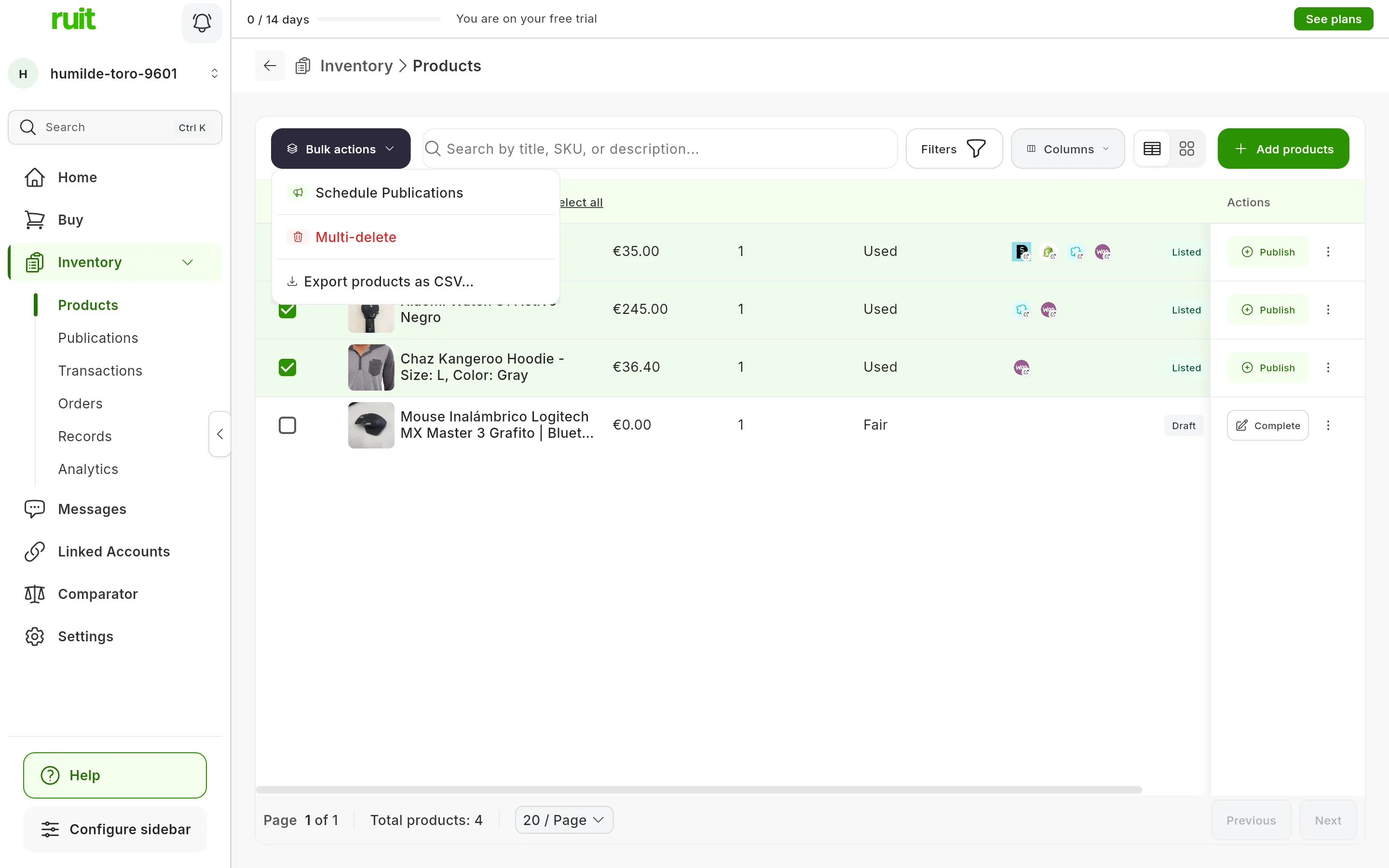
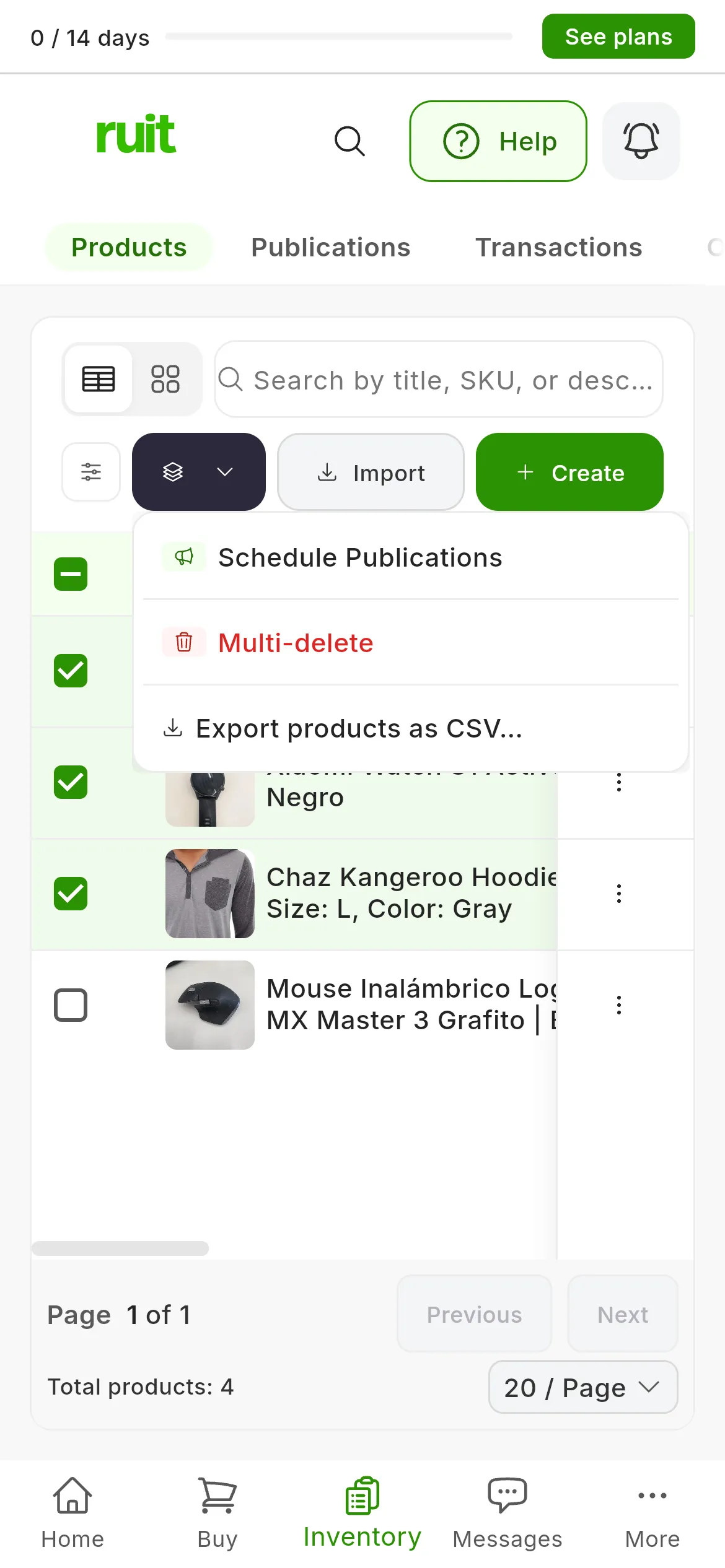
Schedule Publications (1), inside Bulk actions.
Keep the cap in mind from the start: a job allows 50 publications, and each product counts once for every account you publish it on. Ten products on five accounts make 50 and fit; twenty products on three accounts make 60 and do not.
2. Choose the accounts
The wizard opens on Select Accounts, with all your connected accounts. Tick the ones you want to publish on, or press Select all, and then Next.
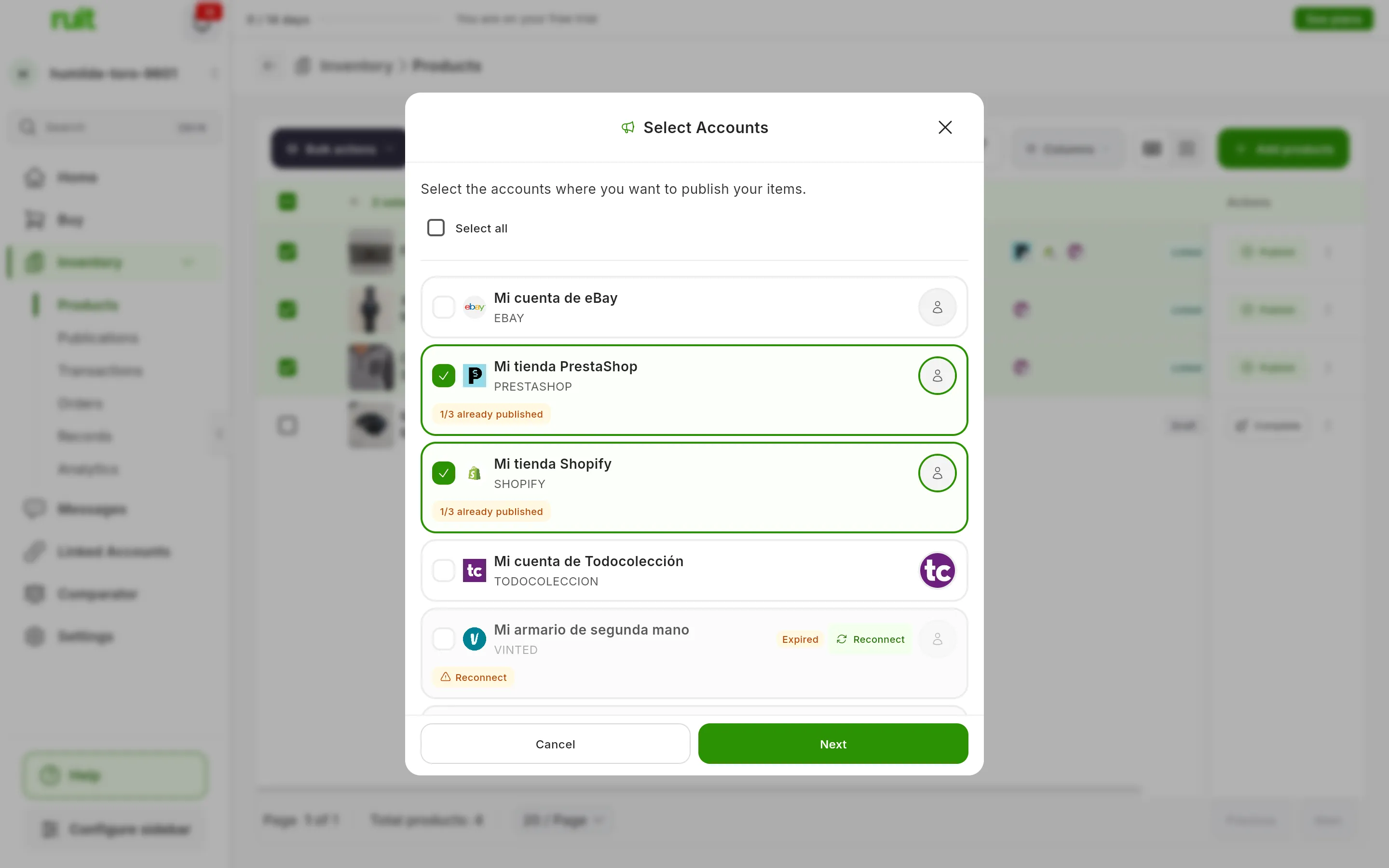
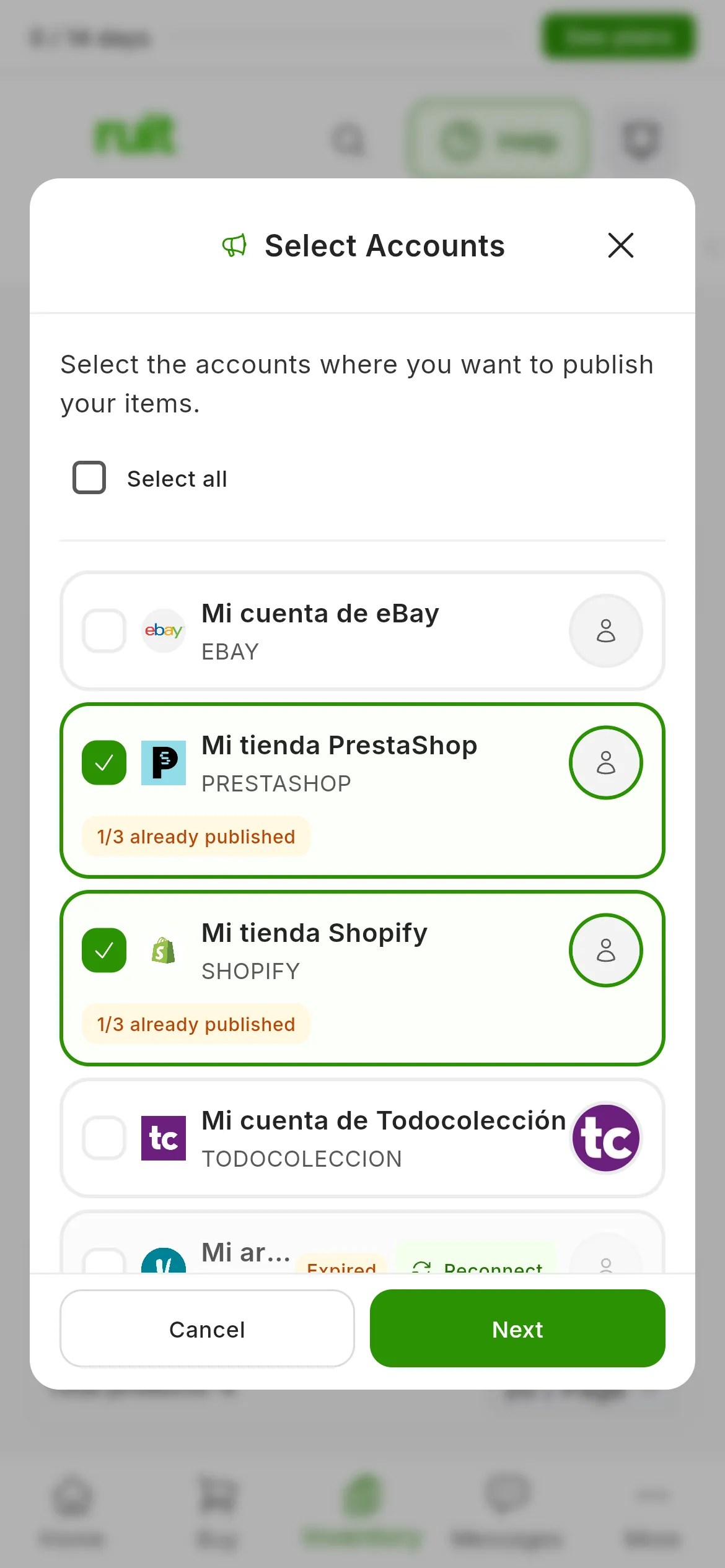
1/3 already published: one of the three products already has a listing on that account, and it is skipped there.
Some accounts carry a label:
- already published: every ticked product already has a listing on that account, so it cannot be ticked. If only some of them do, the label says how many, like 2/5 already published: those are skipped on that account and the rest are published.
- Expired: that account’s session has expired. Press its Reconnect button and you will be able to tick it.
- Restricted: the marketplace has restricted selling on that account. It cannot be ticked until the restriction ends.
An eBay account that is missing something it needs to publish, such as the business policies or the postal code, cannot be ticked either. Its line says what is missing and has a button to fix it.
3. Set the pace and the schedule
In Schedule you decide how often a listing goes out and at what hours. To start with, this is all you need:
- In Delay between publications, leave Auto · 2 min. About two minutes will pass between two listings on the same marketplace.
- In Activity hours, switch on the days you want to publish with their toggle. A day that is off says Disabled; one that is on starts with the 09:00 to 21:00 window, in Madrid time.
- Press Next, which becomes active as soon as one day has a time window.
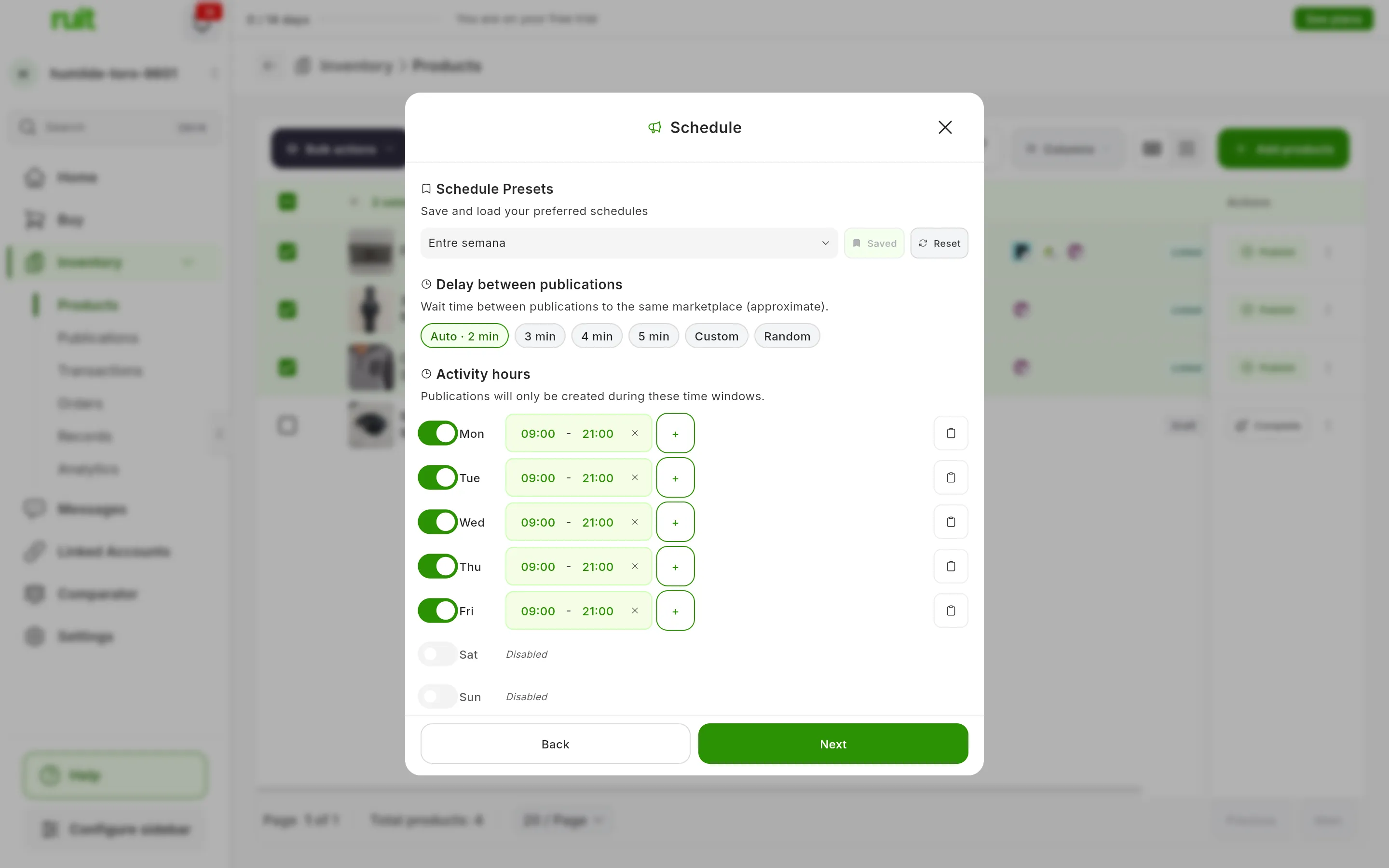
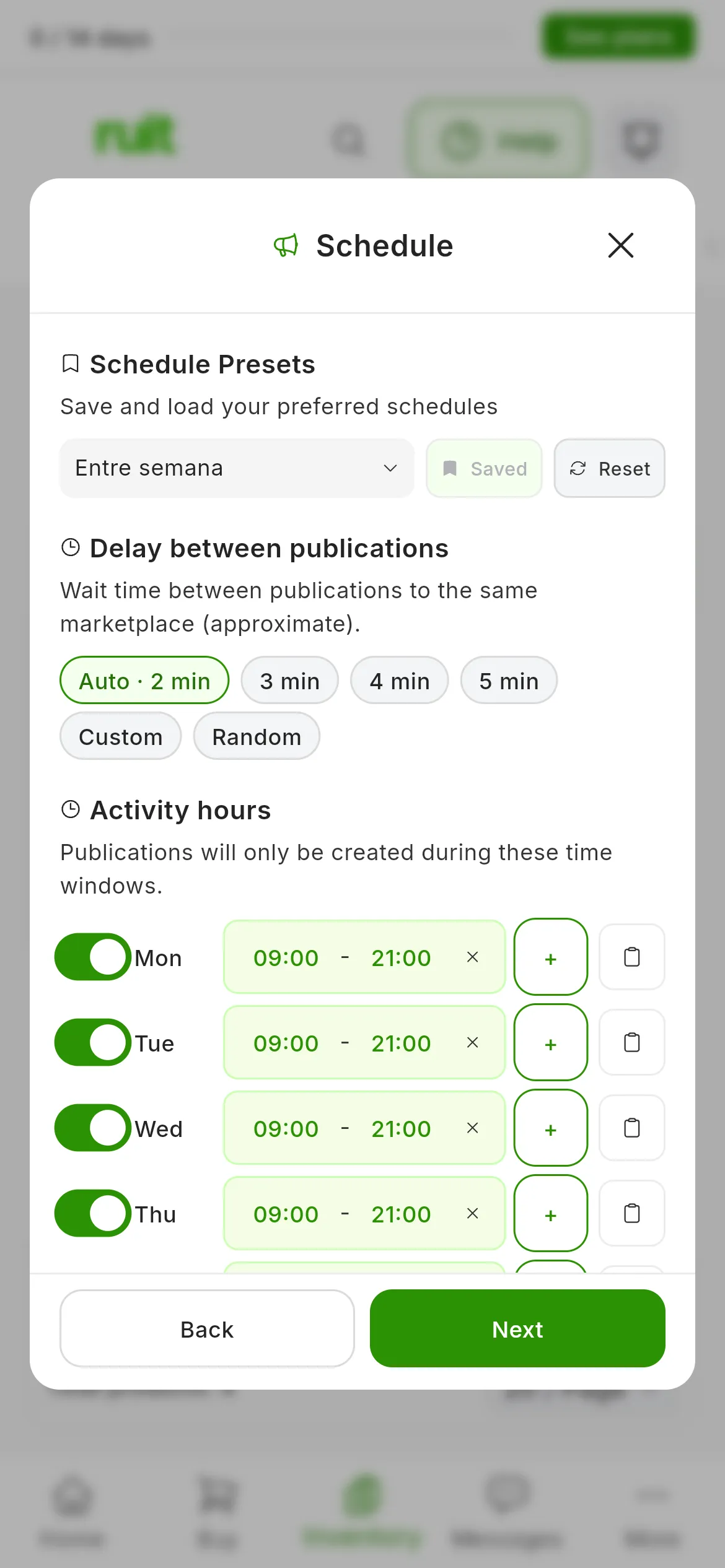
Here, with a preset loaded: Monday to Friday, from 09:00 to 21:00.
Changing the hours, setting two windows on one day, choosing a different delay or saving the schedule as a preset for next time are explained in Schedule and space out a bulk publishing job.
4. Review and start
Confirm sums up the job:
- The publication count: for example, 3 products × 2 accounts and, below it, = 6 publications.
- Roughly when it will finish: Today or Tomorrow with a time, or a date.
- The products, the Destination accounts and your schedule.
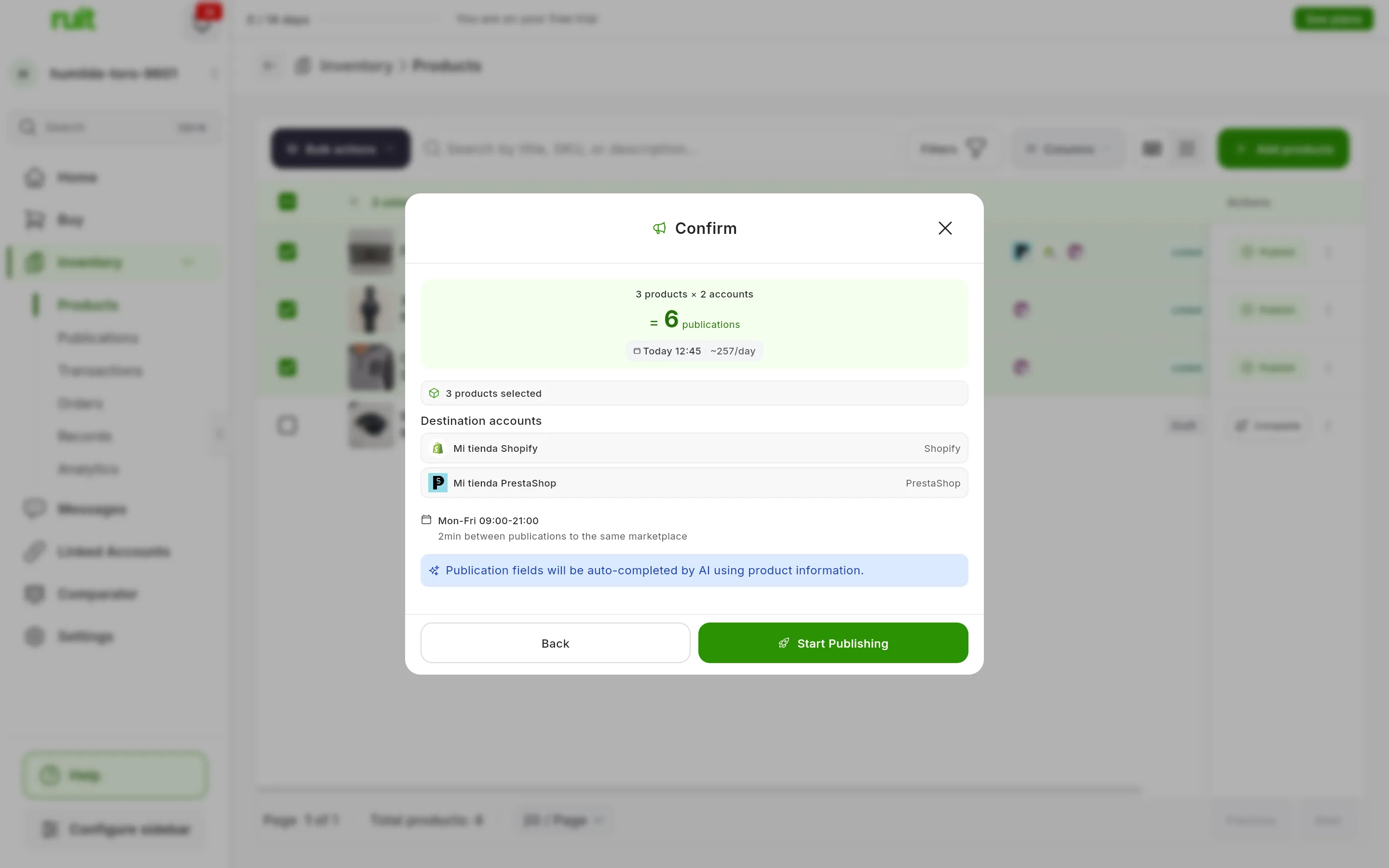
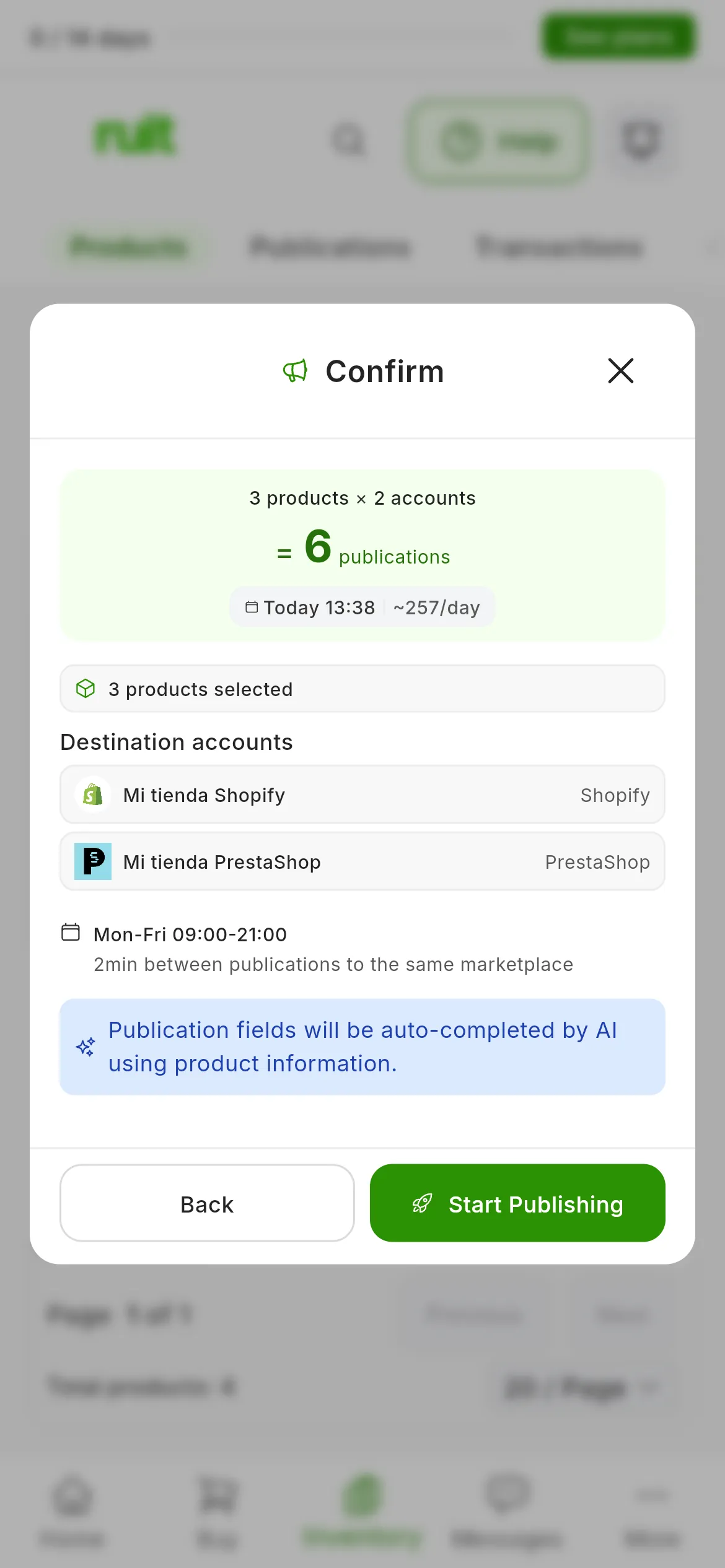
If you go over 50, Maximum 50 publications per job. Current: 60 appears in red, with your total, and Start Publishing stays disabled. RUIT does not split the job in two: go back with Back and deselect an account, or close the wizard with the X and deselect some products.
The blue notice says that the AI auto-completes each publication’s fields with the product information. Specifically, the AI chooses the category on each marketplace and fills in that category’s fields, such as the brand or the size. The title, the description, the price and the photos come from the product, adapted to each marketplace’s limits.
The photos go out as in any other publication, as What gets sent to each marketplace explains.
There is no preview in bulk. If you want to see and edit each field before it goes out, publish that product on its own, with its Publish button in the table. If everything looks right, press Start Publishing.
5. Follow the job
The wizard closes and the job window opens, Bulk publish, which updates by itself:
- At the top, how many publications it has in progress and, once it finishes, how many went out and how many failed.
- Under ACCOUNTS, what has been published, what has failed and what is pending on each account.
- Under SCHEDULE, your delay and your schedule.
- Under PRODUCTS, each product with one row per marketplace. The row says when it goes out, like in 4 min; Publishing… while it is being published, and Published once it is done, with View to open the listing.
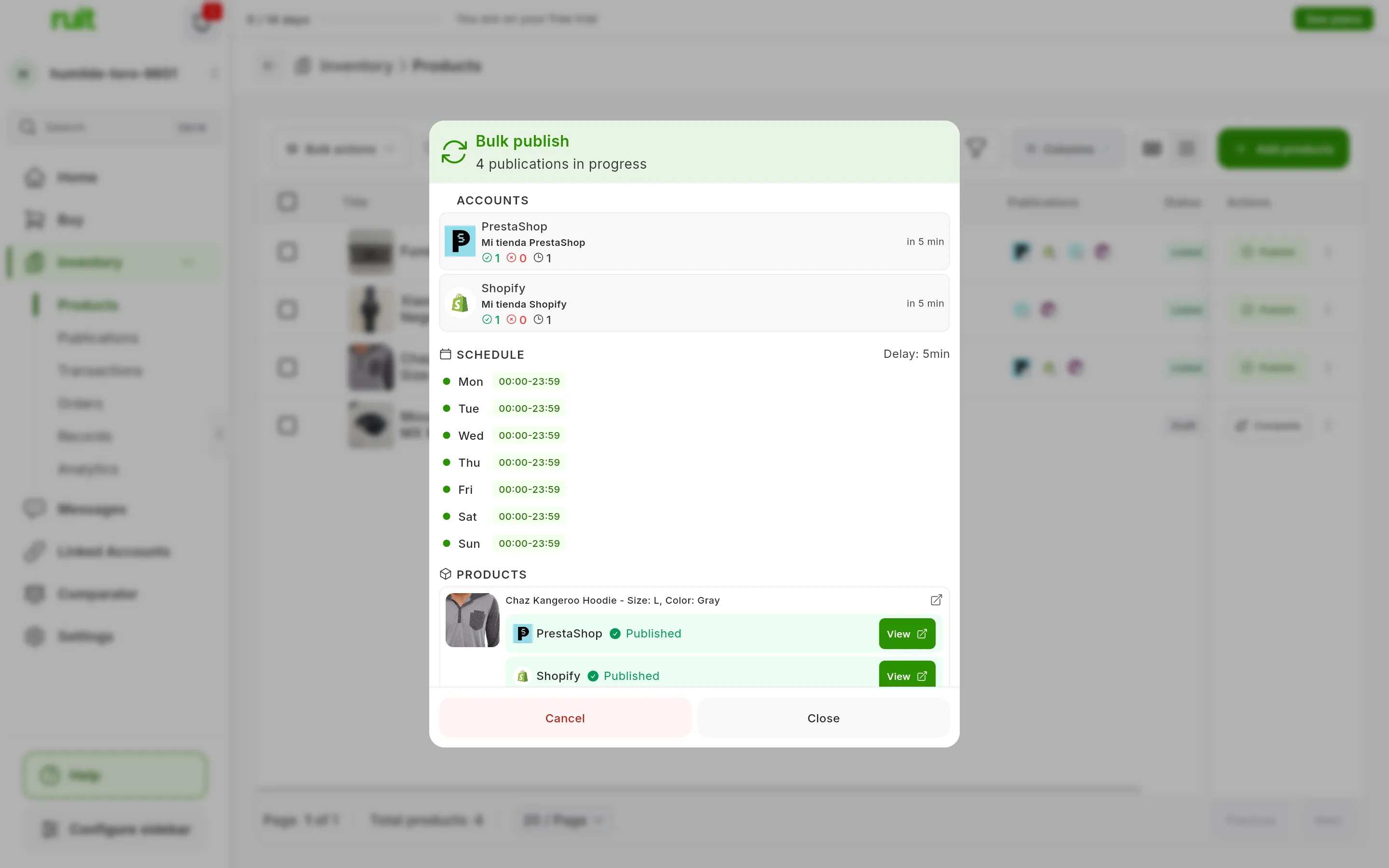
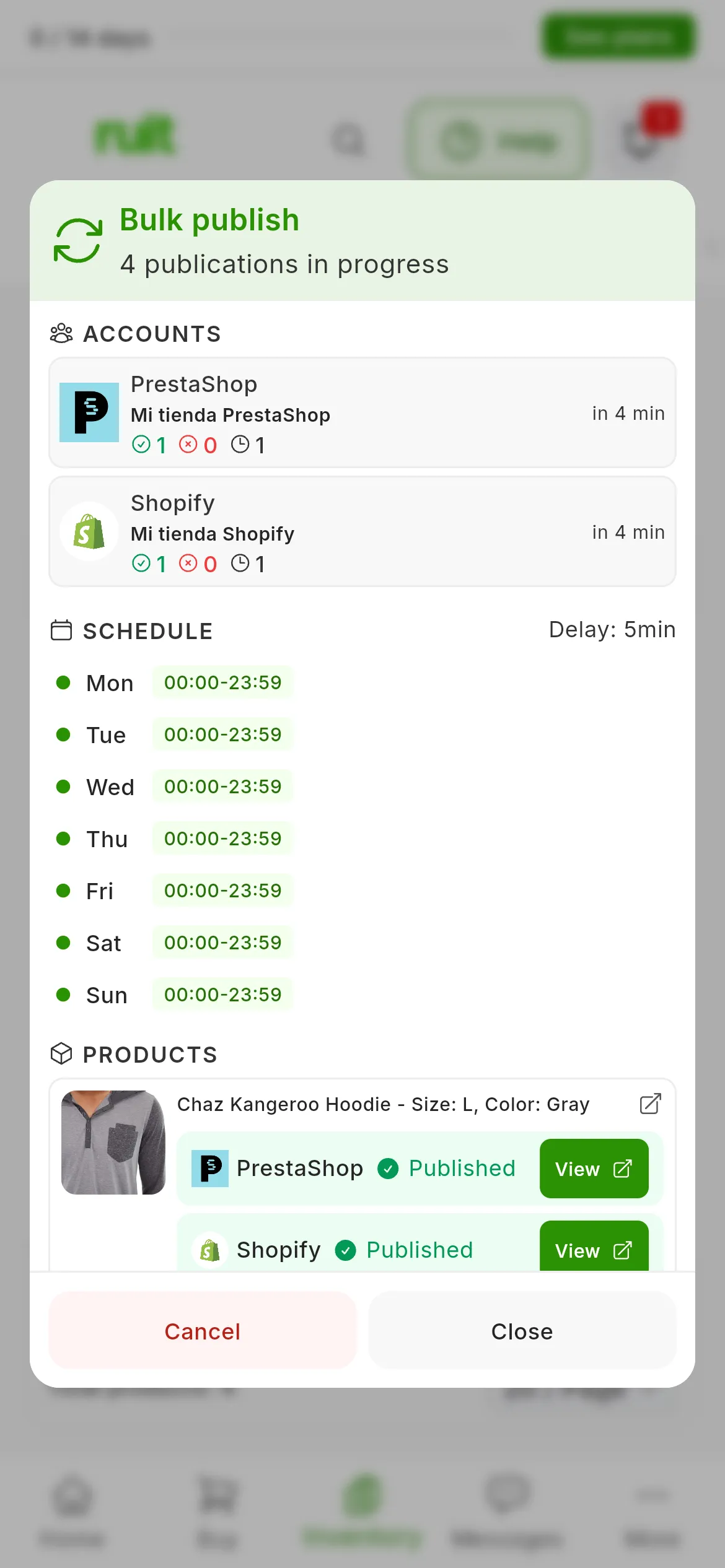
Each account shows how many it has published so far, how many have failed and how many are left.
You can close it with Close: the job keeps running. To get back to it, open the Activity Center with the bell. Each job has its Bulk publish card there, with its status, a progress bar and the counters of published, failed, skipped and pending publications. View details opens the job window again, and View in inventory shows you only that job’s products in Products.
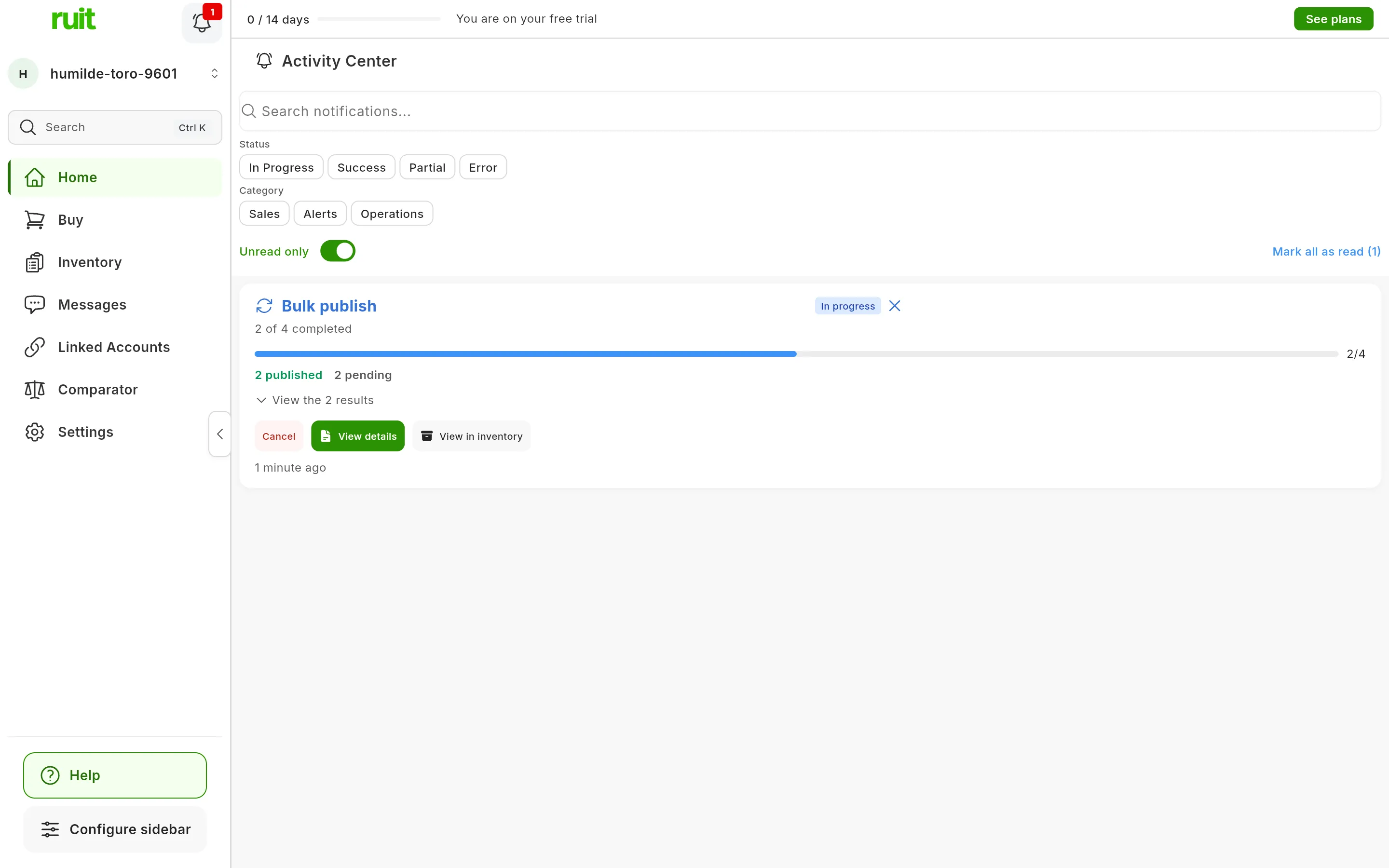
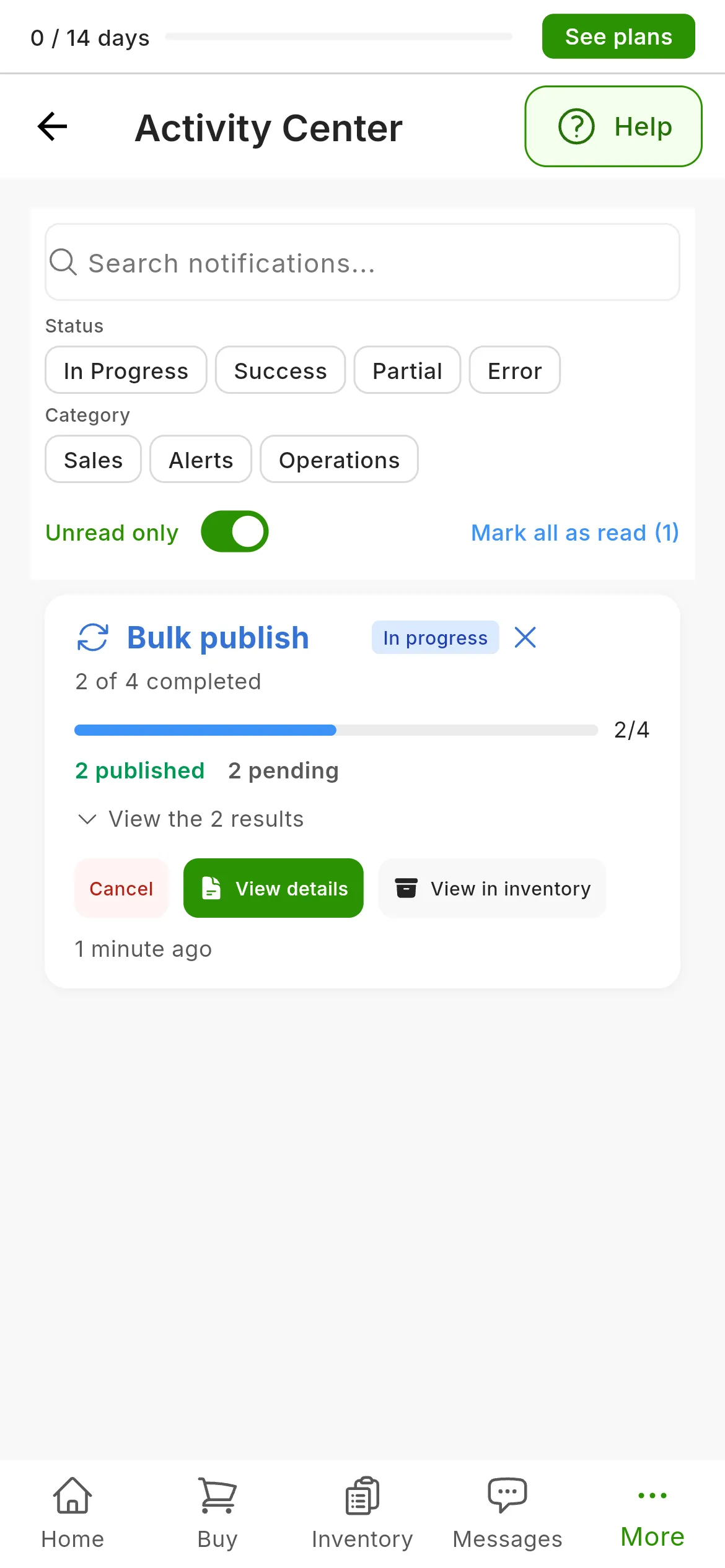
The card changes status along with the job:
| Status | When |
|---|---|
| Scheduled | Your schedule has not opened yet. Below, it says what time it starts |
| In progress | It is publishing |
| Completed | It has finished without errors |
| With errors | It has finished with some failed publications |
| Failed | It has finished without publishing any |
| Cancelled | You have cancelled it |
The progress can only be seen inside the app: no notification reaches your phone.
Wallapop and Vinted publications go out through the extension. If it is disconnected when their turn comes, or the browser is closed, they wait in Publishing… and go out as soon as it is back, within your schedule. If about 48 hours go by without it, they fail with the message that the extension was not connected. Whatever goes to the other marketplaces carries on at its own pace.
6. Retry whatever failed
A failure does not stop the rest of the job. The row that fails gives the reason, and the card sums it up: Last error: … while the job is still running and, once it finishes, the cause or a count of the errors.
RUIT retries temporary failures on its own, such as a timeout: up to three attempts, at your pace and within your schedule. What cannot be fixed by trying again, such as a product without a price, fails on the first attempt.
To recover the failed ones, fix whatever the reason says and press Retry failed. It is in the job window as soon as there is a failed one, and on the card once the job has finished. All the failed publications go back into the queue with their three attempts, at your pace and within your schedule.
If, when its turn comes, a product already has a listing on that account, RUIT does not duplicate it: it skips that row, which says why. Skipped rows are not retried.
7. Cancel, if you change your mind
While the job is running, Cancel stops it, from the job window or from its card. It does not ask for confirmation. Whatever was pending becomes Cancelled, and what has already been published stays published: if you do not want it, delist it.
A cancelled job cannot be resumed. To publish what was left, press View in inventory on its card, tick those products and start another job. Whatever already has a listing on an account is skipped automatically.
What you have achieved
Your products are published on the accounts you chose, and you know how to follow a job, recover what fails and stop it. The listings the job has created are ordinary listings: you see them on each product’s page and in Inventory → Publications. In Products and in Publications, the Bulk publish job filter shows you what belongs to each job.
Next step: scheduling and spacing out a bulk publishing job, to fine-tune the pace and save your schedule as a preset.
If something is off
- The job is not created and it says everything is already published or queued. Every ticked product already has a listing on the accounts you chose, or is waiting in another job that has not finished. Choose other products or other accounts.
- The job has fewer publications than Confirm said. When it creates the job, RUIT skips the products that already have a listing on that account and those in another job’s queue, so as not to duplicate them.
- A Wallapop or Vinted publication stays in Publishing… for a long time. It is waiting for the extension, which has to be connected in the browser you connected the account with: another open browser does not count. Check it with Check that the extension is connected.
- “The Chrome extension was not connected…” The publication waited for the extension and it did not connect in time. Connect it and press Retry failed.
- “Required fields are missing: …” The AI could not fill in a field the marketplace requires in that category. Publish that product on its own, with its Publish button, which lets you see and fill in every field.
- “The item has no valid price…” Give the product a price and press Retry failed.
- You corrected a product after starting the job. There is no need to start it again: each publication reads the product when its turn comes, so the remaining ones will carry the change.
- The listing went out with a different title and description. That happens when relisting something that had already sold or been deleted on that account, and it is covered in the Sales section.
- You cannot see a teammate’s job. Each person sees, cancels and retries only their own jobs.
Video
Video not recorded yet: Starting a bulk publishing job and following it
Did this article help?
Thanks for telling us.