Your profile
How to change your photo, your username and your name, your account's language and currency and your password, sign out and delete your RUIT account.
Profile brings together your RUIT account’s details. On a computer, press Settings in the sidebar: it is the first page that opens. You also get there with Profile, on the card at the top of the sidebar. On a phone, tap More and then the card with your name.
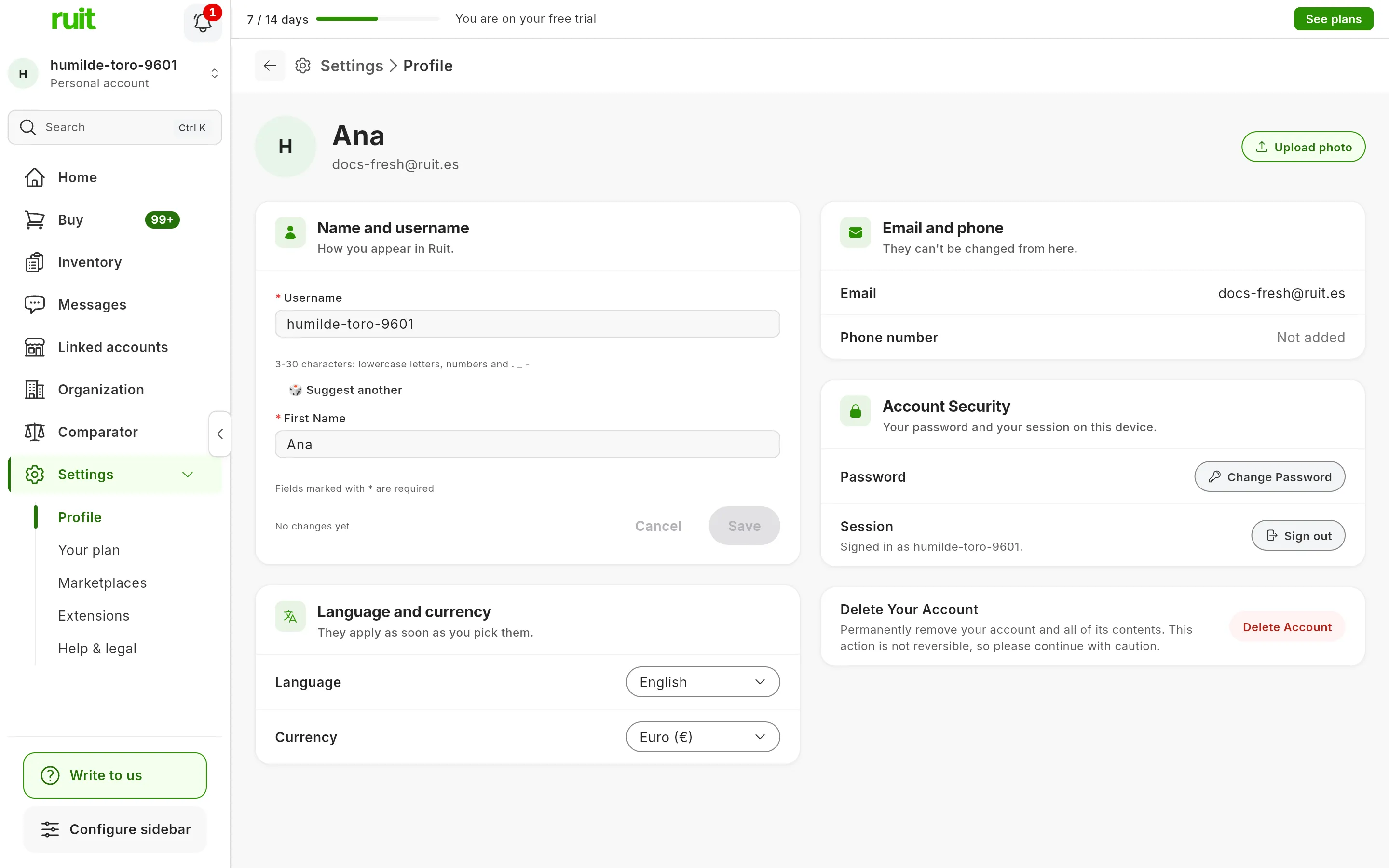
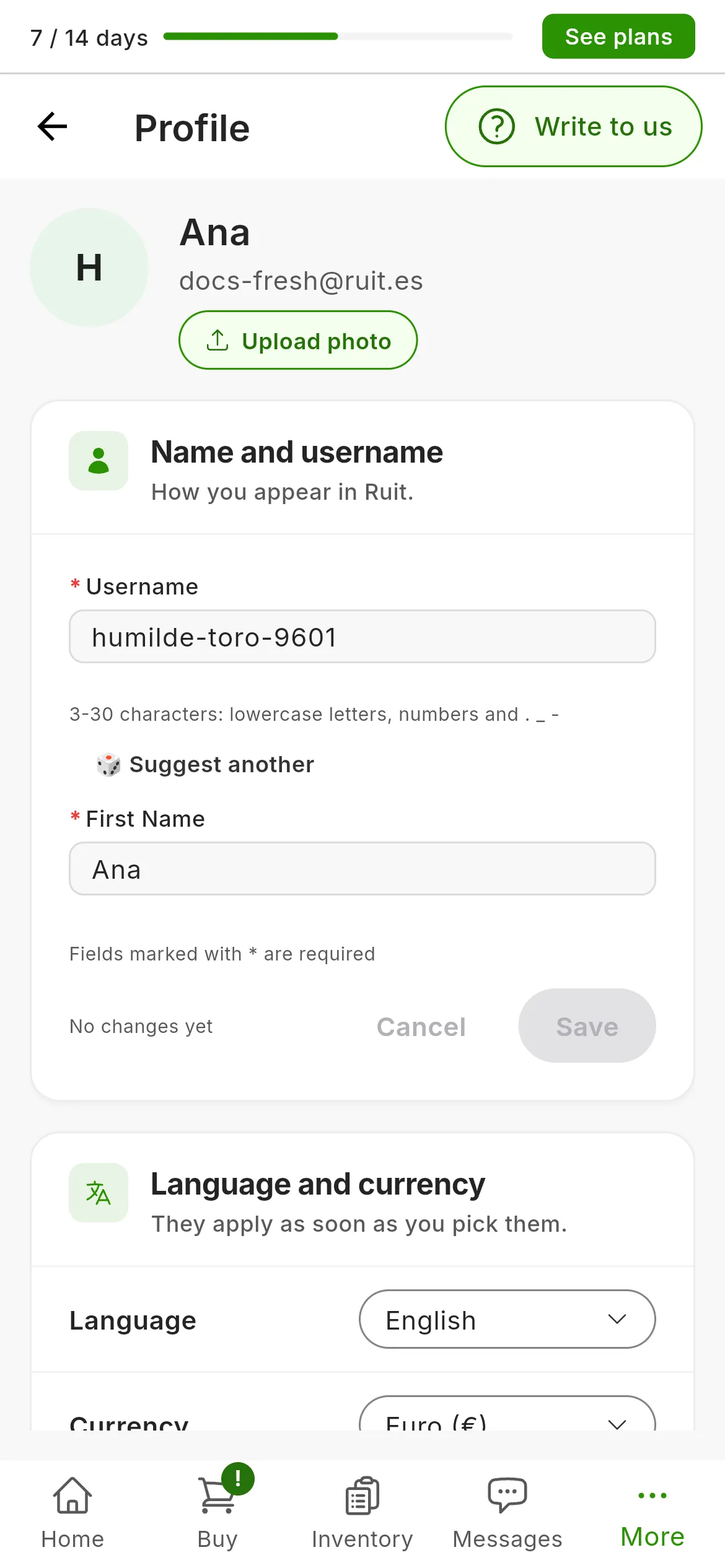
Profile, from top to bottom: your photo (or your initial, if you have not uploaded one), your name and username, the language and currency, the email and phone, and account security.
Your photo
At the top is your photo, or your initials if you have none. Upload photo adds one and Change photo replaces it: it accepts JPG, PNG, WEBP, AVIF, GIF and HEIC. It shows in the sidebar and on your account. Remove photo brings the initials back.
Your username and your name
Name and username holds your Username and your First Name, both required.
-
Type the new username. It is 3 to 30 characters long, and it only takes lowercase letters, numbers and the characters
.,_and-. If you type a capital letter, it is converted by itself. -
Wait until it says Available. If someone else already has it, RUIT suggests others under Try one of these:, and Suggest another gives you more.
-
Press Save. If you have changed the username, RUIT asks you to confirm it, and the Confirm button becomes active after five seconds.
After a change, the username stays locked for 30 days: the field says so with You can change it again in and the days left. You can change your First Name whenever you like. Cancel undoes anything you have not saved.
The language and the currency
What you choose under Language and currency applies at once, without saving.
- Language is the app’s language, and also the language of the emails and notifications RUIT sends you and of the texts the AI writes for you. You can choose Spanish, English, French, Italian, German, Dutch, Polish or Portuguese.
- Currency, euro or pound sterling, is the one your new products carry by default and the one for the amounts you type in filters and saved searches. It converts nothing: each price is shown in its own currency.
Your email and your phone
Email and phone shows your Email and your Phone number, with the last four digits visible and the Verified or Not verified label. If you have not added it yet, it says Not added: your phone is verified when you connect your first account, as Verify your phone in RUIT explains.
Neither of them can be changed from here. If you need to change one, write to us through the chat in Help & legal.
Your password and your session
Under Account Security:
- Change Password asks for your Current Password, the New password and Confirm New Password. The new one needs at least 8 characters, an uppercase letter, a lowercase letter, a number and a special character, and the window ticks off each rule as you meet it.
- If you signed in with Google or Apple and never set a password, the button says Set Password and does not ask for the current one.
- Sign out, under Session, signs you out of RUIT on this device once you confirm it.
Delete your account
At the bottom of Profile, Delete Account deletes your RUIT account and everything in it. It cannot be undone.
-
Press Delete Account.
-
Read what is going to be deleted: your saved searches, your liked items, your products and listings in RUIT, your account details and the connection to your marketplaces.
-
Type DELETE and press Delete Permanently.
If you pay for a plan, the subscription is cancelled along with the account. If you have created a team organization, RUIT does not let you delete the account from here: write to us through the chat and we will sort it out with you.
Did this article help?
Thanks for telling us.