Your plan
What the Your plan page shows: your plan and its date, how much of each limit you use, the speeds it sets and, if you are the owner, payment and invoices.
Your plan shows the plan you have, how much of it you use and, if you are the owner, what you pay. It is in Settings and on the card at the top of the sidebar. On a phone, tap More and then Settings → Your plan.
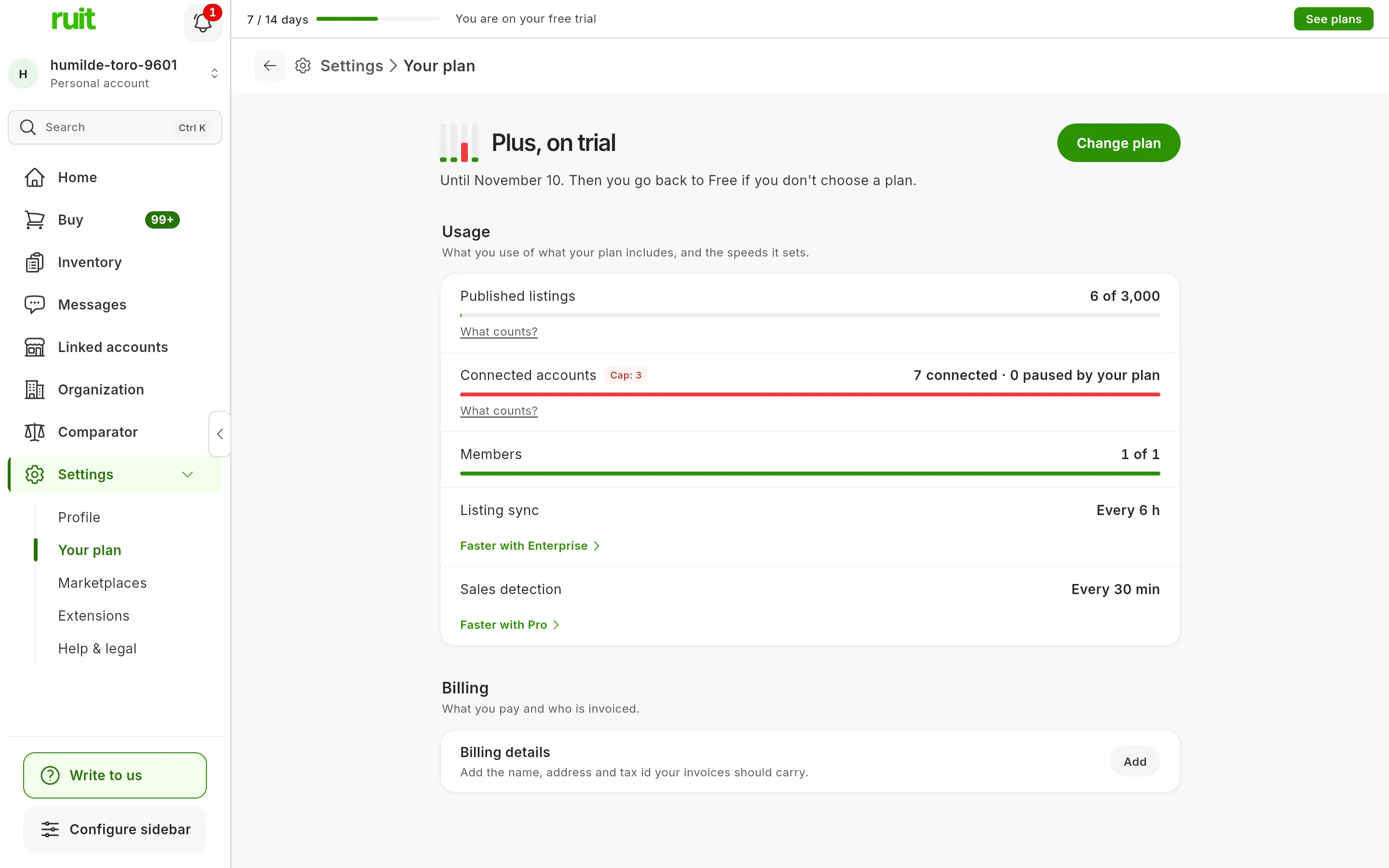
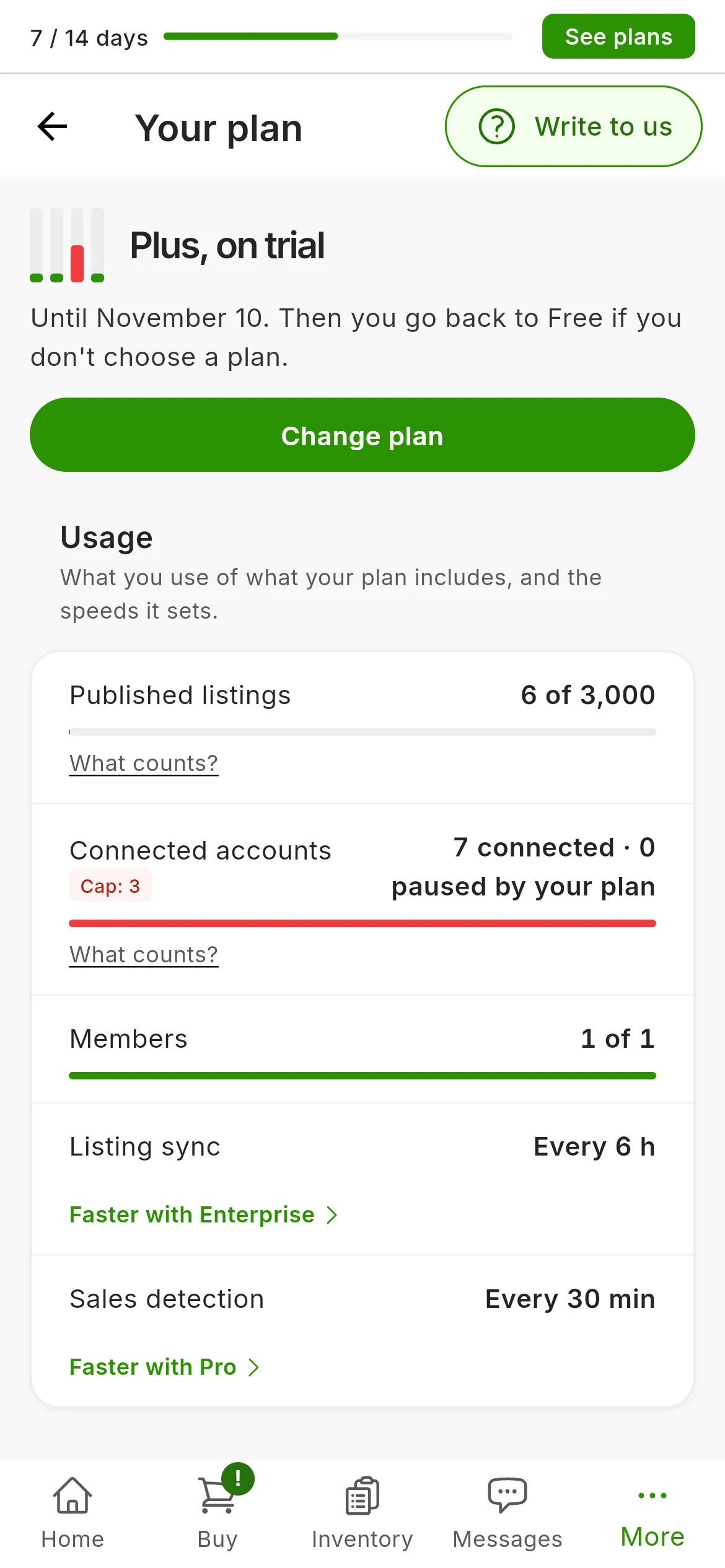
Your plan with its header and the Usage section. Billing shows up below if you are the owner and have a paid plan or invoices.
Your plan and its date
At the top are your plan’s name and a line with its date:
| If you have | The page says |
|---|---|
| Free | Free, with no end date. |
| A trial | The plan with on trial and Until with the date: after that you go back to Free if you do not choose a plan |
| A paid plan | Renews on and the date |
| An older plan | The Older plan label and Your long-standing plan, with everything it had. |
Choose a plan, if you are on Free, or Change plan in every other case, opens the plans window, where you subscribe: Subscribe to a plan explains it. With an older plan there is no button.
If you work in an organization and are not its owner, the page says The owner of, then the organization’s name, and manages the plan. Only the owner changes the plan and sees the billing.
What you use
Usage compares what you use with what your plan includes. There is one row per limit: Published listings, Connected accounts and Members. Each one says how much of the total you use, Up to how many it goes, or No limit. When you get close to the cap, the row shows how many you have left, and when you reach it, Used up. What counts? explains what goes into each limit.
If you have more connected accounts than your plan allows, the Connected accounts row says how many are paused and links to Choose active accounts, which Manage your connected accounts explains.
When a limit goes past 80%, the plan that would give you more appears under your plan, with See plans. It does not show during a trial or with an older plan.
Your plan’s speeds
The last two rows of Usage are speeds: Listing sync, how often RUIT reads your listings on the marketplaces, and Sales detection, how often it checks whether you have sold something. Your plan sets them, you do not choose them, and if a higher plan is faster, the row says so with Faster with and the plan’s name. The speeds of each plan, and what changes on each marketplace, are in Your marketplace settings.
Billing
Only the owner sees Billing, and it appears when there is something to bill: a paid plan or earlier invoices.
- Next charge: the date and the amount.
- Payment method: you change it in the Stripe portal, with Manage. From the mobile or desktop app, RUIT emails you the link to the portal.
- Billing details: the name, address and tax ID your invoices carry. Add or Edit opens the form, explained below.
- Invoices: how many you have and when the last one was. See invoices opens the list, with View and Download PDF on each one; Your RUIT subscription invoices explains it.
Your billing details
-
In Billing details, press Add or Edit.
-
Choose Individual or Company.
-
Fill in Full name, or Company name if it is a company, the Address, the City, the Postal code and the Country. The email, the phone and the province or state are optional.
-
Enter the Tax id, which is required for a company. Its type is worked out from the country you have chosen.
-
Press Save. RUIT confirms it with Billing details saved.
The new details appear on the invoices that follow.
If you have a pending payment
If a charge fails, Your plan warns you at the top with Your subscription is pending payment. Pay the invoice takes you to pay what is outstanding; if there is no invoice to pay, Write to support opens the chat. Payment and subscription problems explains what happens in the meantime.
Did this article help?
Thanks for telling us.