Automatic price drops
How to create a rule that lowers your listings' price every so often, how far it goes, which marketplaces it works on and what pausing or deleting it does.
A price drop rule lowers the price of your listings little by little: every so many days, by a percentage, down to a maximum discount. It helps you shift what has gone a while without selling, without having to remember each listing.
The rules are in Settings → Marketplaces, on General, at the end of Publishing, under Automatic price drops. The owner and the admins create and change them; the rest of the team can only see them.
Where they work
The rules lower the price on Wallapop, Vinted, PrestaShop and IberLibro. On the other marketplaces they do not work yet, even if they show up when you choose one.
They change the price of the listing you already have published, without publishing it again. On Wallapop and Vinted the extension does it, so it has to be connected. Your product’s price in RUIT does not change: only the listing’s.
Create a rule
-
Press New rule.
-
Give it a Name, for example “Summer markdowns”.
-
Choose how many days apart it drops in Lower every, how much it drops each time in Reduce by and how far in Max. discount. The defaults are 10 days, 5% and 30%.
-
Choose the Rounding, which is explained further down.
-
In Marketplace, leave All marketplaces or choose one.
-
If you only want to mark down the listings that have been published for a while, fill in Min. days listed.
-
Leave Active on and press Save.
While you fill it in, the window sums up in one sentence how the price will drop.
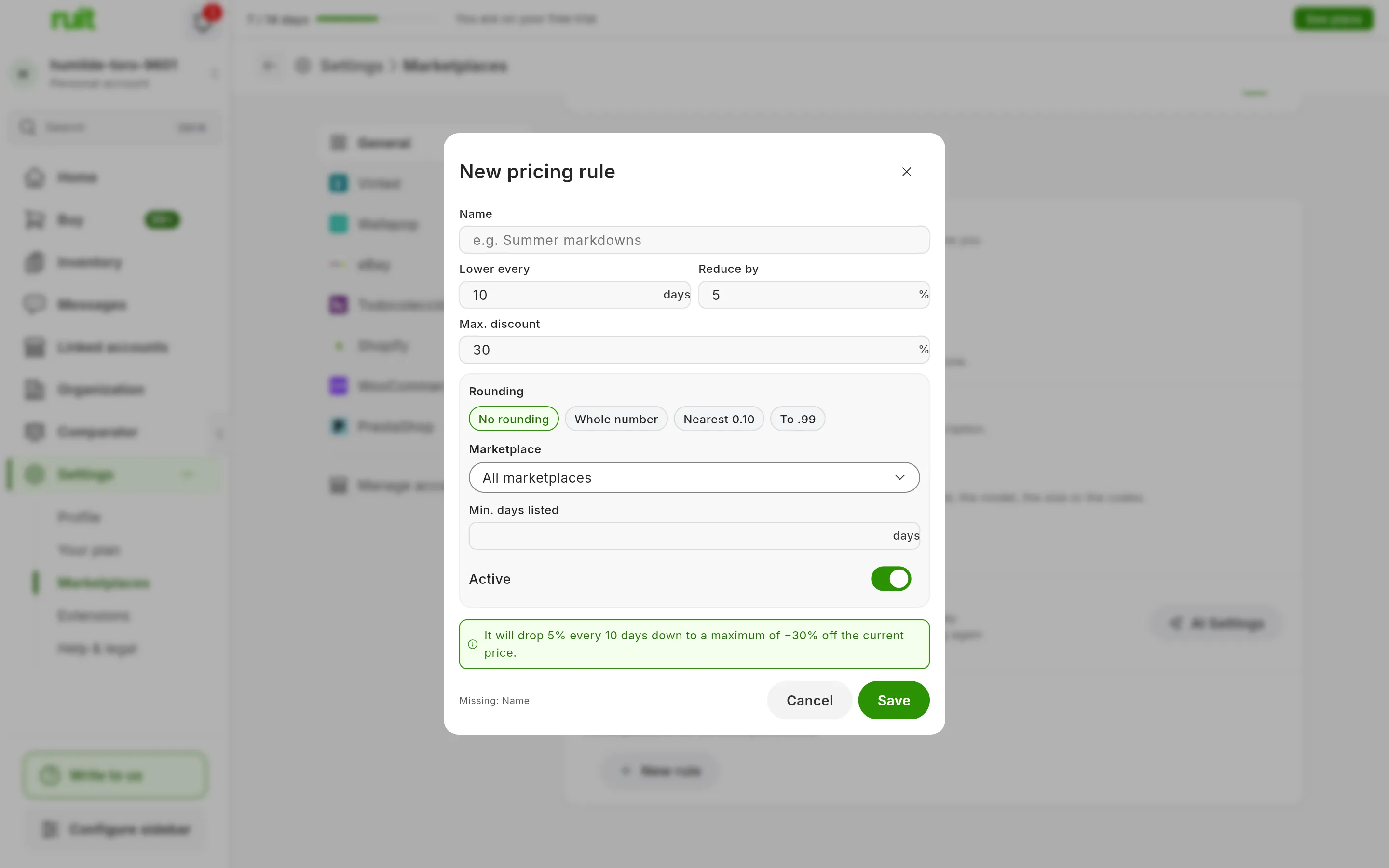
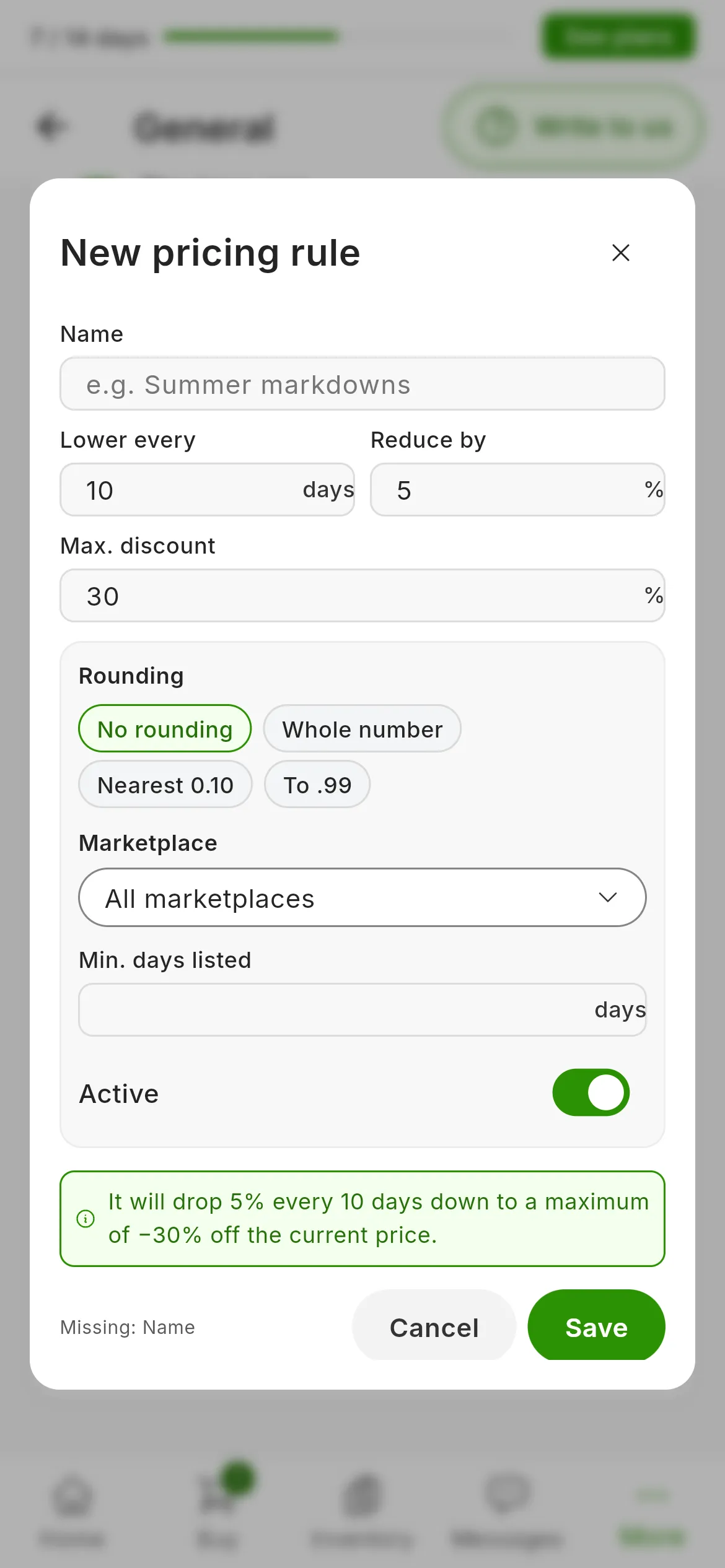
A new rule with the default values: every 10 days, 5%, down to 30%.
How the price drops
When a rule starts applying to a listing, it takes the listing’s price at that moment as the starting point. The first step comes after the number of days you have set, and each following step the same number of days after the one before. Each step takes the percentage off the price the listing has at that moment, so the steps get slightly smaller as they go. The maximum discount is counted on the starting price, and the rule stops when it reaches it.
A €20 listing with a rule of every 10 days, 5% and a maximum discount of 30%:
| Day | Price |
|---|---|
| 0 | €20.00 |
| 10 | €19.00 |
| 20 | €18.05 |
| 30 | €17.15 |
| 40 | €16.29 |
| 50 | €15.48 |
| 60 | €14.71 |
| 70 | €14.00, the maximum: the rule stops |
If you change a listing’s price by hand, the rule starts from that new price. The price never goes below the minimum the marketplace accepts, which on Vinted is €1. RUIT checks the rules every hour and lets you know when it has lowered a price or something has failed.
Rounding
| Option | What it does with each step’s price |
|---|---|
| No rounding | Leaves it with its cents |
| Whole number | Takes it to the nearest euro |
| Nearest 0.10 | Takes it to the nearest ten cents |
| To .99 | Takes it to the nearest euro and takes one cent off: €12.40 becomes €11.99 and €12.60 becomes €12.99 |
If the rounding would not lower the price, the price stays as it was.
Which listings it applies to
- Only listings that are for sale: it does not touch reserved, hidden or sold ones.
- Each listing follows a single rule, the first one that picks it up.
- Min. days listed counts from when the listing exists in RUIT: for imported ones, from the import. When you renew a listing, the new one starts from zero.
- It skips the listings of accounts that cannot publish, for example with selling restricted on Vinted or paused by your plan, and on Wallapop and Vinted, while the extension is disconnected. When they are fine again, the rule carries on with them. If an active rule affects an account with selling restricted, General warns you above the list.
- If a listing fails three times in a row, it drops out of the rule. If you want it back, write to us through the chat.
Pause, change or delete a rule
- Each rule’s switch pauses it without losing where it had got to.
- Each rule’s ⋯ menu has Edit and Delete.
- Pausing or deleting a rule does not restore the prices: whatever has already dropped stays that way.
- If your plan does not include price drops, the rule shows a padlock and is not applied. Tapping the padlock opens the plans window; with a plan that includes them, the rule carries on where it was.
Did this article help?
Thanks for telling us.